
WhatsApp Voice Call
Phone Icon
WhatsApp Voice Calling in ROUBOT
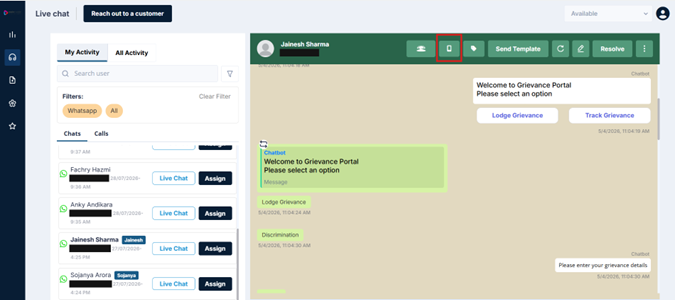
The phone icon opens ROUBOT's WhatsApp Voice Calling feature. This lets you make or receive voice calls with customers directly through the platform — no separate phone line needed.
Outbound Calls — Calling the Customer
When you initiate a call from ROUBOT:
-
Click the phone icon in the header
-
A consent request is automatically sent to the customer on WhatsApp before the call is placed. This is a platform-level safeguard — the customer must agree to receive the call
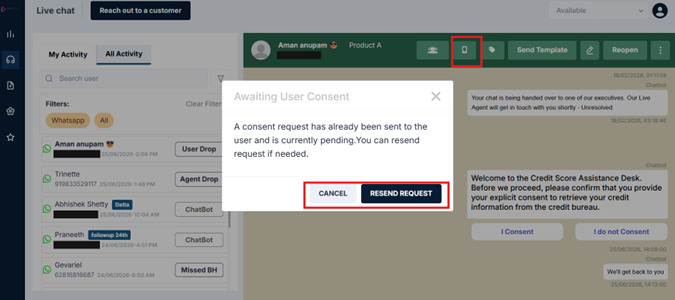
-
Once the customer accepts the consent, the call is connected
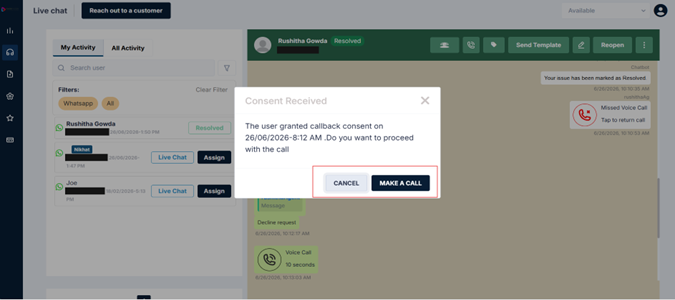
-
A call window appears on your screen — you can speak with the customer and end the call from here
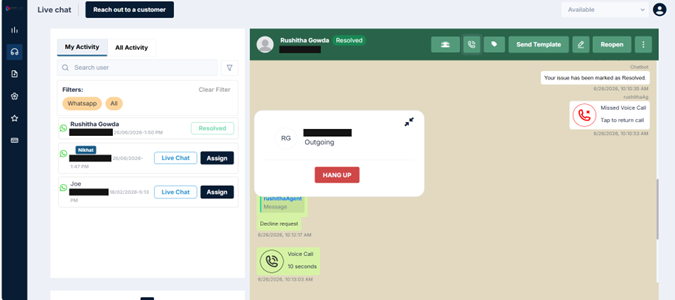
-
When the call ends, a call notification appears in the message thread, showing the call duration
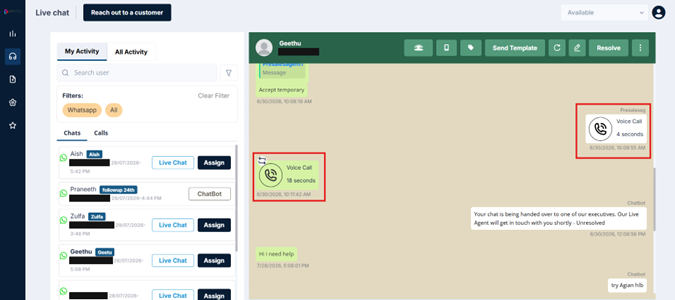
Consent first, always: ROUBOT does not allow agents to call customers without a prior consent request. This protects customers from unsolicited contact and ensures the platform stays compliant with WhatsApp's policies.
Understanding Consent Types
When the consent request is sent, the customer is given three choices to respond with. The option they select determines whether and for how long you'll be able to call them.
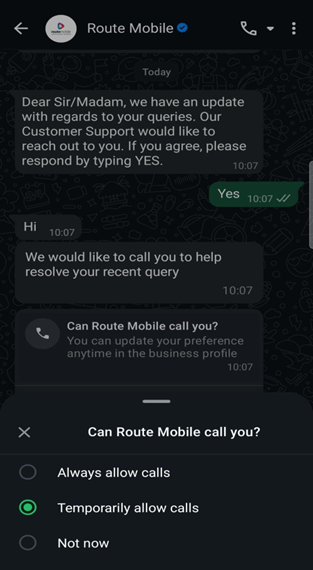
| Consent Type | What It Means | What It Looks Like on Your Panel |
|---|---|---|
| Allow Always calls | The customer permits voice calls with no time restriction. Both you and the customer can call each other freely going forward. | The call icon becomes permanently enabled for this conversation. |
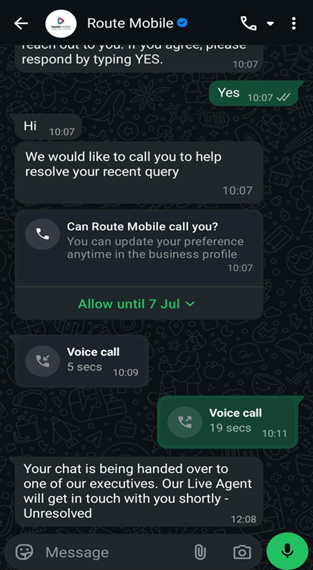
| Temporarily allow calls | The customer permits voice calls for a fixed period of 7 days from the time of acceptance. This duration is not configurable. | The call icon is enabled, and the panel shows the validity. After 7 days, the icon is disabled again unless the customer re-consents. |
| Do Not Allow | The customer declines to receive voice calls. | The call icon remains disabled. You'll only be able to send a consent request — not place a call. |
Important: Until the customer responds, the call icon stays disabled. The moment they accept (Allow Always or Allow Temporarily), the call icon activates immediately on your panel.
Inbound Calls — Customer Calling You
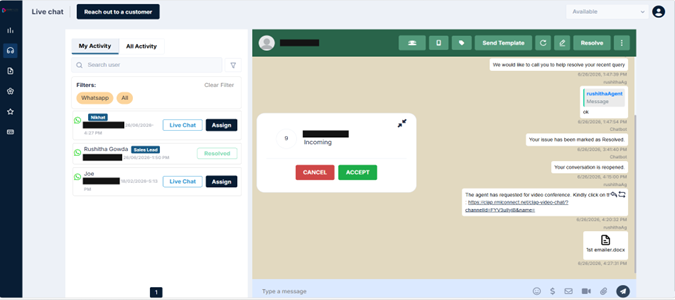
Customers can also initiate a WhatsApp voice call to you. When this happens, a call popup appears on your screen, similar to an incoming call notification. You can accept or decline from there.
Pro Tip: Once your call ends, take a moment to log what was discussed. You can do this using the Notes feature available in the conversation header — we'll cover exactly how to use it later in this section.
A Quick Note on the Customer's Side
The voice call icon only appears on the customer's WhatsApp chat screen if your organization has specifically opted in for WhatsApp Calling. If this hasn't been enabled at the brand level, customers won't see a call icon at all — regardless of consent given.
This means even after a customer grants consent through ROUBOT, their ability to call you back depends on whether WhatsApp Calling is enabled for your brand.
Updated 3 months ago