
Quick Send
What Is Quick Send?
Quick Send is your personal template library — a collection of pre-written messages that you can instantly use during customer conversations instead of typing the same responses from scratch every time. It's designed to save you time and keep your communication consistent.
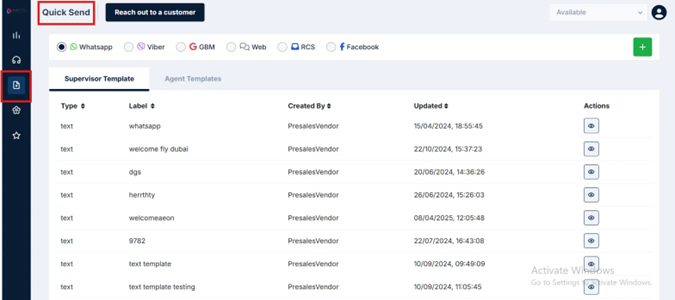
Selecting Your Channel
At the top of the Quick Send screen, you'll see a row of channel options:
WhatsApp · Viber · GBM · Web · RCS · Facebook
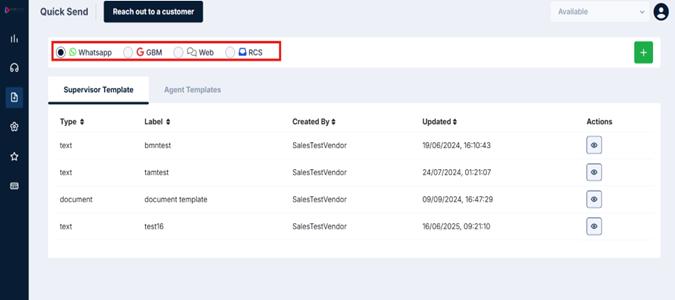
Select the channel you want to view or create templates for. The template list below will update accordingly.
Note: The channels available to you depend on what your organization has enabled. Currently supported channels are WhatsApp and RCS. If you don't see a channel you expect, check with your administrator.
Two Types of Templates
Quick Send organizes your templates into two tabs — Supervisor Templates and Agent Templates. Each serves a different purpose.
Supervisor Template
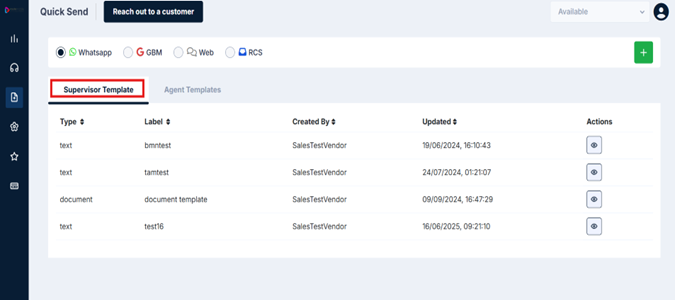
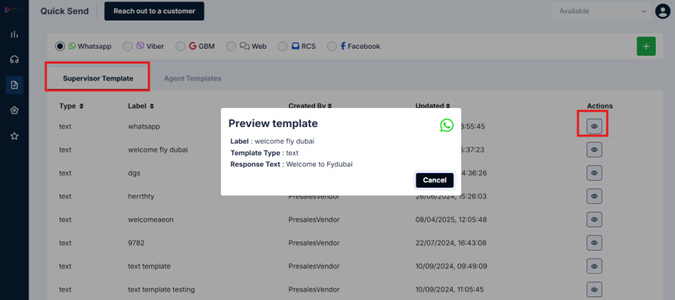
These are templates created by your supervisor and made available to the entire team. Think of them as your organization's standard, pre-approved responses for common situations — consistent messaging that everyone on the team can use.
What you can do: Click the eye icon in the Actions column to preview any supervisor template. A popup will show you the template label, type, and the full message text.
Agent Templates
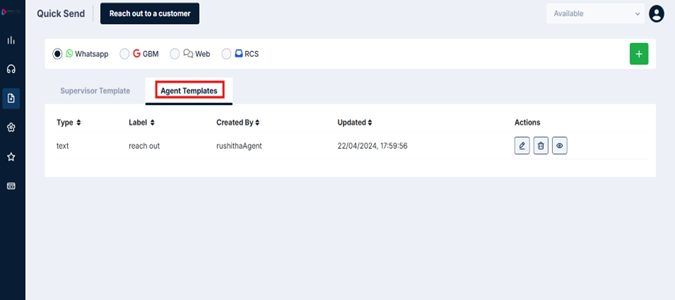
These are templates you create yourself — personal shortcuts for messages you send repeatedly. Your greeting, your hold message, your sign-off — anything you type often is worth saving here.
Managing Your Agent Templates
Once your templates are created, you can manage them directly from the Agent Templates tab.
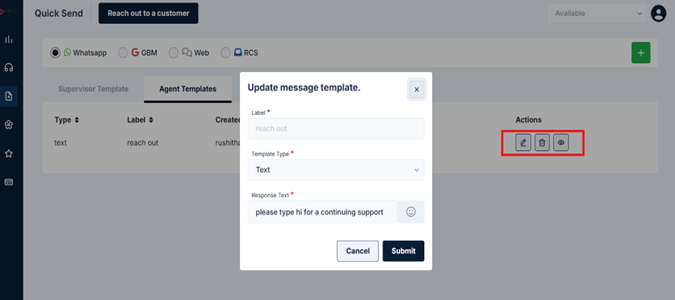
Each template in the list has three action icons:
| Icon | Action | What It Does |
|---|---|---|
| ✏️ | Edit | Opens the template form pre-filled with your existing content — update the label, template type, or message text and click Submit to save changes |
| 🗑️ | Delete | Permanently removes the template from your library |
| 👁️ | View | Preview the template content |
How to Create an Agent Template
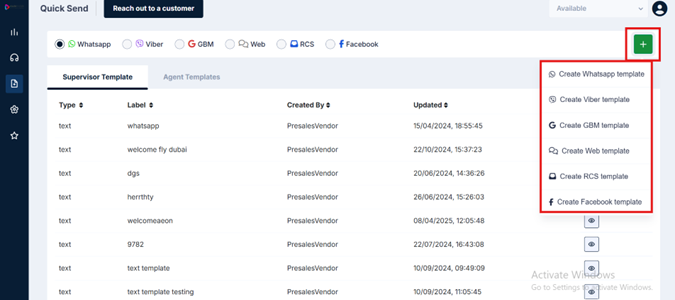
Step 1 — Click the + button in the top right corner of the screen. A dropdown will appear showing all available channels.
Step 2 — Select the channel you want to create the template for — for example, Create WhatsApp template or Create RCS template.
Only create templates for channels your organization has enabled. If unsure, check with your administrator.
Step 3 — A Create Message Template popup will appear with the following fields to fill in:
-
Label — Give your template a name. Only alphanumeric characters are allowed. Use something descriptive so you can find it quickly during a live chat — for example, WelcomeGreeting or ClosingMessage
-
Template Type — Select the type of message from the dropdown. Currently defaults to Text
-
Response Text — Type the actual message you want to save as a template. You can also add an emoji using the smiley icon on the right
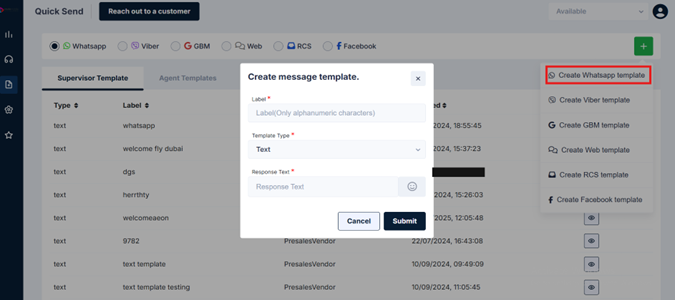
Step 4 — Click Submit to save the template. It will now appear in your Agent Templates tab and be available to use during conversations.
Pro Tip: Use clear, consistent label names from the start — once your template library grows, good labels are the only way to find the right one quickly mid-conversation.
Already in a conversation? You can send templates directly from the chat window using the Send Template button in the conversation header. See Live Chat — Send Template for how it works.
Updated 3 months ago