
Common Functions
You'll be using these functions frequently when sending messages using the Send SMS menu. These functions help manage your messages.
Select a Message Type
Send eight types of messages with different character limits from the portal to suit your messaging requirements. Select a message type from the Message Type list.
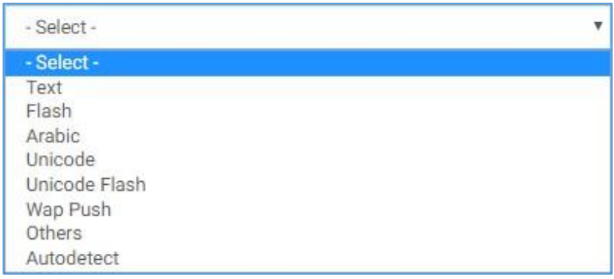
Types of Messages
Types of Messages:
| Message Type | Explanation | Character Limit |
|---|---|---|
| Text | A text message in English. | 160 |
| Flash | A message of type Text that flashes on your mobile screen without getting saved in the message inbox. | 160 |
| Arabic | A text message in Arabic. | 70 |
| Unicode/Unicode Flash | Uses a Unicode converter to convert typed messages in any language to a hexadecimal value for you to use. Personalized messages have the Unicode message appended to the original message. | 70 |
| WAP Push | A text message containing a clickable URL. You need to type the URL in a separate box. | 160 |
| Others | Used for typing messages in languages other than English. The Unicode conversion is hidden. | 70 |
| Autodetect | Automatically detects the language of the typed message. | 160 or 70 |
When you select Unicode or Unicode Flash, click Edit UnicodeMessage under the Message box.
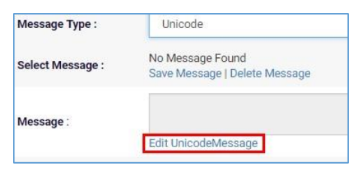
Add a Unicode Message
In the Unicode Convertor window, type your message in the preferred language in the Message box. The converted message appears as hexadecimal values in the UnicodeMessage box below. Click Import to copy conversion in the Message box of above image.
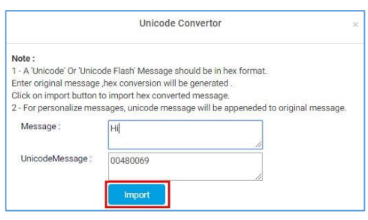
Unicode Convertor Window
Schedule an SMS
Postpone your message transmission by scheduling messages. The system displays a calendar, which you use for scheduling. In the calendar, select a year, month, and date. Then select the hour and minute of that hour. The system sends unscheduled messages immediately.

Schedule an SMS
To schedule an SMS:
- Select the Schedule check box.
- From the Timezone list, click the required time zone.
- Click on the Start Date & Time box to display the calendar.
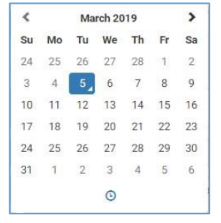
Select Month and Date
- Click the greater than icon to step through the months.
Tip: Click the month’s name to display the year’s months, and click the required one. Select a year in the same way.
- Click the required date.
- Click to select the hour and minute. The calendar displays the hour on the left and minute on the right.
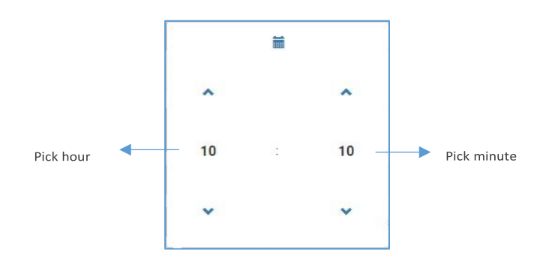
Select Hour and Minute
-
Click the hour value to display hours in a 24-hour format, and click the required hour.
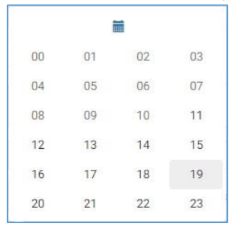
Select the Hour
-
Click the minute value to display an hour’s minutes in five-minute intervals, and click the required interval.
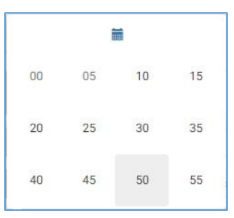
Select the Minute
Click icons after selecting the minute interval to increment or decrement minutes.
-
Click anywhere outside the calendar. The selected date and time now appear in the Start Date & Time box.

Selected Date & Time
Add an Acculync
We integrate a URL shortening service within the interface so your messages can include such links. These shortened links are called Acculyncs. Besides redirecting your user to the desired page, the link provides user-analytics.
Note: You can add an Acculync only when sending Bulk and Group messages.
To add an Acculync:
- Select the Acculync check box.
Note: If you receive a message asking for confirmation to name a campaign, click Yes. In the Campaign Name box, type the required name.
- Type your message and the link to be shortened in the Message box.
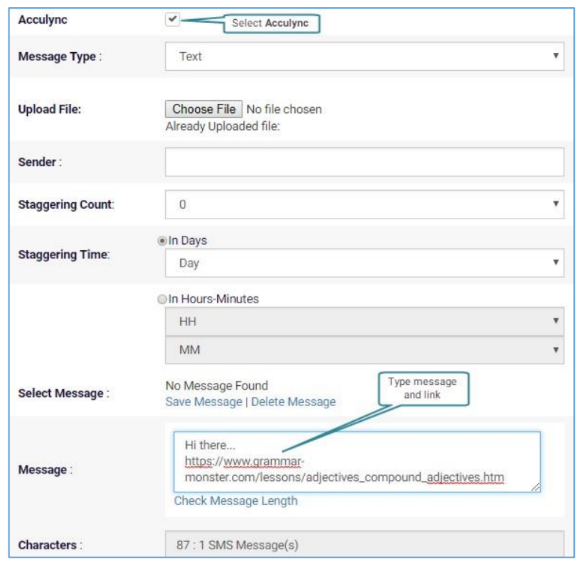
Add an Acculync
The system converts the link to an Acculync, sending it with the message.
Click Check Message Length to see total character count with the Acculync before sending the message.
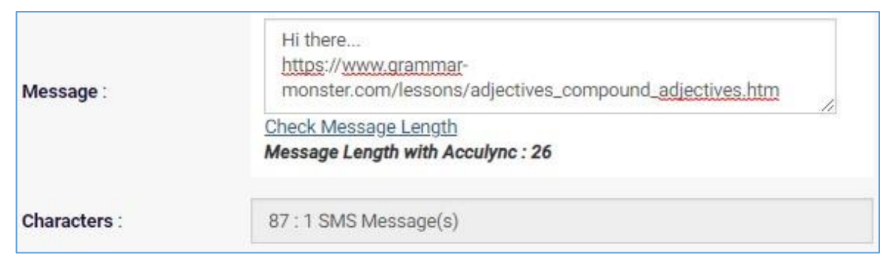
Verify Message Character Count
Remove Duplicates
Select the Remove Duplicates check box to automatically delete same mobile numbers that you enter. Duplicate numbers may be present in files you upload or manually type.
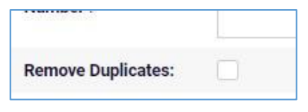
Remove Duplicate Numbers
Updated 2 months ago