
Three Dots Menu
Additional Options(⋮)
Overflow Menu Options
The three dots (⋮) icon at the far right of the header opens an overflow menu with additional conversation management options.
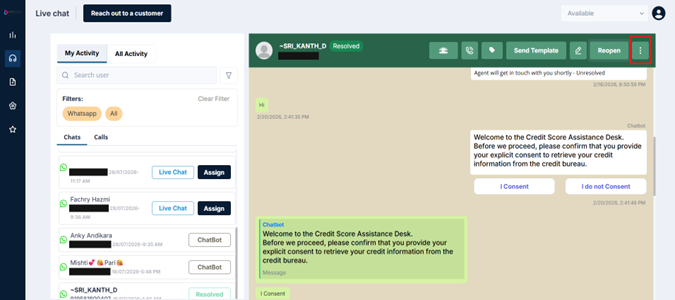
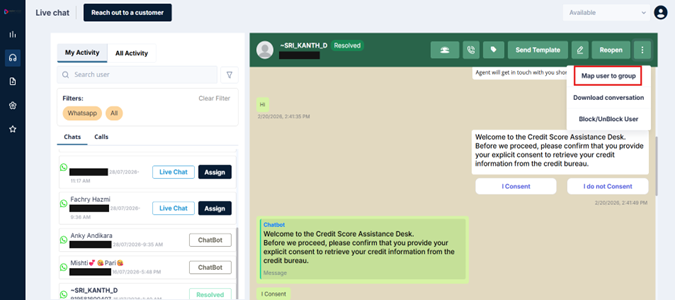
a) Map User to Group
This option lets you assign the customer to one or more user groups — organizational categories set up by your supervisor. Groups can represent anything: industry type, language preference, customer tier, product interest, and so on.
To map a user to a group:
-
Click ⋮ → Map User to Group
-
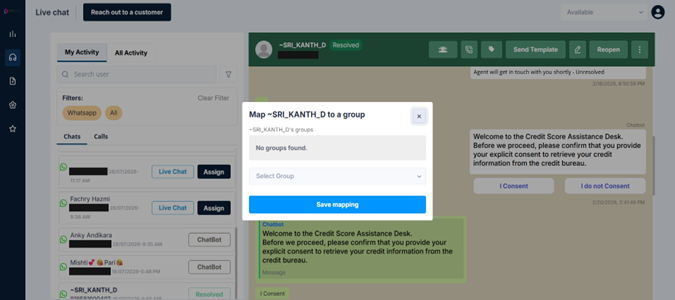
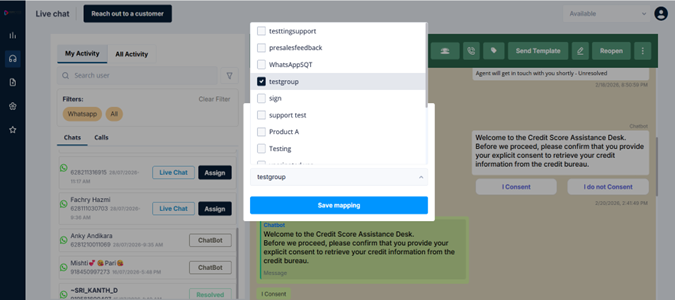
A list of available groups appears — select one or more that apply
-
Click Submit
The assignment is saved and visible to supervisors through their reporting and grouping dashboards. A single customer can be mapped to multiple groups simultaneously.
Groups are set up by supervisors: You won't be creating or naming groups yourself — those are configured at the admin level. Your job is to assign the right customers to the right groups. If you're unsure which group applies, check with your supervisor.
b) Download Conversation
This option lets you download a copy of the full conversation history as an Excel file.
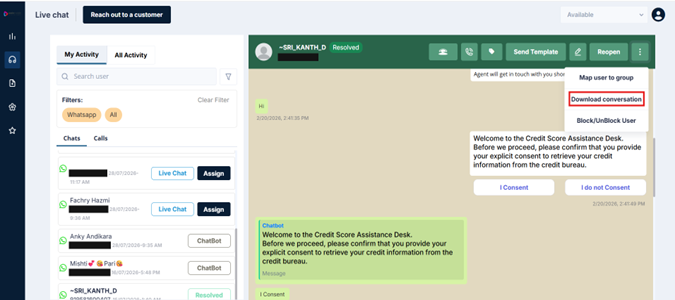
The download includes:
- Every message exchanged, with sender details (agent, customer, or bot) and timestamps
- Call events (with duration)
- System events (e.g., agent assigned, chat resolved)
- Internal notes made by agents
You can download up to 90 days of conversation history.
c) Block / Unblock User
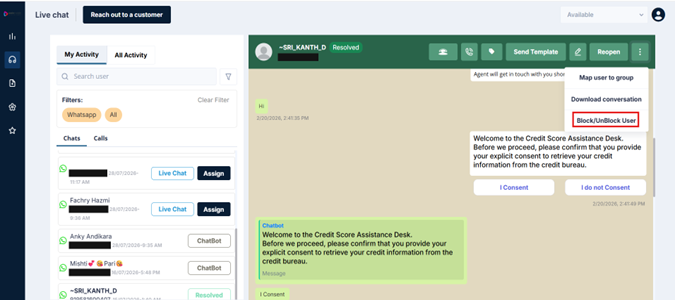
In rare situations, you may need to block a customer contact — preventing them from sending further messages through the platform. This option is available through the ⋮ menu and should be used only in exceptional circumstances, as directed by your supervisor.
If a contact needs to be unblocked later, the same menu will show an Unblock option.
Updated 3 months ago