
Manage Jobs
Manage message jobs in SmsPlus SGN Client to review job details, track status, perform job actions, and configure message taglines.
Overview
Messages you schedule or send through Single SMS, Bulk SMS, and Group SMS modes to more than 100 numbers create jobs.
The Job Management option under the Utilities menu displays details of these jobs. These details include the job status and the actions you can perform on uploaded jobs.
View job details
Use Job Management to view and search jobs.
- From the Utilities menu, click Job Management.
- Review the job details on the page.
- Search for specific jobs using either:
- Message text
- Sender ID
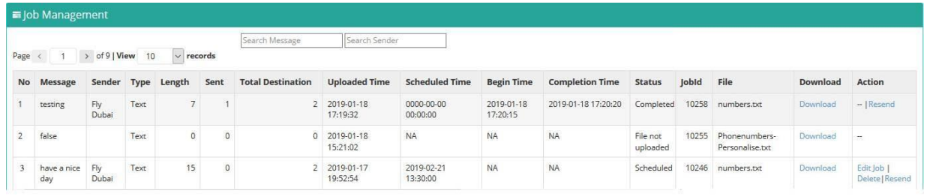
Job Details
Job Actions
The Action column shows the action links available for each job.
Available actions
| Action | Description |
|---|---|
| Edit Job | Opens the corresponding page where the job was created, such as the Send Bulk SMS page, so you can edit the job. |
| Resend | Resends the selected job. If a confirmation message appears, click OK. |
| Delete | Deletes the selected job. If a confirmation message appears, click OK. |
| Re-Start | Restarts a stopped job or a job stopped due to insufficient credits. Add credits before restarting jobs stopped for insufficient credits. After restart, the link changes to Stop. |
| Stop | Stops a job that is currently in process. |
| Download | Downloads the file containing destination phone numbers. |
Job status and actions
Use the job status to understand where a job is in the submission process and which actions are available.
| Job Status | Explanation | Available Action |
|---|---|---|
| Completed | Submission of all messages is successful. | Resend |
| Daemon Processing | System is processing the uploaded file. | None |
| Dead | The job ID is dead. This may happen if the count is 0, the file is invalid, or another issue occurred. | None |
| File not uploaded | Job details were not uploaded properly. | None |
| In process | Message submission is in progress for the uploaded file. | Stop |
| Insufficient credits | Job stopped because credits in the user account are over. | Edit Job, Re-Start, Delete |
| Invalid file content | Invalid content was found in the uploaded file. | None |
| Partially completed | Total messages are not yet submitted. Submission will continue after some time. | Stop |
| Scheduled | The job will be executed at the date and time selected while uploading the job. | Edit Job, Delete |
| Staggered | The job is staggered. | None |
| Stopped | Job ID is stopped. | Edit Job, Re-Start, Delete |
| Waiting For Daemon Processing | System is waiting to process the uploaded file. | None |
| Waiting for execution | System is waiting for final message submission after file processing. | None |
Tagline Management
A tagline acts like a footer for your messages. Use Tagline Management to manage the tagline sent as part of the message.
Add or update a tagline
- From the Utilities menu, click Tagline Management.
- Type the required tagline text in the Tagline box.
- Click Submit to save the changes.
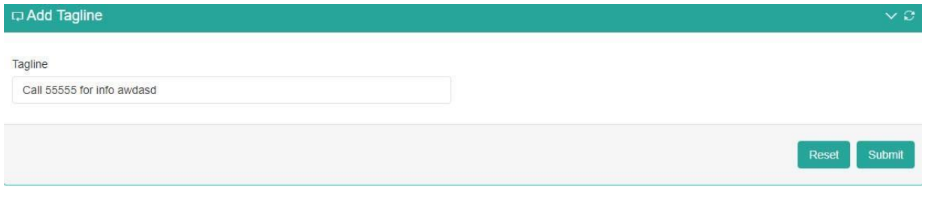
Add Tagline
Updated 2 months ago