
RBM Reporting
Reports
Archive Reports
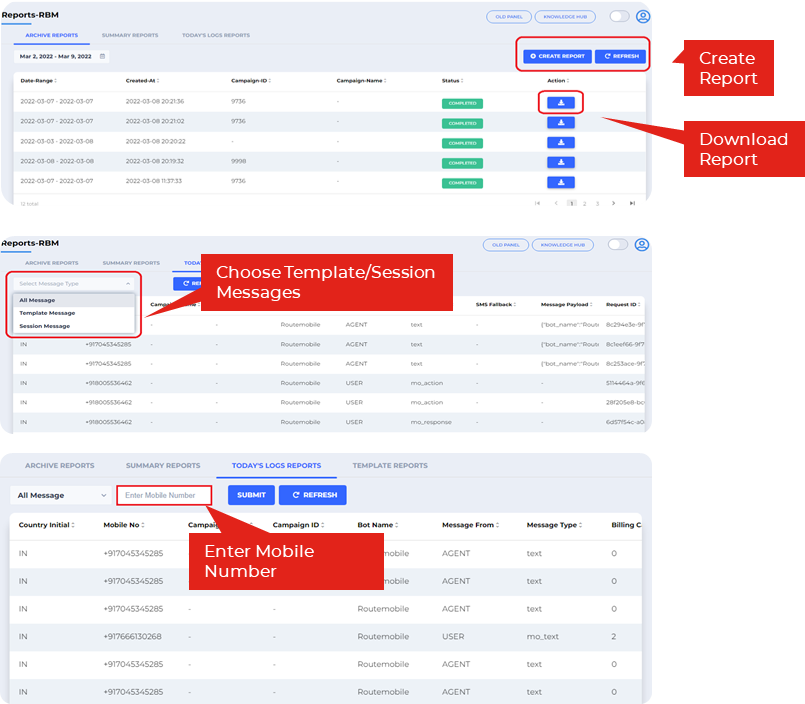
- You have to choose the Start date & End date
- You can create a detailed report by clicking on the Create Reports button.
- Choose projections to create the report
- Once you click on Submit Your Report, creation request will be submitted.
- Your report creation request will be displayed in the Reports section with Active status.
- Once the download is done the status will change from Active to Completed. Now your file is ready and you can click on the Download Button to get the report.
You can also get the detailed summary of the campaign.
- Select the date range from the drop down - Today, This week, This Month and also you can customize the data..
- Once you click on ‘Submit’, the system will display the following details. (Message Type, Submit, Sent, Delivered, Read, Failed, Fallback SMS/ WhatsApp) Also, you can download it as a csv file by clicking on the Export Button)
- You have to choose the message type to view
- You can also enter the mobile number to make your search faster for getting template reports.
Template Report
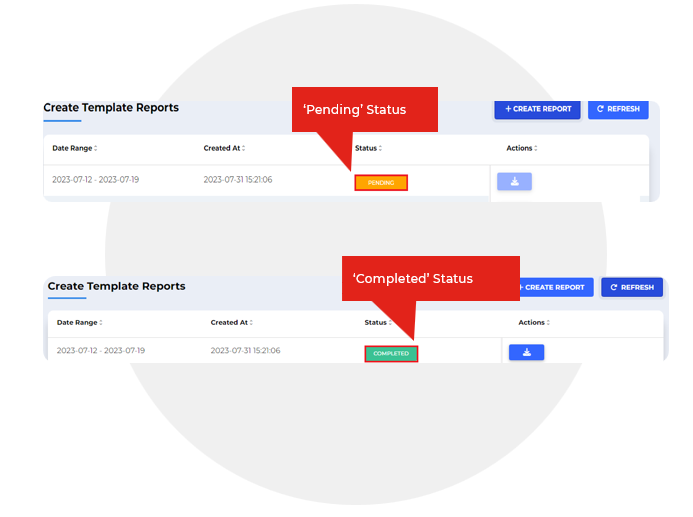
- Once you download the report, you can see it in Template Report section.
- It will be pending for some time depending on the size of the report.
- You can refresh it after a minute.
- Then you will be able to see the ‘Completed’ Status.
Updated 3 months ago
Did this page help you?