
Send Template
The Send Template button gives you access to pre-approved WhatsApp (and RCS) message templates — structured messages that have been verified by Meta and set up in your account.
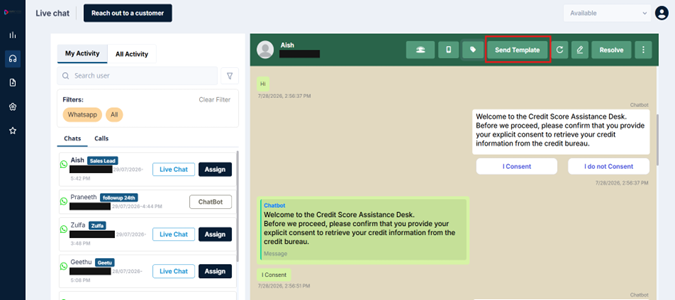
When to Use Templates
Templates are used in two main situations:
-
Re-engaging customers — Templates can only be used while the 24-hour session window is active, or when a conversation has been reopened within that window. Once the window closes, the conversation is automatically routed through the Reach Out to a Customer flow — at that point, bulk templates from this panel are no longer applicable.
-
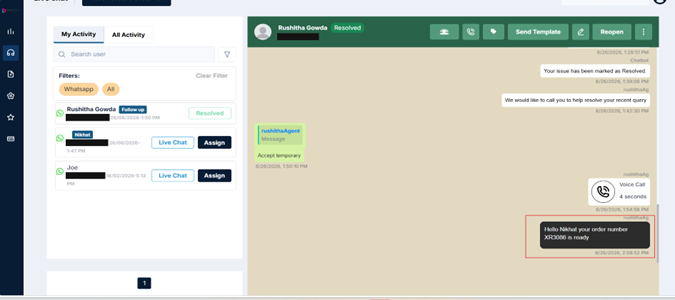
Sending structured, standardized communications — These are Meta-verified generic templates, primarily used for marketing communications such as promotional offers, re-engagement campaigns, or subscription renewals. Utility-specific messaging — such as order updates or customer-specific information — is supported and can be achieved by using templates that include personalization variables.
What Templates Support
Depending on how the template was created, it may include:
- Images — Visual content embedded in the message
- Documents — Attachments such as PDFs
- Videos — Video content
- CTAs (Call-to-Action buttons) — Clickable buttons that direct the customer to a URL or trigger a specific action
Selecting and Sending a Template
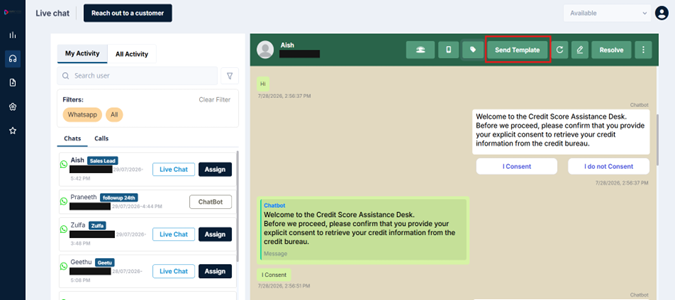
Step 1 — Click Send Template in the conversation header
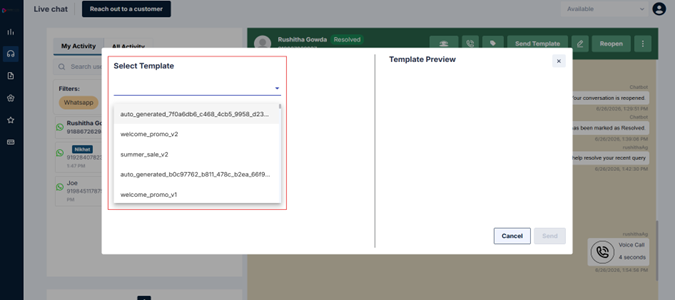
Step 2 — A template list appears. Search & click on the template you want to use
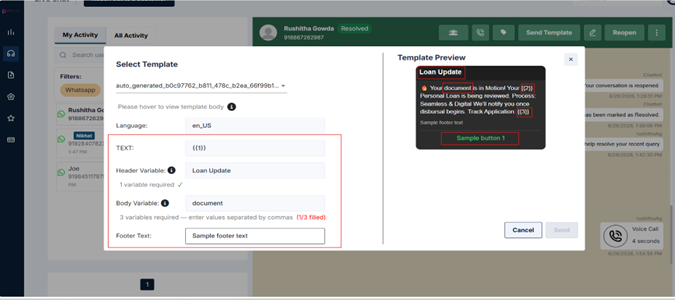
Step 3 — A Template Review panel opens on the right, showing a preview of the message — including any images, buttons, or CTAs that are part of the template
If the template includes media (an image, document, or video), you're not locked into the default — you can replace it before sending. You'll see a Media field with two options:
- Upload — Choose a file directly from your device
- URL — Paste a link if your media is hosted publicly online
Once you upload a new file or paste a URL, the Template Preview updates instantly to reflect the change. You can also remove the media entirely if needed.
Note: Stick to the media type the template was originally built for — a template designed for an image won't necessarily support a PDF or video in its place. If you're unsure, check with your supervisor before swapping it.
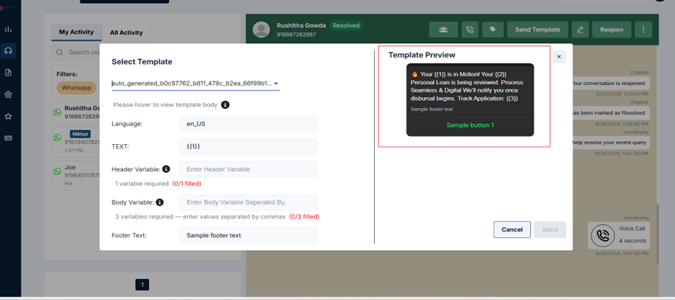
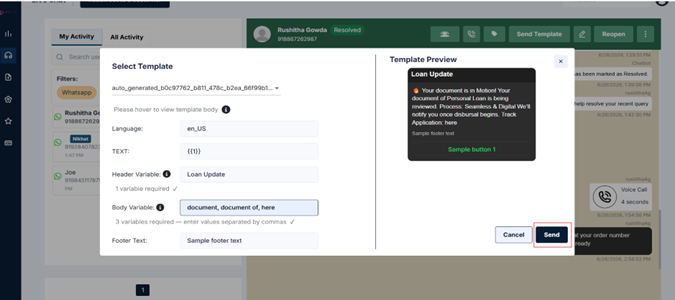
Step 4 — If the template has body variables (personalized placeholders such as a customer's name or order number), you'll see a Body Variables field. Fill in each variable, separating multiple values with a comma. The preview updates in real time as you type
Note: If a template requires multiple variables, all of them must be filled in before you can send. The Send button stays disabled until every required variable has a value.
Step 5 — When you're satisfied with the preview, click Send
Both channels are supported: If your account is set up for both WhatsApp and RCS, you'll see templates for both. The template list shown is always filtered to the channel you've selected — WhatsApp templates appear under the WhatsApp tab, RCS templates under the RCS tab. Make sure you're on the right tab before selecting a template.
Updated 3 months ago