
Channel Reports
Use Channel Reports to review campaign performance, delivery trends, location data, and engagement details for a selected communication channel.
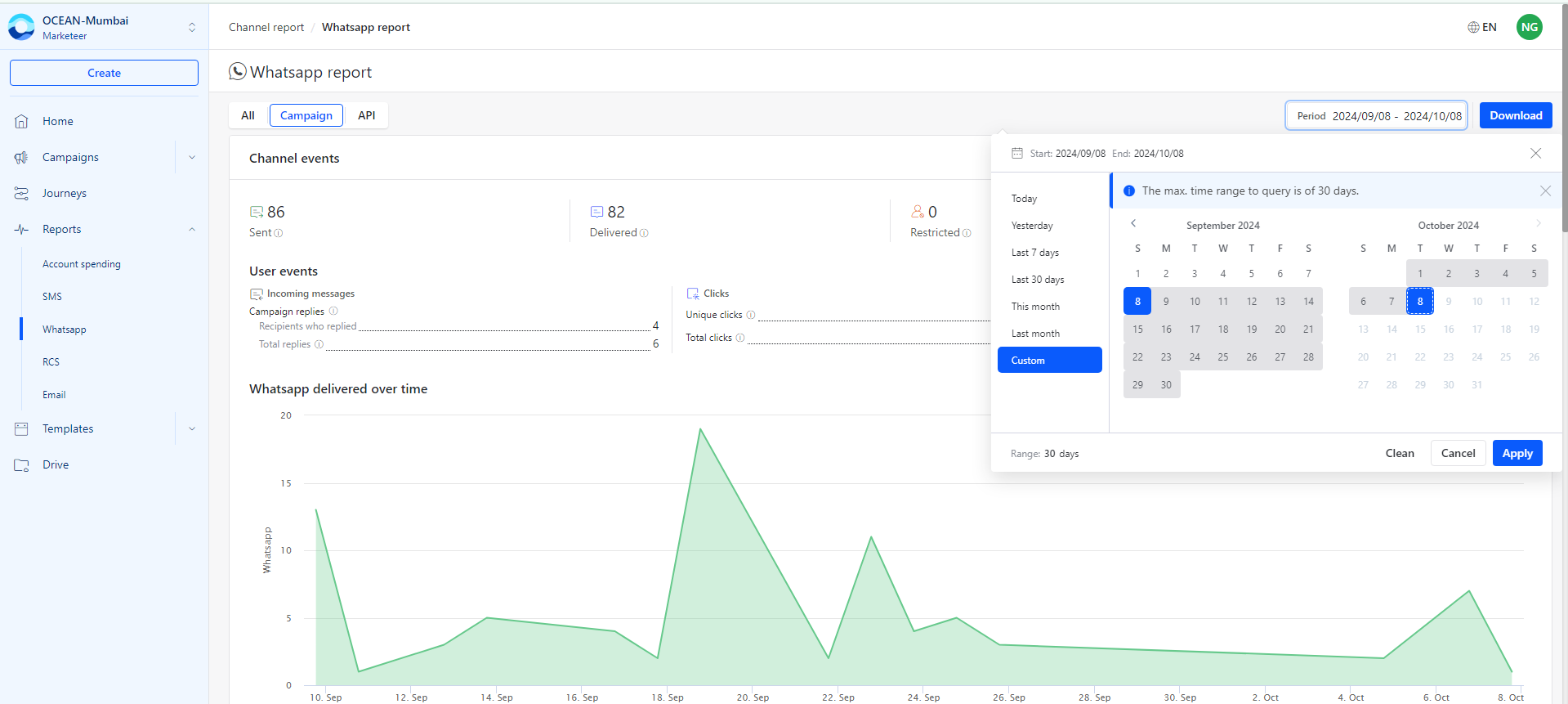
Open a channel report
To view a channel report:
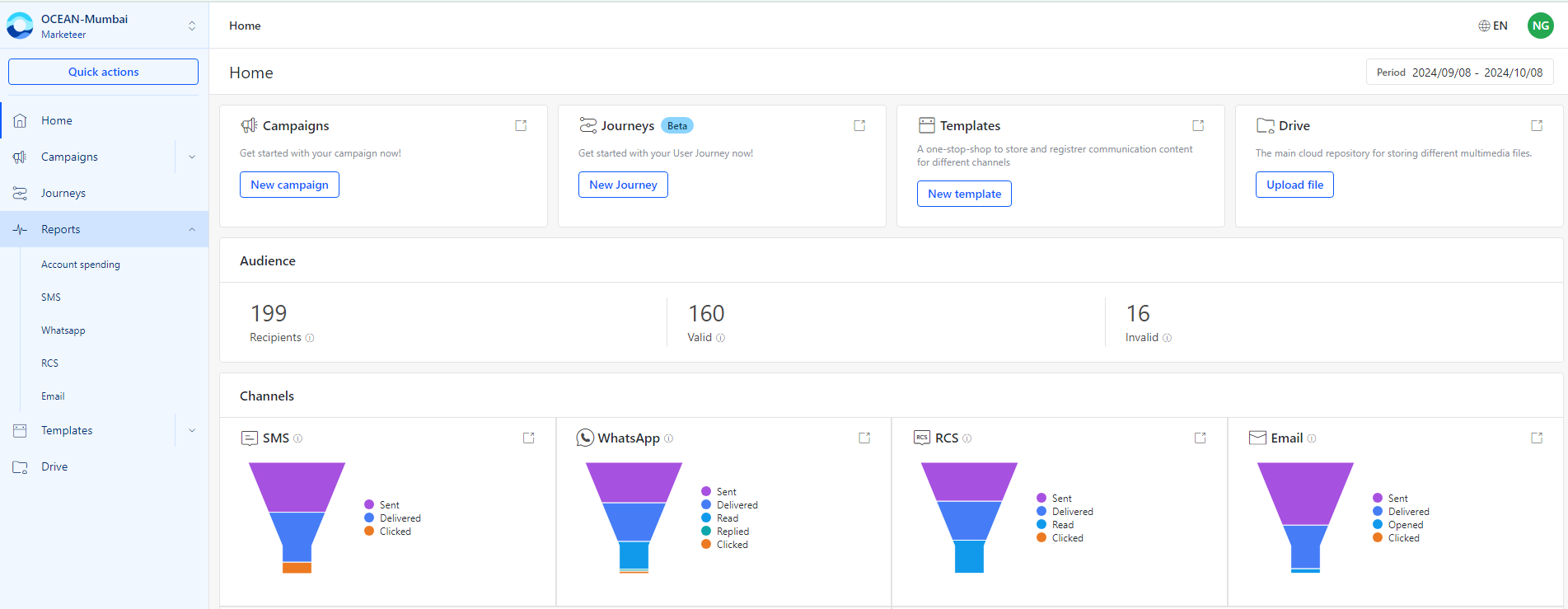
- Click Reports from the left-side menu.
- Select the channel whose report you want to view from the dropdown list.
- Select the required period.
- Click Apply.
Ocean displays the channel report for the selected channel and period.
Campaign summary
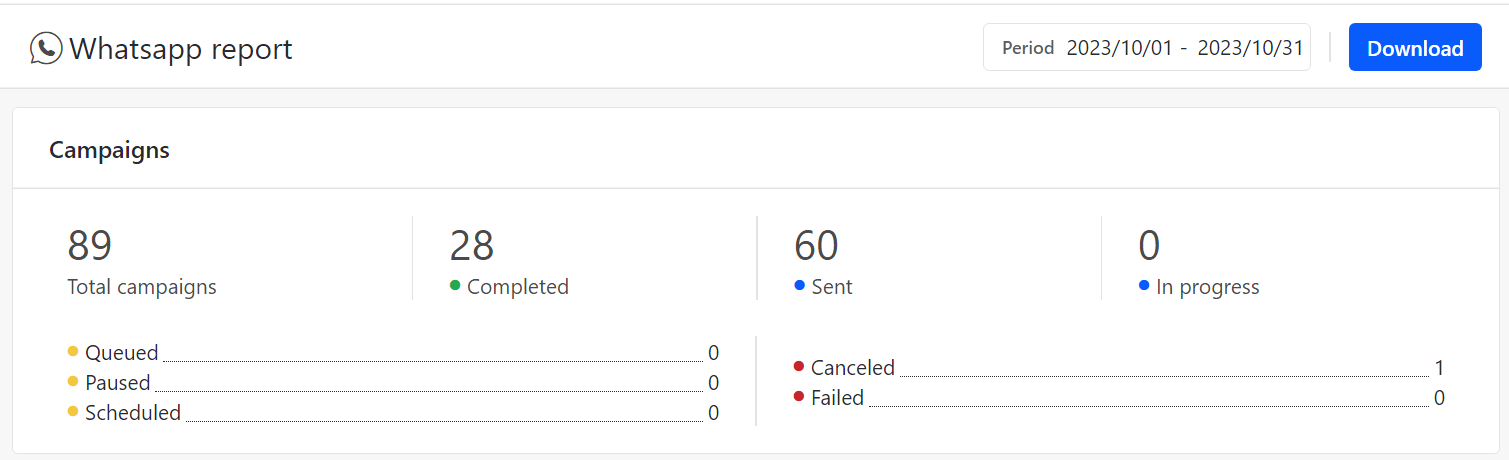
The campaign summary shows campaign activity for the selected account and period.
| Metric | Description |
|---|---|
| Total Campaigns | Total number of campaigns performed from the account. |
| Completed | Number of completed campaigns. |
| Sent | Number of campaigns or messages sent, as shown in the report. |
| In Progress | Number of campaigns currently in progress. |
Delivery trend
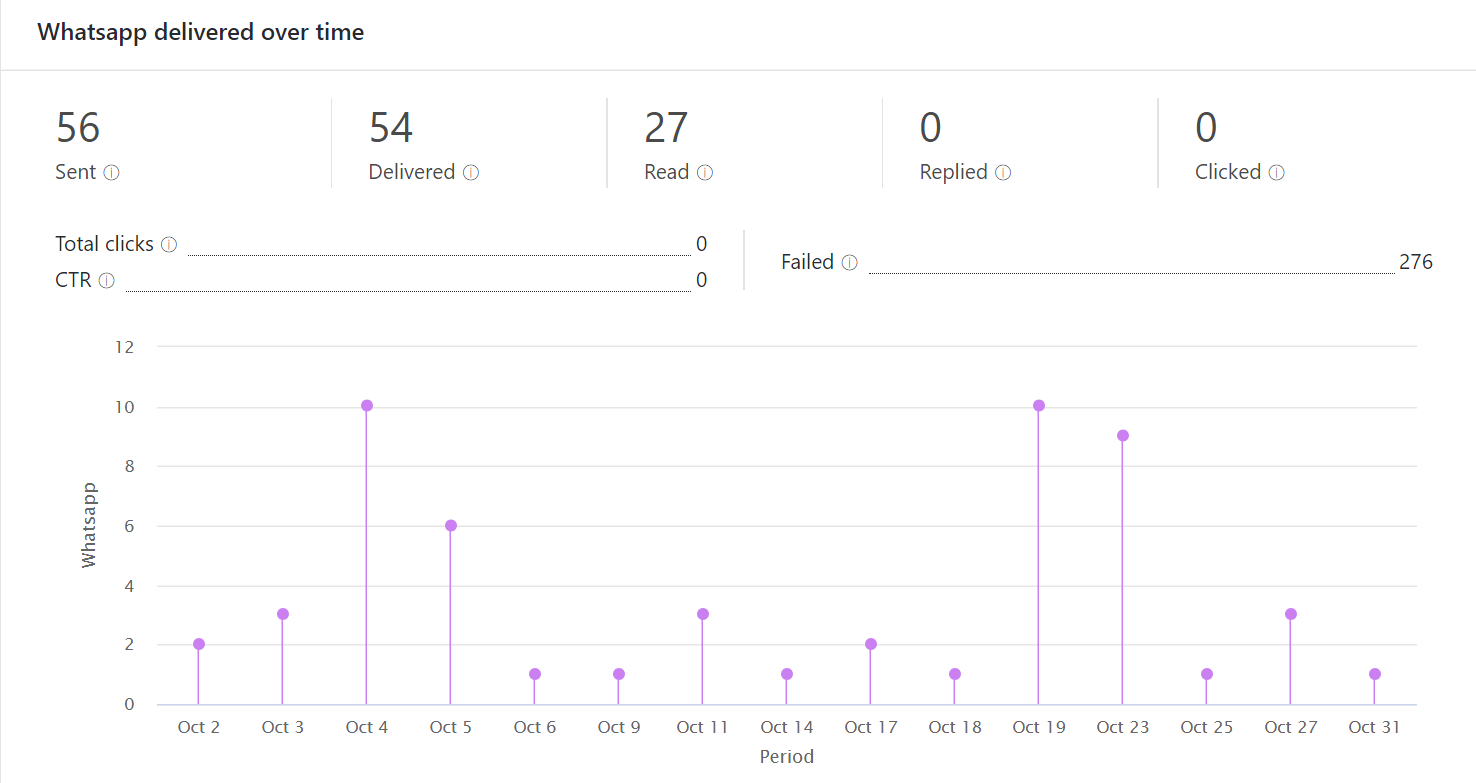
Use the delivery trend chart to review message status over time for the selected channel.
For WhatsApp reports, this chart shows statuses such as:
- Sent
- Delivered
- Read
- Replied
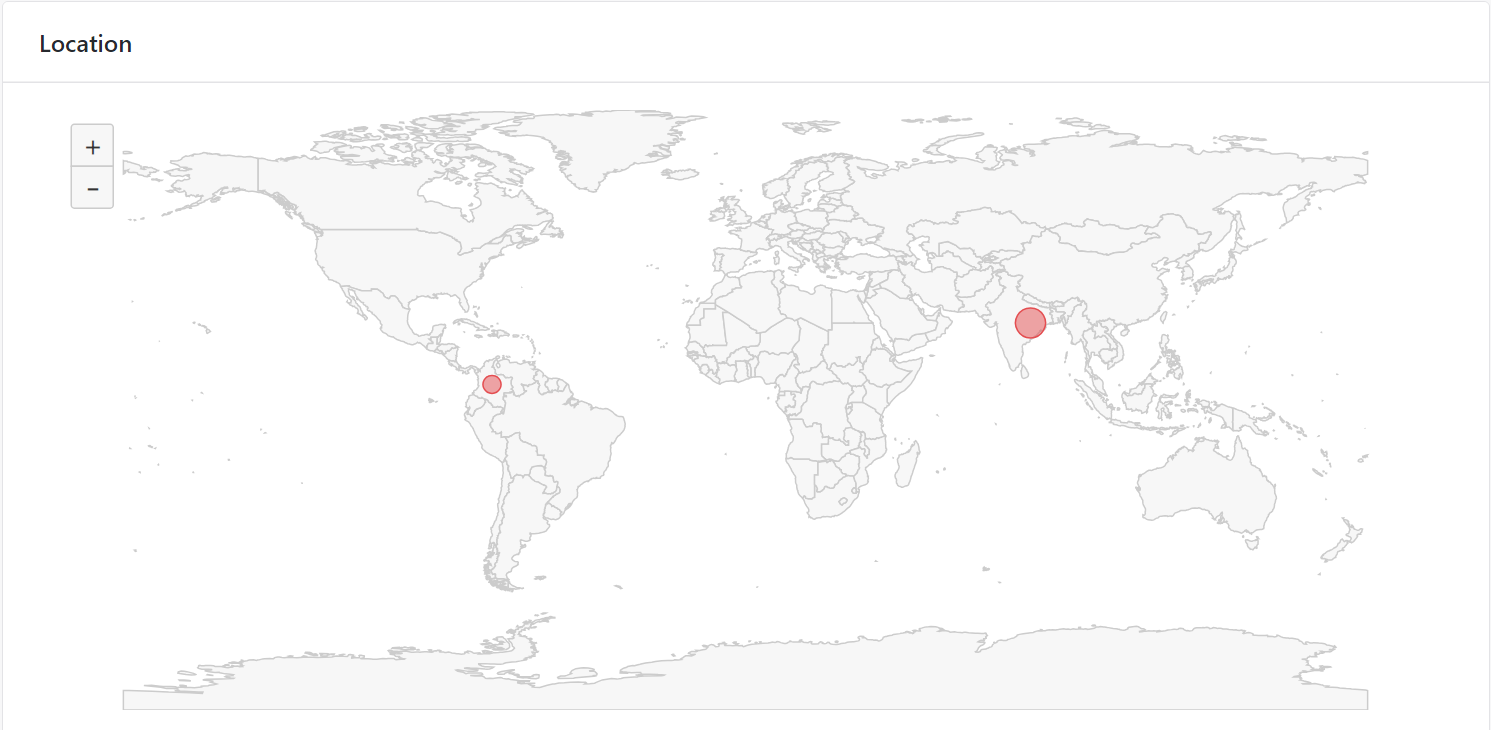
Location details
Use the location graph to view where the campaign was delivered.
Device and click details
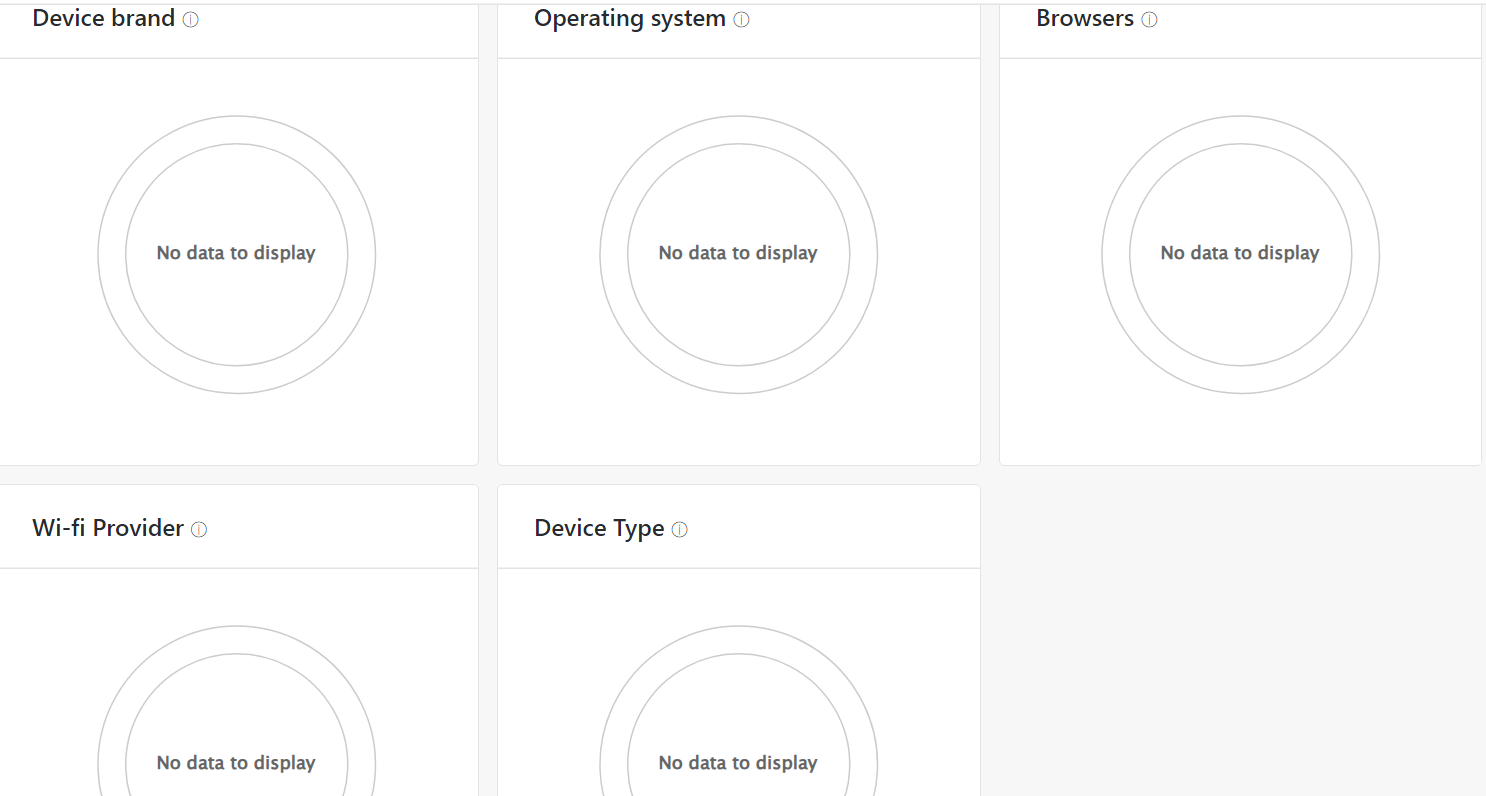
Use the device and click details section to understand the environment where contacts clicked links in campaign messages.
| Detail | Description |
|---|---|
| Device brand | Device brand on which the contact clicked the link in the message. |
| Operating system | Operating system on which the contact clicked the link in the message. |
| Browsers | Browser on which the contact clicked the link in the message. |
| Wi-Fi Providers | Wi-Fi provider used when the contact clicked the link in the message. |
| Device Type | Type of device on which the contact clicked the link in the message. |
Updated 3 months ago
Did this page help you?