
Know the User Interface
Use this guide to sign in to International Reseller Webadmin, navigate the portal, reset your password, and update your system password.
International Reseller Webadmin uses a client-server architecture and works in a web browser with an internet connection.
Sign in to International Reseller Webadmin
Route Mobile creates your account and sends an email containing your portal link and credentials.
-
Open the link in the email to display the sign-in page.
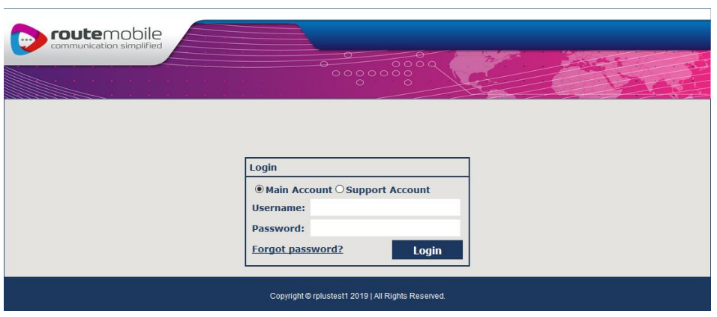
Sign-in page
-
Keep Main Account selected if you are an administrator.
-
Select Support Account if you are a support user.
-
Enter your username and password.
-
Click Login to open the home page.
For information about support accounts, see Manage a support user in the Administer users chapter.
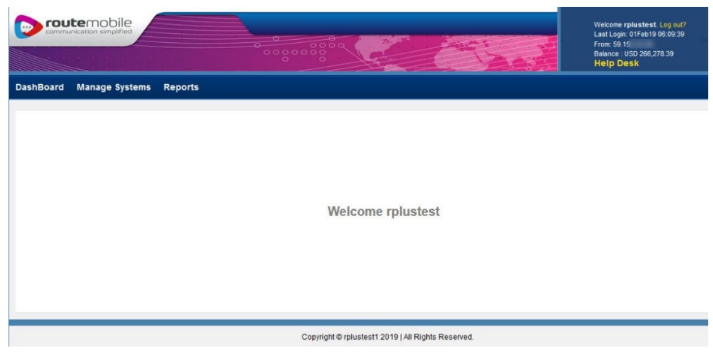
Home page
Reset your password
If you forget your password, use the Forgot password option on the sign-in page.
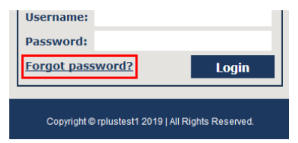
Reset Password
-
Click Forgot password.
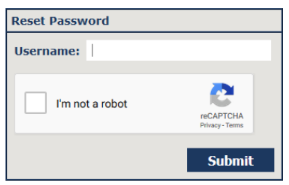
Reset Password Request page
-
Enter your username.
-
Select the I’m not a robot checkbox.
-
If CAPTCHA verification appears, follow the on-screen instructions and click Verify.
-
Click Submit.
-
Open the password reset email sent to your registered email address.
-
Click the password reset link in the email.
-
Enter and confirm your new password.
-
Click Update.
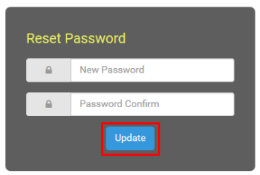
Reset Password Page
Understand the user interface
The home page displays your username in the centre of the page. Your sign-in details appear in the upper-right corner.
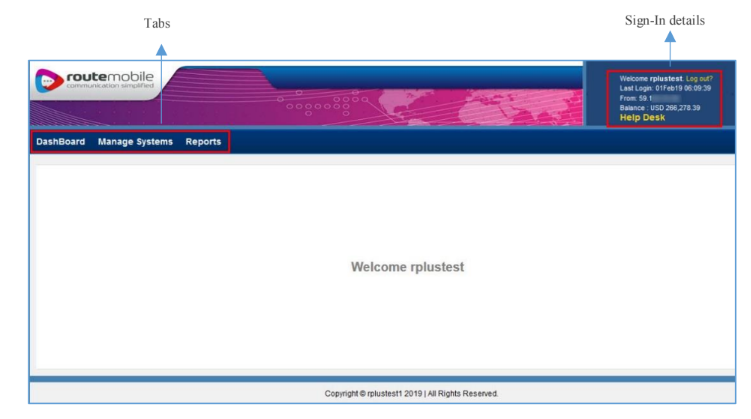
User interface overview
Sign-in details
The upper-right corner displays:
- Username
- IP address
- Last sign-in details
- Current account balance
Navigation tabs
The upper-left corner contains three tabs. To open an option, hover over a tab and select the required option.
| Tab | Description |
|---|---|
| Dashboard | Shows a message-data summary for your users. |
| Manage Systems | Contains options for user management, job management, routing management, and customisation. |
| Reports | Contains message statistics and data. Reports can show daily data or a synopsis. |
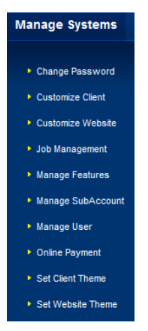
Manage Systems options
The navigation tabs and sign-in details appear on every portal page. Click Log out to sign out from any page.
Your session times out after more than 20 minutes of inactivity. After you sign in again, the system directs you to the last active page.
Other user interface elements
You may encounter the following elements while using International Reseller Webadmin.
| Element | Use |
|---|---|
| Clear text | Deletes data you entered in a text box. |
| Collapse / Expand arrows | Collapses or expands page sections. |
| Export button | Displays or saves data as a comma-separated values (CSV) file. |
| Link | Appears in blue. The pointer changes to a hand icon when you hover over it. Click the link to open a new window. |
| List | Selects a single option. Some lists let you select multiple options by holding Shift while selecting options. |
| Pencil | Populates text boxes with existing details so you can edit them. |
Navigate report results
Report results may span multiple pages. Use the navigation panel to browse results.
The panel displays the current page number and the total number of results. Use the controls to go to the first, previous, next, or last page, or select the required page from a list.

Navigation panel
Review status messages
The system displays successful operations in messages with a green background. It displays unsuccessful operations in messages with a brown background.

Message for a Successful Operation

Message for an Unsuccessful Operation
Change your system password
Change your system password if you suspect a system breach or need to reset your password.
System passwords must contain a minimum of 5 and a maximum of 8 characters.
-
Open the Manage Systems tab.
-
Click Change Password.
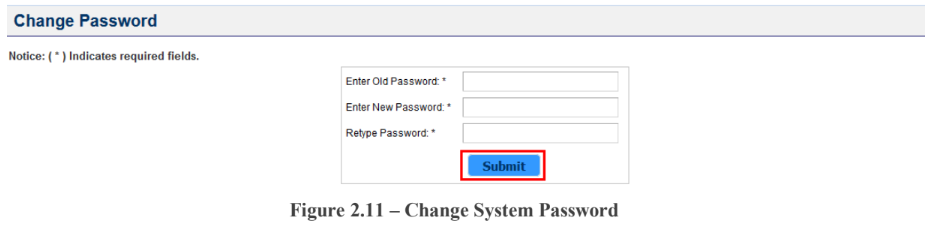
Change System Password page
-
Enter your old password.
-
Enter your new password and confirm it.
-
Click Submit.
Updated 2 months ago