
Introduction
Use this guide to sign in to SmsPlus SGN Client, reset your password, navigate the interface, update your profile, and make online payments.
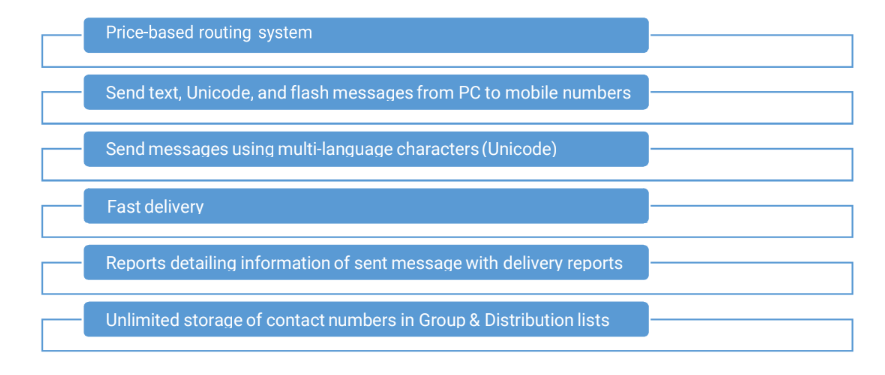
SmsPlus SGN Client lets you send SMS messages to multiple mobile numbers. You can send text, flash, or Unicode messages to end-users, friends, or employees.
Examples in this guide use fictitious or redacted data. Screenshots use the Firefox browser.
Quick navigation
Access the SmsPlus SGN Client portal using the credentials sent to you by email.
Reset your password from the Forgot Password page if you cannot sign in.
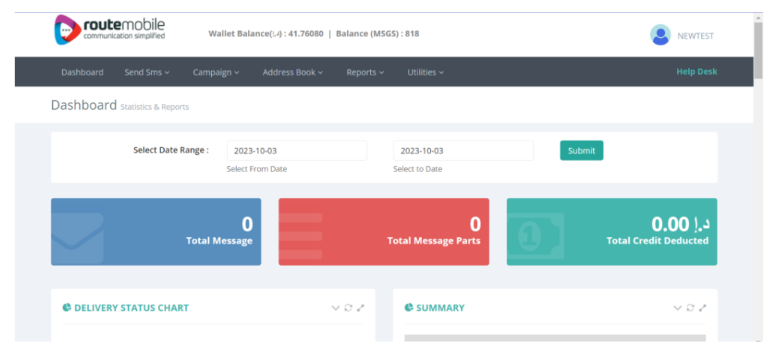
Review the dashboard, menu bar, balance, online payment link, and page controls.
Update your registered mobile number and contact person name.
Make online payments using the PayPal payment processor.
Features
Sign in to SmsPlus SGN Client
Route Mobile creates your account and sends you an email with the portal link and sign-in credentials.
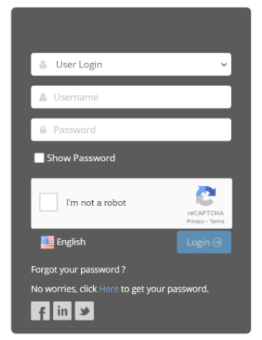
- Open the link from the email to view the sign-in page.
Sign-in page
- Enter your credentials in the Username and Password fields.
- Select the I’m not a robot checkbox.
- If CAPTCHA verification appears, follow the on-screen instructions and click Verify.
- Click Login to open the OTP page.
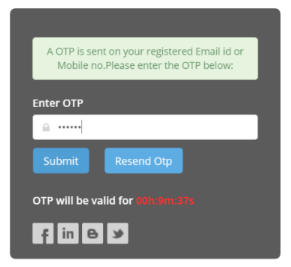
OTP page
- Enter the OTP sent to your registered email ID or mobile number.
- Click Submit to open the home page.
Dashboard
Reset your password
Use the password reset flow if you forget your password or need to create a new one.
- Click the reset password link on the sign-in page.
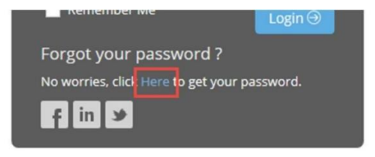
Reset Password
- On the Forgot Password page, enter your username.
- Select the I'm not a robot checkbox.
- Click Submit.
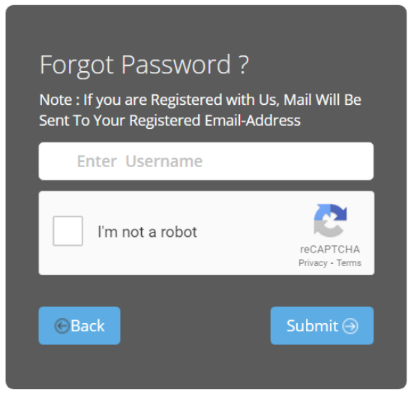
Forgot Password page
- Open the password reset email sent to your registered email address.
- Click the reset password link in the email.
- Enter and confirm your new password.
- Click Update.
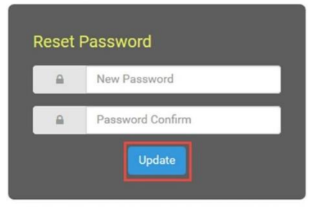
Reset Password page
User interface
The home page displays your dashboard and provides controls to manage your messages.
For more information about the dashboard, see Dashboard in the Reports chapter.
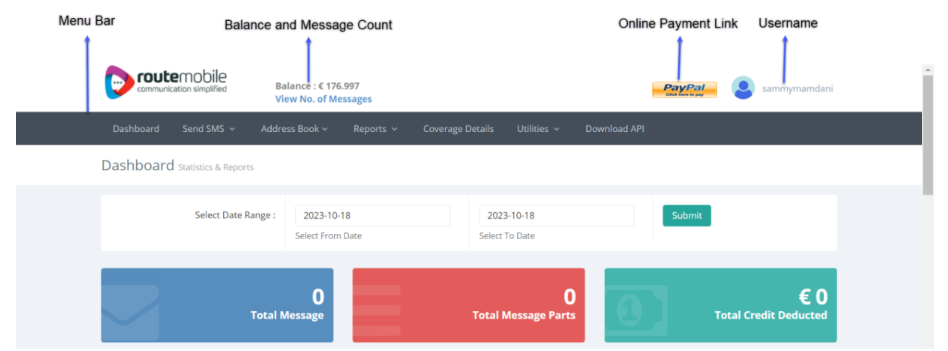
User interface
The balance, menu bar, online payment link, and username appear at the top of all pages. To sign out, point to your username and click Logout from the list that appears.
Pages in the portal may include the following controls:
| Control | Explanation |
|---|---|
| Collapse / Expand | Collapses or expands sections or part of a section. |
| Reload | Refreshes data in a section. |
| Fullscreen / Exit Fullscreen | Enlarges a section to occupy the entire webpage, or restores it to its original size. |
| Help | Shows screenshot-based help for creating files. |
Change your profile
You can change your registered mobile number and contact person name from your profile.
- Point to your username in the top-right corner of the page.
- Click Profile from the list.
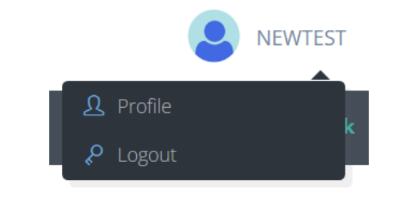
Profile option
- In the User Profile section, enter the new mobile number in the Mobile Number field.
- Enter the contact person name in the Contact Person field.
- Enter your password in the Password field.
- Click Save.
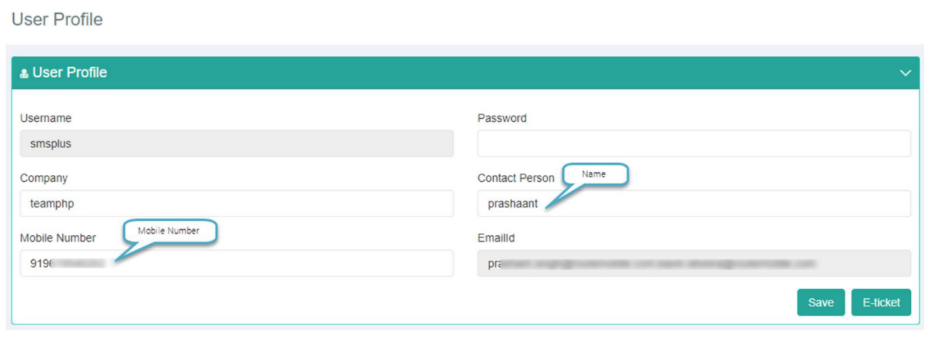
Change user profile
You cannot change your Route Mobile username, company name, or email ID.
If your changes are saved successfully, you’ll see a success message. If the changes are not saved, you’ll see a failure message. Message-related transactions in the portal show similar success and failure messages.

Success message

Failure message
Make a payment
Use the online payment option to make payments through the PayPal payment processor.
- Click the online payment icon.

- On the Online Payment page, select the currency from the Currency list.
- Select the product from the Product list.
- Enter the payment value in the Amount box.
- Select your region from the User’s Company Region list.
- Accept the terms and conditions.
- Click Buy Now.
The system redirects you to the payment processor’s website to complete the payment.
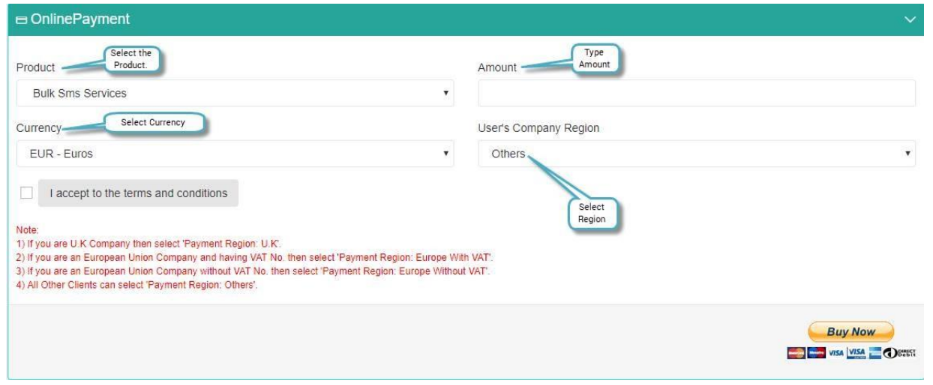
Make an online payment
Updated 2 months ago