For AI agents: visit https://developer.rmlconnect.net/route-mobile-project/llms.txt for an index of all pages formatted in Markdown and endpoints in OpenAPI. Append .md to any documentation page URL to get its markdown version.
Sign in to Distadmin, reset your password, understand interface elements, and change your system password.
Use this page to sign in to Distadmin, reset your password, understand the user interface, and change your system password.
Distadmin uses a client-server architecture and works in a web browser with Internet connectivity.
Sign in to Distadmin
Route Mobile creates your account and sends you an email. The email contains a link and credentials for the International Distributor Distadmin portal.
To sign in:
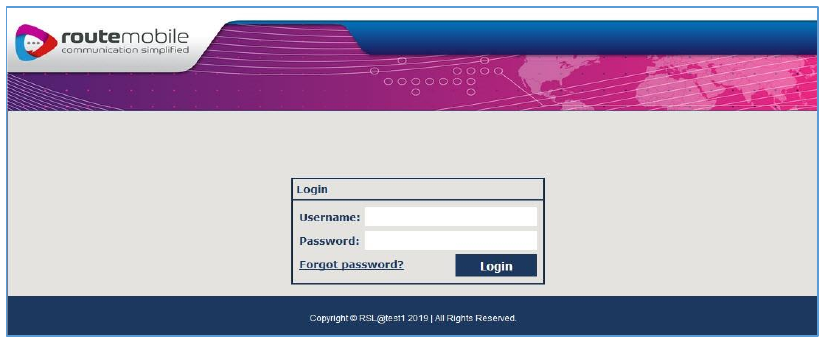
Open the link from the email to view the sign-in page.
Sign-in Page
Enter your credentials in the Username and Password boxes.
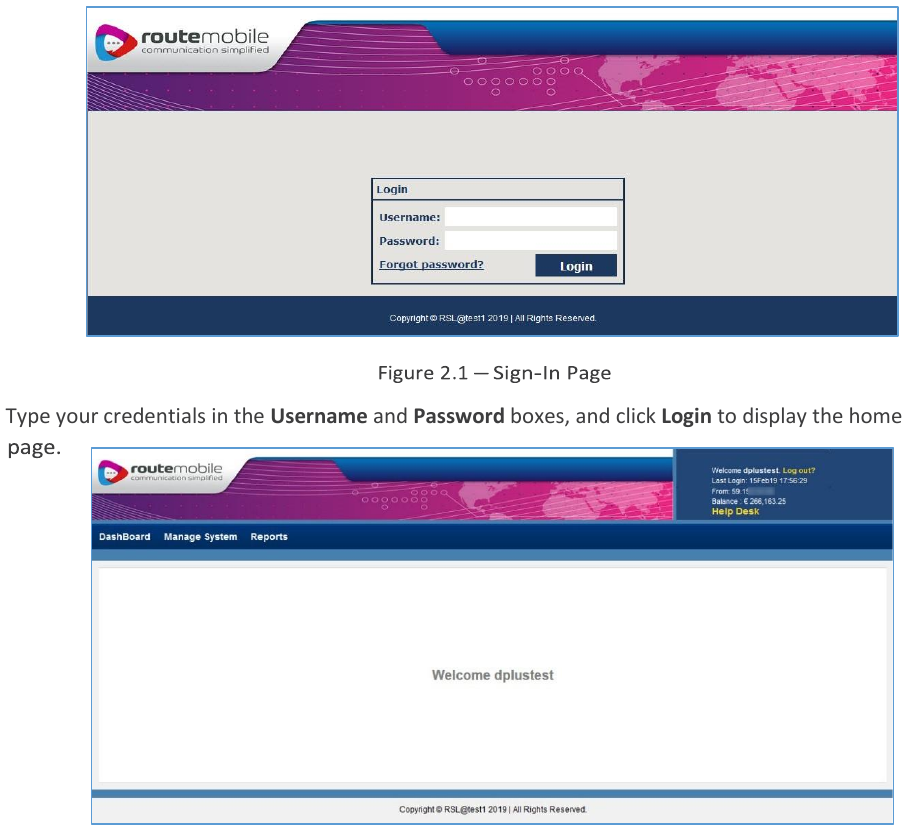
Click Login to open the home page.
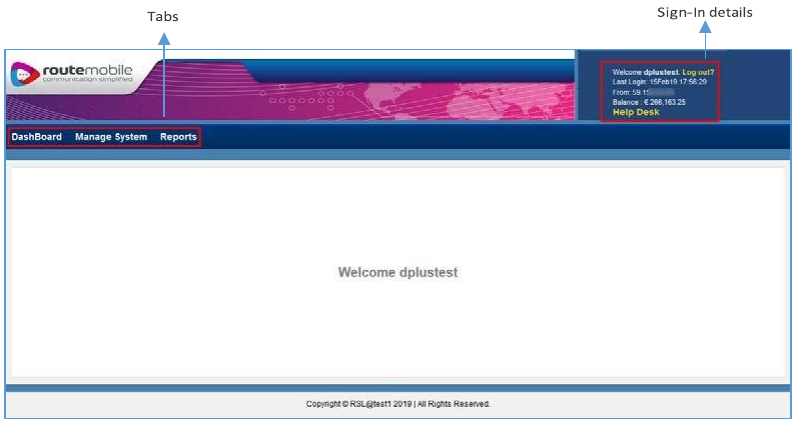
Home Page
Reset your password
If you forget your password, use the reset password flow from the sign-in page.
To reset your password:
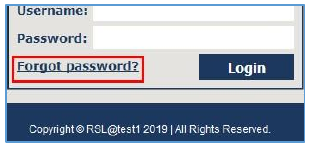
Click Forgot password on the sign-in page.
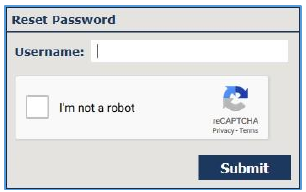
Reset Password
On the Reset Password Request page, enter your username.
Select the I’m not a robot checkbox.
If you receive a CAPTCHA verification, follow the on-screen instructions and click Verify.
Click Submit.
The system sends a password reset link to your registered email address and displays a confirmation message.
Reset Password Request Page
Open the password reset email.
Click the reset link.
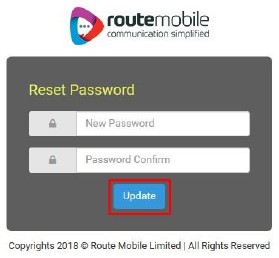
Enter your new password and confirm it.
Click Update.
Reset Password Page
User interface
The home page displays your username at the centre of the page.
User Interface
Your sign-in details appear in the upper-right corner of the page. These details include:
Username
Your IP addresses
Details of when you last signed in
Current account balance
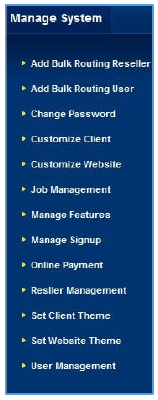
The portal has three tabs in the upper-left corner of the page. The Manage System and Reports tabs contain options for system management and report viewing.
To open an option’s webpage, hover over the tab and click the option.
Tab descriptions
Tab name
Description
Dashboard
Shows message-data summary for your users.
Manage System
Contains options for user management, job management, routing management, and customisation.
Reports
Contains statistics and data related to messages sent. Reports can show daily data or a synopsis.
The tabs and sign-in details appear on every page of the portal. Click Log out to sign out of the portal from any page.
Your session will time out after more than 20 minutes of inactivity.
Manage System Options
Other user interface elements
While interacting with Distadmin, you’ll encounter the following interface elements.
User interface element
Use
Clear text
Deletes data you’ve typed in a text box.
Collapse / Expand arrows
Collapses or expands sections on a page.
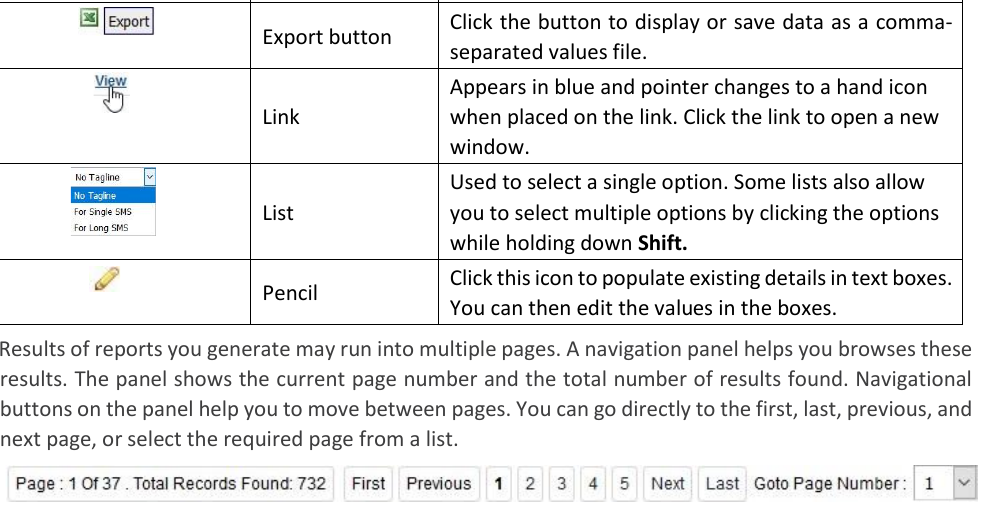
Export button
Displays or saves data as a comma-separated values file.
Link
Appears in blue, and the pointer changes to a hand icon when placed on the link. Click the link to open a new window.
List
Lets you select a single option. Some lists also allow you to select multiple options by clicking options while holding Shift.
Pencil
Populates existing details in text boxes so you can edit the values.
Navigation panel
Report results may run into multiple pages. A navigation panel helps you browse these results.
The navigation panel shows the current page number and the total number of results found. Use the navigation buttons to move between pages. You can go directly to the first, last, previous, and next page, or select the required page from a list.
Navigation Panel
System messages
Distadmin displays messages after system operations.
Successful operations show messages on a green background.
Unsuccessful operations show messages on a brown background.
Message for a Successful Operation
Message for an Unsuccessful Operation
Change system password
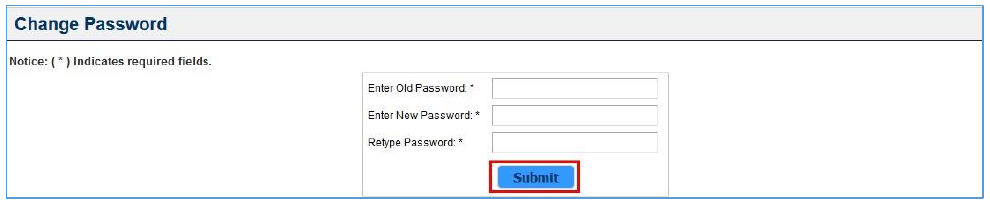
Create a new system password after a system breach or when you need to reset your password.
System passwords must be a minimum of 5 characters and a maximum of 8 characters long.