
Send an SMS
Use the RSms messaging interface to send Single SMS, Bulk SMS, and Group SMS messages.
Messaging modes
| Mode | Use it to |
|---|---|
| Single SMS | Send messages to up to 250,000 mobile numbers. |
| Bulk SMS | Upload a file containing mobile numbers with country codes. |
| Group SMS | Send messages to contacts in address book groups or distribution lists. |
Shared message capabilities

Character and Message Count
All messaging modes let you schedule messages and remove duplicate messages. All modes also show the character count and the number of SMS messages created by the text you enter.
- Preview a message as it will appear on a mobile phone before sending it.
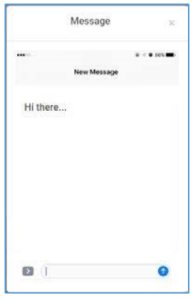
Message Preview
-
Select View No. of Messages in the banner to view the number of messages you can send.
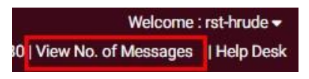
Message Count for Balance
-
Use the Message Count as per Country & Operators window to view the total messages you can send with your available balance for each operator.
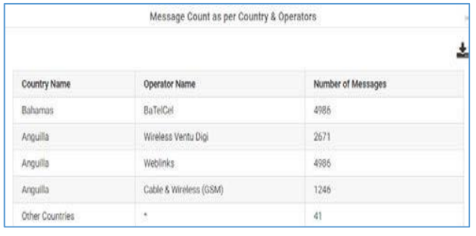
Message Count as per Country & Operators window
-
Select Coverage Details to view routes and pricing.
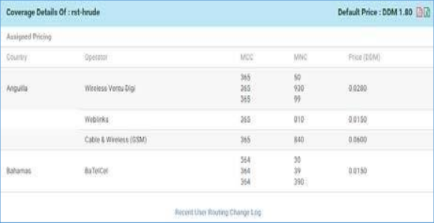
Coverage Details
-
Add Acculyncs only when sending Bulk SMS and Group SMS.
Send a Single SMS
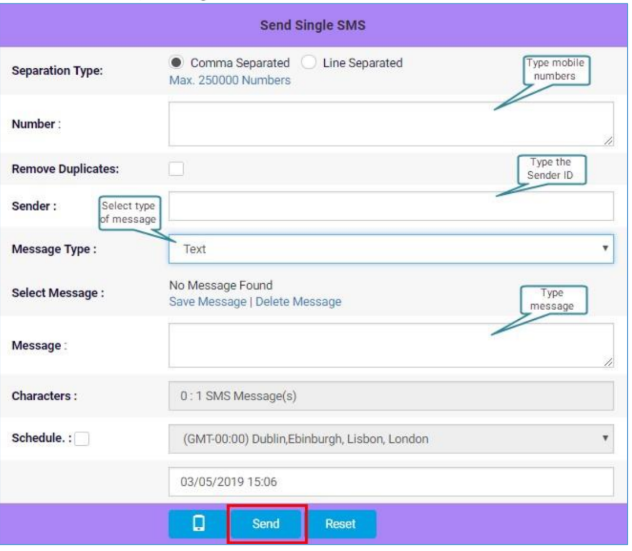
Send a Single SMS
Use Single SMS to send messages to up to 250,000 mobile numbers. Enter each mobile number with its country code.
- From the Send SMS menu, select Single SMS.
- Enter mobile numbers separated by commas, or enter one number on each new line.
- Enter the message and sender ID.
- Select the message type.
- Click Send.
Send a Bulk SMS
Use Bulk SMS to send messages to multiple users by uploading a file containing mobile numbers with country codes. You can also customize the message for each recipient.
Upload a file
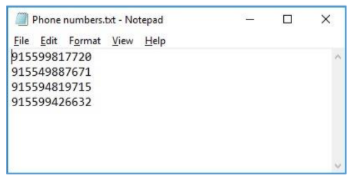
Numbers in Line Separated Format
-
From the Send SMS menu, select Bulk SMS.
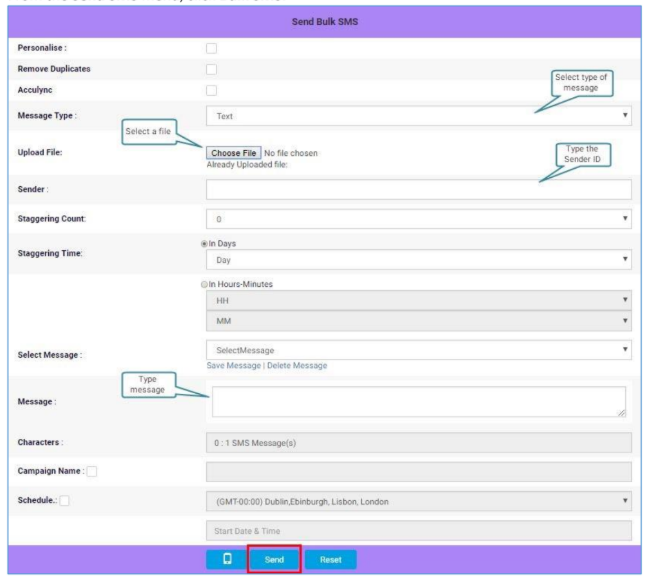
Send Bulk SMS with File Upload
-
Prepare an MS Excel workbook, text file, or CSV file containing mobile numbers with country codes.
-
Enter numbers in a line-separated format.
-
Upload the file.
-
Confirm that the system displays the uploaded file name beside the Choose File button.
-
Select the required parameters.
-
Click Send.
-
If the system displays the total number of numbers in the file and confirms the update, click OK.
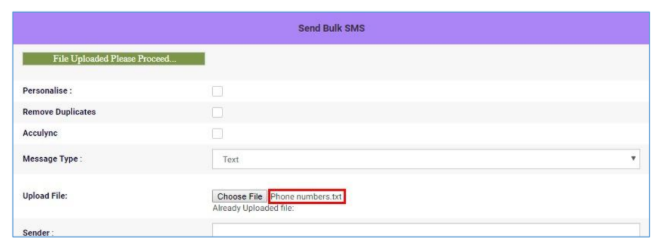
Uploaded File
Optional: Send messages in batches
Use Staggering Count and Staggering Time to send messages in defined batches.
- Staggering Count defines the number of destination numbers in each batch. Values range from zero to 1 million in increments of 5,000.
- Staggering Time defines the batch execution interval in days or hours.
- When you send messages, the first batch executes immediately. Subsequent batches execute according to the configured interval.
- When you schedule messages, the first batch executes at the scheduled date and time. Subsequent batches execute according to the configured interval.
Optional: Send personalized Bulk SMS
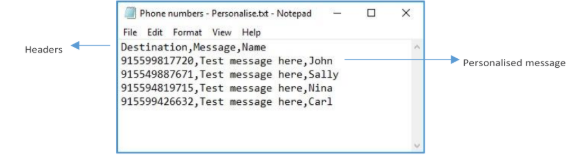
Personalized Message Format for Text Files
Personalized Bulk SMS is a Bulk SMS file upload feature that lets you customize messages using column headers and message text in the uploaded file.
- Create a file with column headers in the first row.
- Add phone numbers with country codes in the first column.
- Add message data in the remaining columns and identify each column with a header.
- Select the Personalize checkbox.
- Upload the file.
- Use the Add Field list beside the Message box to insert column headers into the message.
The first column header for phone numbers does not appear in the Add Field list.
-
Select fields in the order required for the message. You can also type fixed text directly in the Message box.
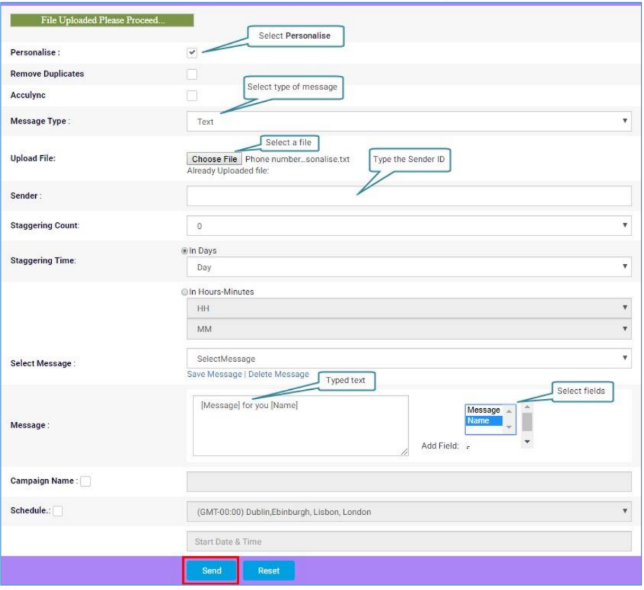
Personalized Bulk SMS
-
Click Send.
-
When the system displays the total number of numbers in the file, click OK.
-
Review the preview and click Confirm.
-
When the system confirms that messages are uploaded, click OK.
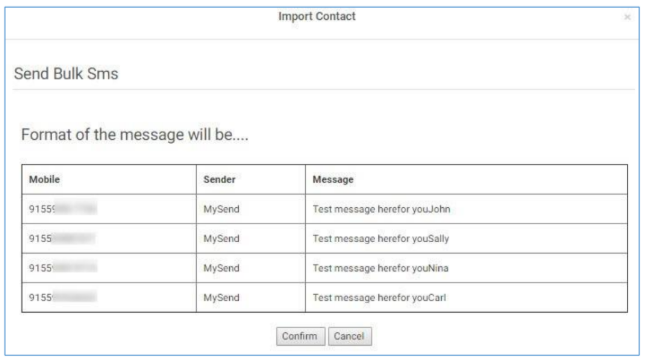
Personalized Bulk SMS Preview
Send a Group SMS
Use Group SMS to send messages to a selected set of contacts. A contact consists of a name and mobile number.
Group SMS works similarly to Bulk SMS, but you select mobile numbers with country codes from groups or distribution lists in the address book. You can select contacts from multiple groups or entire distribution lists.
Manage a group
Use groups to add, edit, or delete contact names and mobile numbers with country codes. From the Address Book menu, select Group to manage groups.
Duplicate mobile numbers are not permitted within a group.
Create a group
- Enter the required name in the Group Name box.
- Click Add.
The details section shows the contact names and phone numbers for the selected group.
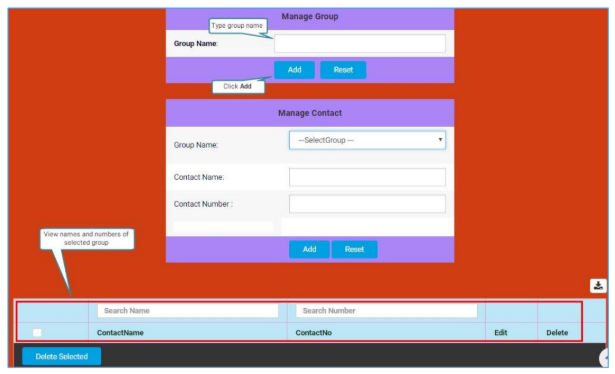
Create a Group
The group name appears in the Group Name list after the system creates the group successfully.
Rename or delete a group
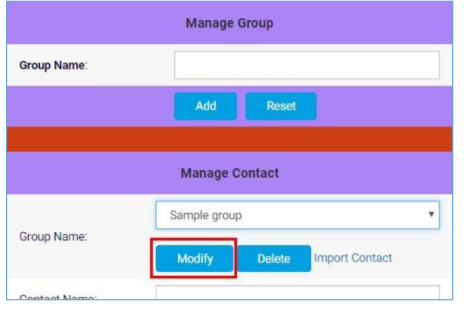
Modify the Group Name
To rename a group:
-
Select the required group from the Group Name list.
-
Click Modify.
-
Edit the name in the Group Name box.
-
Click Save.
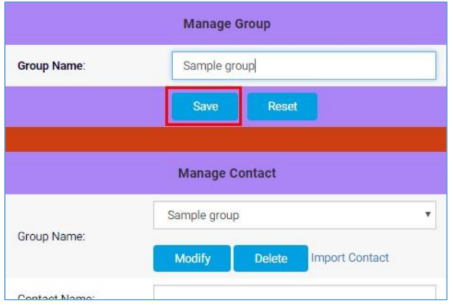
Save the Edited Group Name
To delete a group, select it and click Delete. If the system requests confirmation, click OK.
Add contacts to a group
Add contacts individually or import a text or CSV file containing contact names and numbers.
If a contact already exists in a group, the system removes the duplicate entry during addition.
To import contacts:
-
Select the required group from the Group Name list.
-
Click Import Contact.
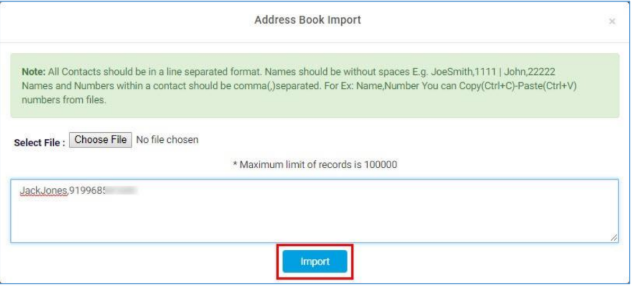
Address Book Import Window
-
Perform one of the following:
- Enter contact details in the text area. Separate each contact name and phone number with a comma, and enter each contact on a new line. Do not include spaces between first and last names.
- Click Choose File and select a file containing contacts.
-
Click Import to save the contacts in the group.
To add an individual contact:
-
Select the required group from the Group Name list.
-
Enter the contact name in the Contact Name box.
-
Enter the mobile number in the Contact Number box.
-
Click Add.
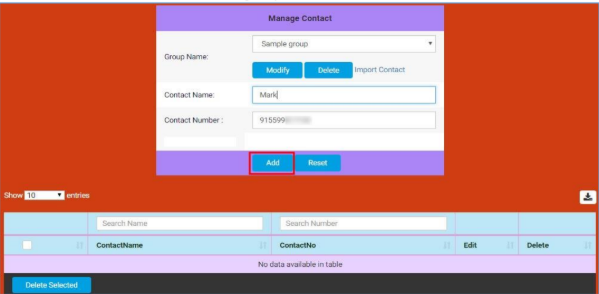
Add Individual Contacts
The contact's details appear below:
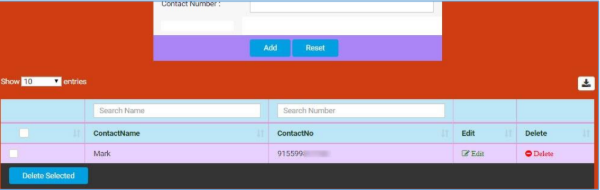
Added Contact
Edit or delete contacts
To edit a contact, select the group that contains the contact and click the corresponding Edit link.
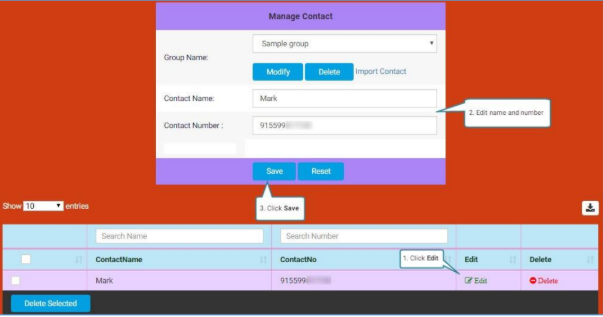
Edit a Contact
To delete contacts:
- Select the group that contains the contact.
- Click the corresponding Delete link to delete an individual contact.
- To delete multiple contacts, select them and click Delete Selected.
- If the system requests confirmation, click OK.
Manage a distribution list
A distribution list stores only mobile phone numbers with country codes in a line-separated format. From the Address Book menu, select Distribution List to create a list, rename a list, and add or delete numbers.
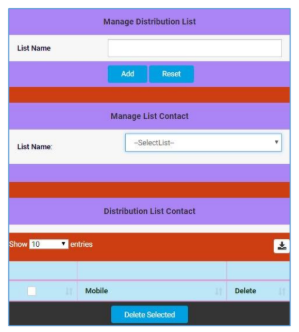
Manage a Distribution List
You cannot add individual numbers to a distribution list. Add numbers by importing a file or entering them in the List Number Import window.
Distribution list management follows the same process as group management. Enter mobile numbers for the selected list in a line-separated format.
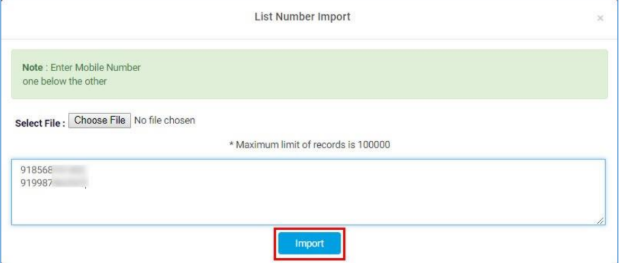
List Number Import Window
Send a Group SMS
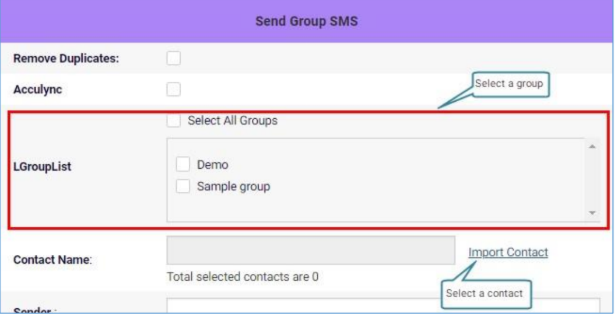
Select a Group or a Contact
-
From the Send SMS menu, select Group SMS.
-
Click Import Contact.
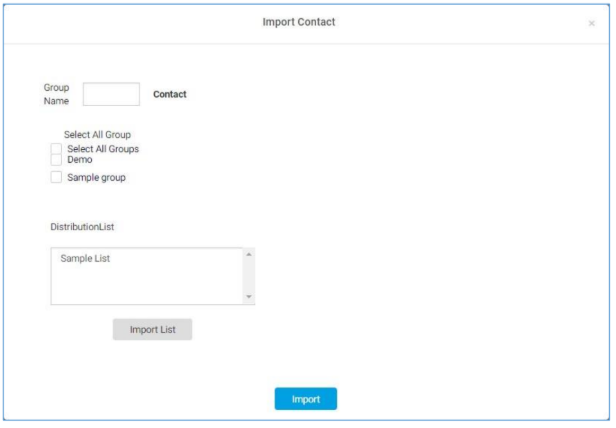
Import Contact Window
-
Select contacts from groups or select a distribution list.
To select a distribution list:
- Select the required list from the DistributionList list.
- Click Import List.
Hold
Ctrlwhile selecting list names to select multiple distribution lists.
The list name appears in the Contact Name box.
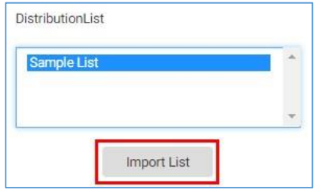
Select List Name
To select contacts from groups:
- Select the checkbox for the required group. The Name and Number columns appear under the Contact section.
- Select the checkboxes for the required contacts.
- Click Import.
You can select multiple groups. To select an entire group, select the group checkbox in the GroupList list.
The selected contacts appear in the Contact Name box. Enter the message details, select the required parameters, and click Send.
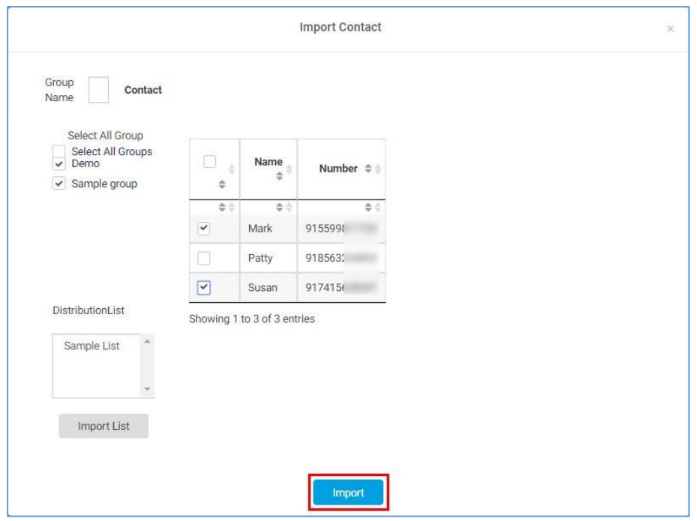
Import Multiple Contacts from Multiple Groups
To send a Group SMS:
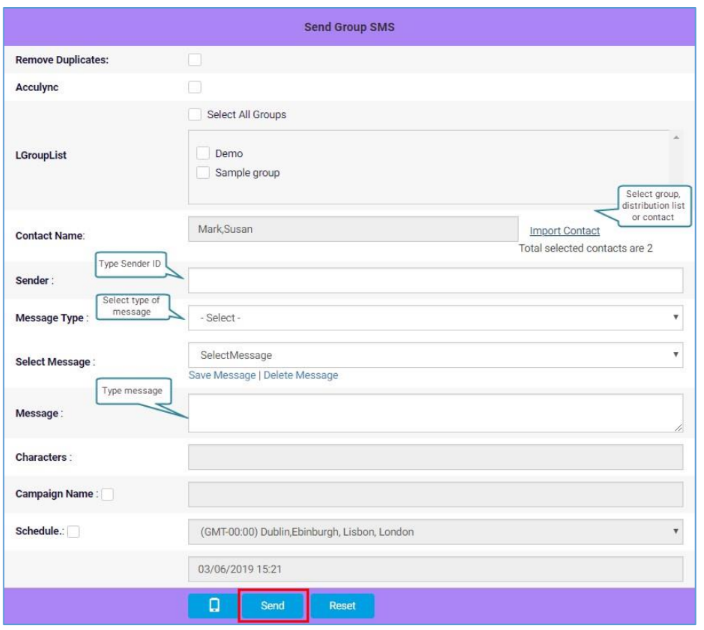
Send a Group SMS
Updated 2 months ago