
On Hold and Retrieve
On Hold
The On Hold option lets you pause an active conversation temporarily — without closing it. Use it when you're waiting for something: a document from the customer, an internal approval, or any dependency that means you can't progress right now.
Think of it like putting a customer on hold during a phone call. The line stays open, nothing is lost, and the moment either side is ready to continue, the conversation resumes.
Placing a Chat On Hold
-
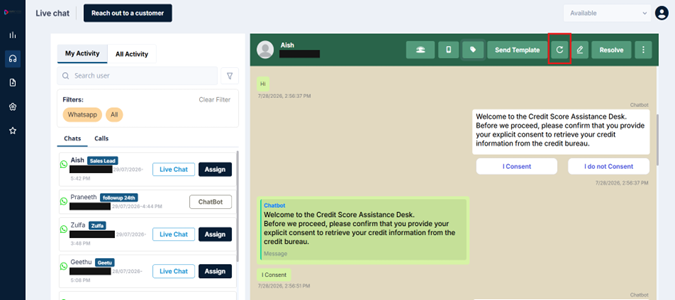
Click the retrieve menu in the conversation header
-
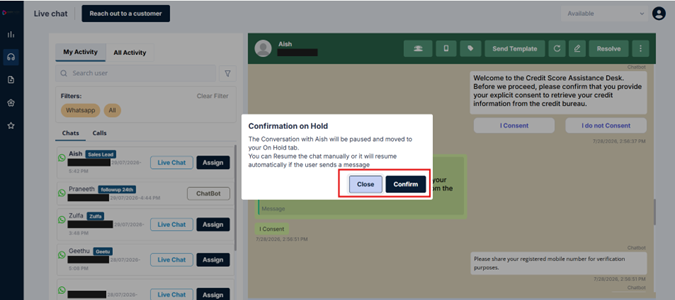
A confirmation prompt appears — it explains that the conversation will be paused and moved to your On Hold tab, and that it will resume automatically the moment the customer sends a message
-
Click Confirm
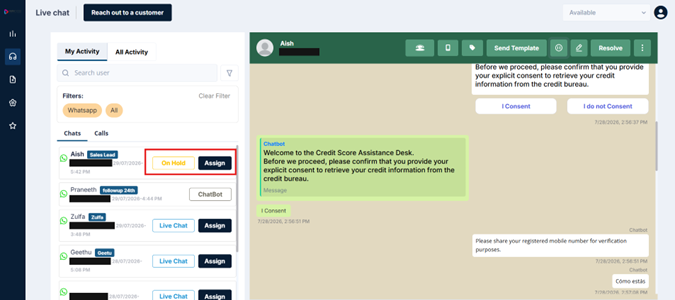
The chat immediately moves to your On Hold list in the left panel.
Retrieving a Chat
A chat on hold will auto-retrieve — moving back to Live Chat status — the moment either you or the customer sends a message. If you want to manually resume it:
-
Open the On Hold conversation in the left panel
-
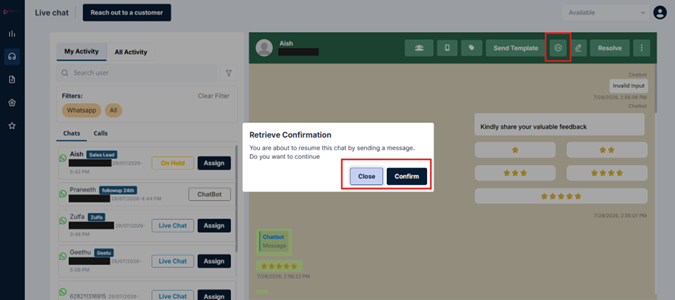
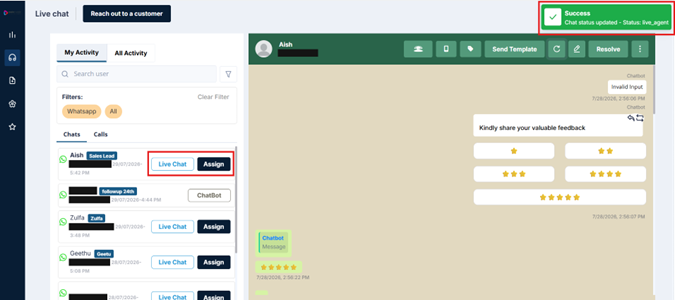
Click Retrieve — a confirmation prompt appears
-
Confirm, and the chat immediately returns to Live Chat status
Updated 3 months ago