
The Live Chat Module
The Live Chat module is your central workspace. This is where incoming customer conversations land, where you respond, and where you manage the full lifecycle of each chat. The moment you log in to the Live Agent panel, it automatically brings you here — because this is where you’ll spend most of your time.
The Live Chat screen
The Live Chat screen is divided into two major sections:
where conversations are listed and organized
where the actual conversation takes place
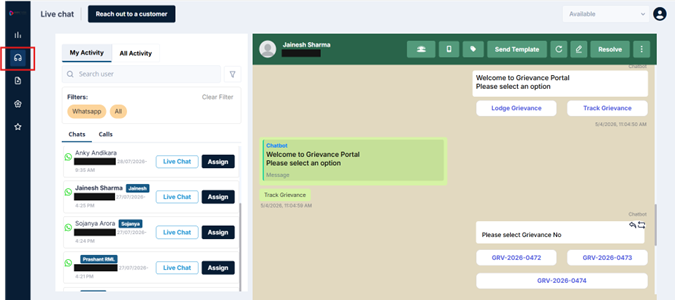
Let's start with the left panel — it's the control centre for everything you see and manage.
The Left Panel — Your Chat List at a Glance
The left panel runs down the left side of your screen when you're in Live Chat. It shows you all conversations relevant to you — both the ones you're actively handling and new requests waiting to be picked up.
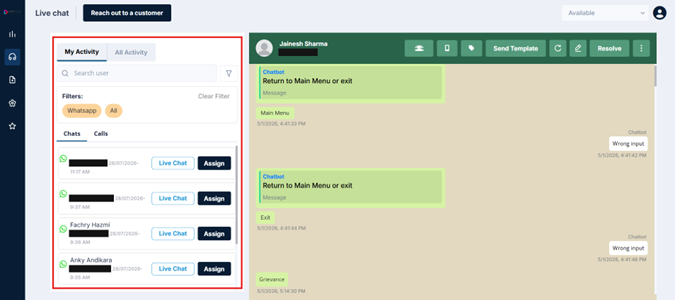
At the top of this panel, you'll find two tabs: My Activity and All Activity. Together, they give you visibility into the conversations flowing through the system — both the ones you’re directly handling and, depending on configuration, those across the wider team.
My Activity
My Activity is your personal view. It shows only the conversations that are assigned to you or that you’ve accepted. Think of it as your own journey log — every chat request you’ve handled, its current status, and the history of your interactions.
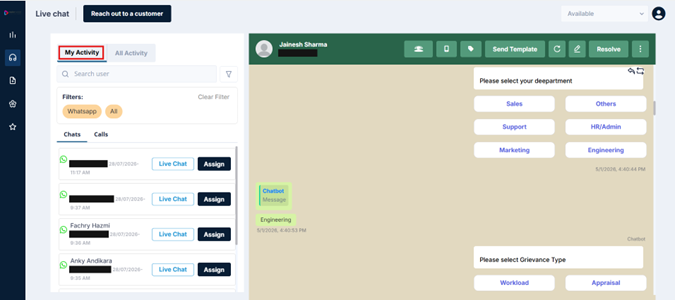
This section displays:
- New incoming requests — Chat requests assigned to you that are waiting for you to accept
- Live Chat — Chats you're currently in the middle of with customers
- Historical conversations — Past chats you've handled, across all statuses (resolved, on hold, unresolved, etc.)
Whenever a new chat request is routed to you, it appears here. Once you accept the conversation, it continues to remain visible under My Activity until the chat is resolved, reassigned, or moved into another status.
💡 Good to know: Only conversations relevant to you are displayed in this section. You will not see chats assigned to other agents under My Activity.
All Activity
All Activity provides a broader, enterprise-level view of conversations.
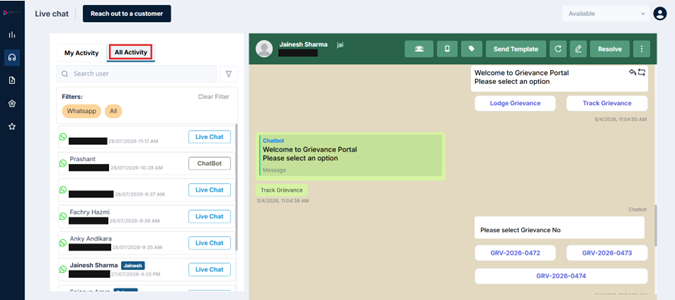
Unlike My Activity, this section provides visibility into conversations across the organization, not just those assigned to you. You can view chats enterprise-wide or filter them by specific supervisors or departments.
This helps agents and supervisors:
- Enterprise-Wide Visibility — You’ll see all chat requests that have come into the system, regardless of which agent is handling them.
- Supervisor Control — If enabled, this helps agents understand overall traffic and workload distribution. If disabled, you’ll only see My Activity.
- Statuses Across Agents — You can view the lifecycle of chats handled by colleagues, including which are live, resolved, or unresolved.
However, visibility into All Activity depends on supervisor configuration. This feature is optional and may not be enabled for every organization.
Important: If the All Activity tab is not visible on your screen, it means your supervisor or administrator has not enabled this feature for your account. To request access, please reach out to your Supervisor or administrator for assistance.
Search User
Below the My Activity and All Activity tabs, you'll find the Search User field.
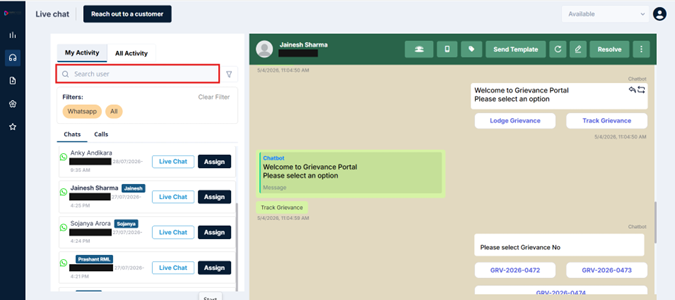
This search bar helps you quickly locate conversations.
You can search using:
- Customer phone number
- Customer name
- Chat tags
This becomes especially useful when handling large volumes of conversations. Instead of manually scrolling through the conversation list, you can instantly find the required chat using the search function.
Filters
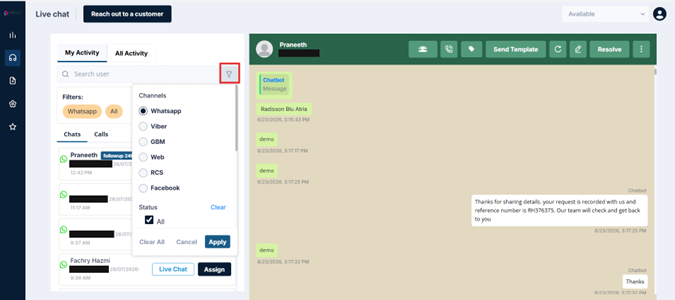
Next to the Search User field, you'll see the Filter icon.
Filters help you narrow down conversations based on specific conditions.
You can filter chats using:
- Channel- WhatsApp, RCS etc
- Chat status- Live chat, On hold, Unresolved, Unattended, etc
- Conversation type
- Assigned activity states
For example, you may choose to:
- View only Live Chats
- Display only Resolved conversations
- Check Unresolved chats
- View chats currently On Hold
You can also apply multiple filters together.
This helps agents quickly focus on the conversations that need immediate attention.
Channel Filters
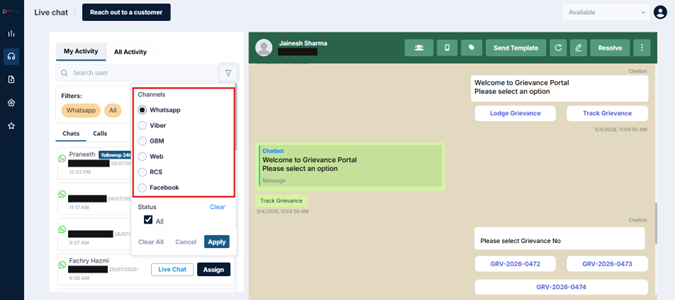
Under the Filters section, channels are displayed based on the channels enabled for your organization.
Currently, the platform supports:
- RCS
If your enterprise is enabled only for WhatsApp, then only WhatsApp will appear. If both WhatsApp and RCS are enabled, both channels will be visible.
Updated 3 months ago