
MoEngage × Route Mobile WhatsApp
Configure Route Mobile as a WhatsApp sender in MoEngage and enable delivery and read analytics for WhatsApp messages.
MoEngage has native integration for WhatsApp with Route Mobile. This integration allows businesses to send templated WhatsApp messages using Senders powered by Route Mobile. MoEngage can send messages and show delivery and read analytics.
Prerequisites
- Log in to the MoEngage dashboard.
- Get your Route Mobile API key from Route Mobile.
- Confirm that your WhatsApp Business number is registered directly with WhatsApp or through Route Mobile.
Configure Route Mobile as a sender
To configure a Route Mobile sender in the MoEngage dashboard:
- Go to Settings → WhatsApp → Sender Configuration.
- Select Route Mobile (RouteMobile) from the left menu.
- Click + Sender.
- Enter the sender details.
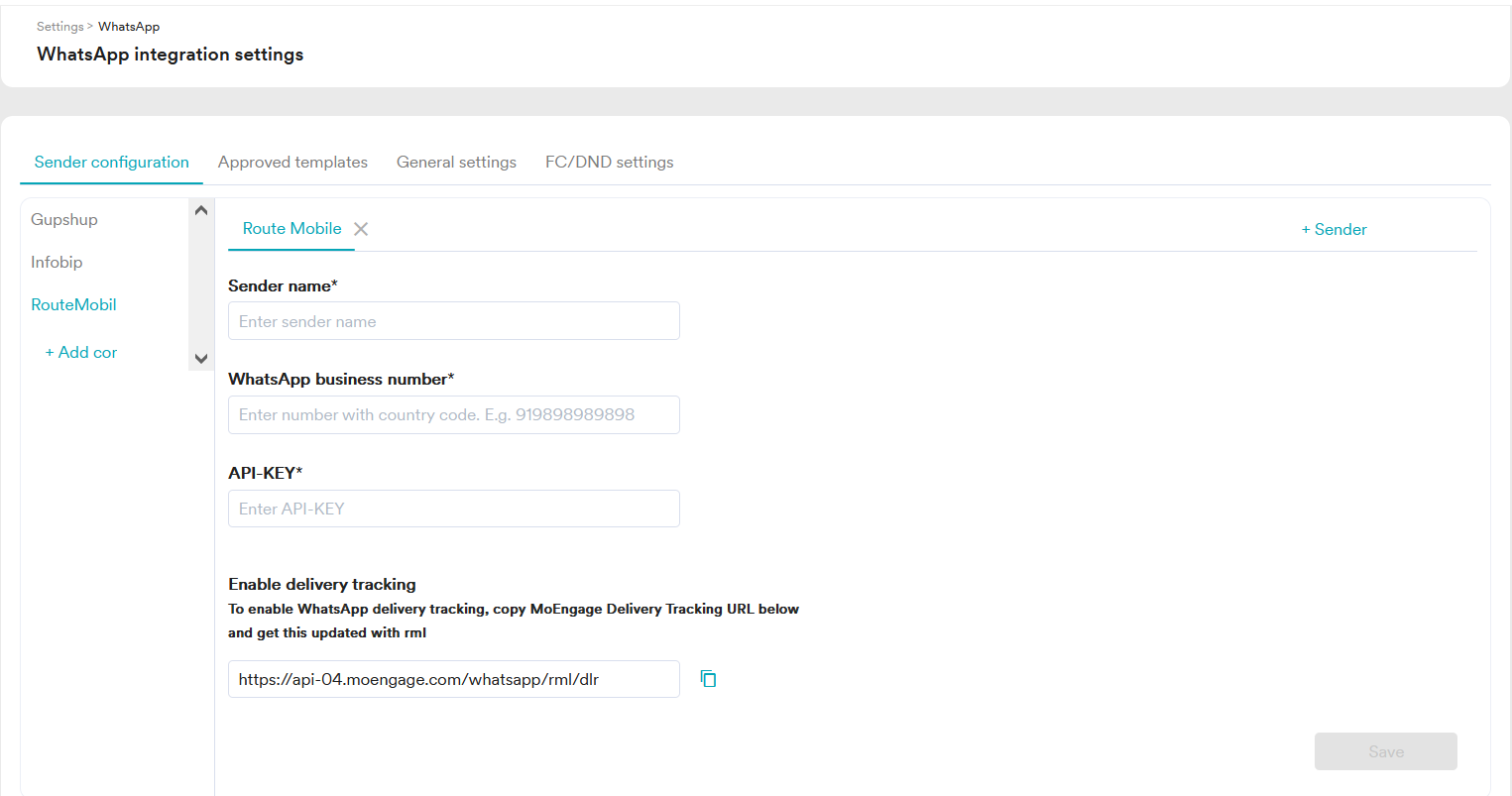
| Field Name | Description |
|---|---|
| Sender Name | Name for the sender profile. This name appears in MoEngage so you can identify the sender while creating a campaign. The Sender Name must be 5-50 characters. This field is mandatory. |
| WhatsApp Business number | Phone number registered with WhatsApp, directly or through Route Mobile, that you use to send WhatsApp messages to your users. |
| API key | Route Mobile provides API keys during customer onboarding for security and compliance. Contact [email protected], [email protected], and [email protected]. |
Configure delivery tracking
To track WhatsApp message delivery inside MoEngage, copy the MoEngage Delivery Tracking URL and share it with the Route Mobile Support team. Route Mobile will configure the URL from their side.
You should see the Delivery Tracking URL as shown below:
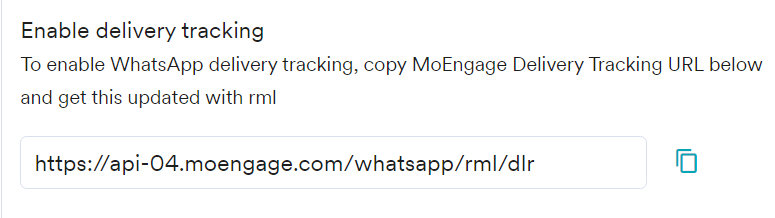
The callback URL may look generic, but for MoEngage you only need to copy the callback URL shown in the dashboard and share it with the Route Mobile Support team. The URL may include region-specific suffixes such as
-04,-05, or-06depending on the region.
How callback tracking works
When Meta sends the callback to Route Mobile, Route Mobile receives the unique message ID from the MT message sent by the CRM. Route Mobile then sends that callback to MoEngage.
MoEngage uses the unique message ID received from Meta through Route Mobile to identify the correct account for the callback.
Confirm successful configuration
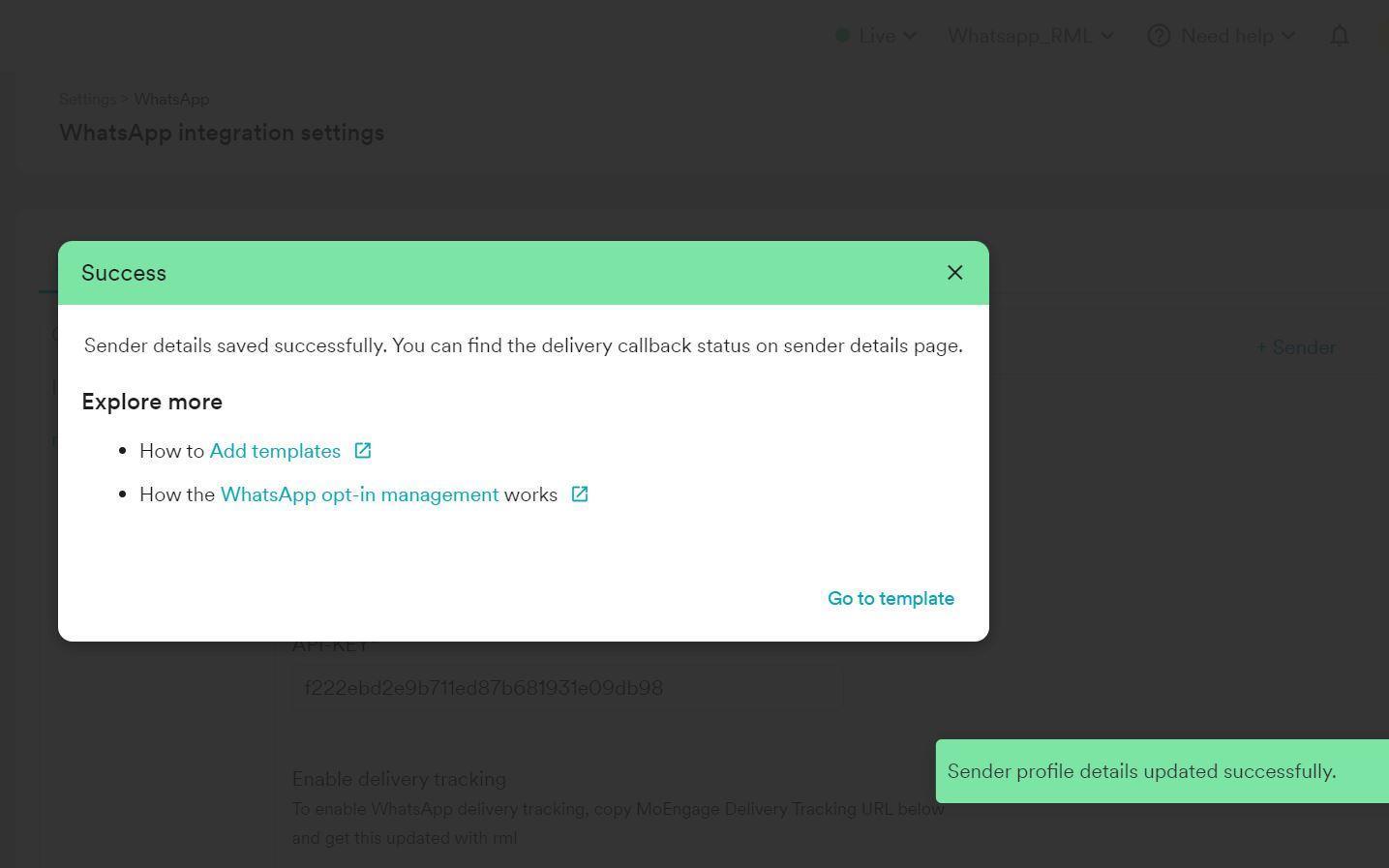
After the integration is configured successfully, MoEngage shows a success message in the dashboard.
Optional: Add the delivery tracking URL in the Route Mobile panel
Write to [email protected] to get the Delivery Tracking URL configured for your account.
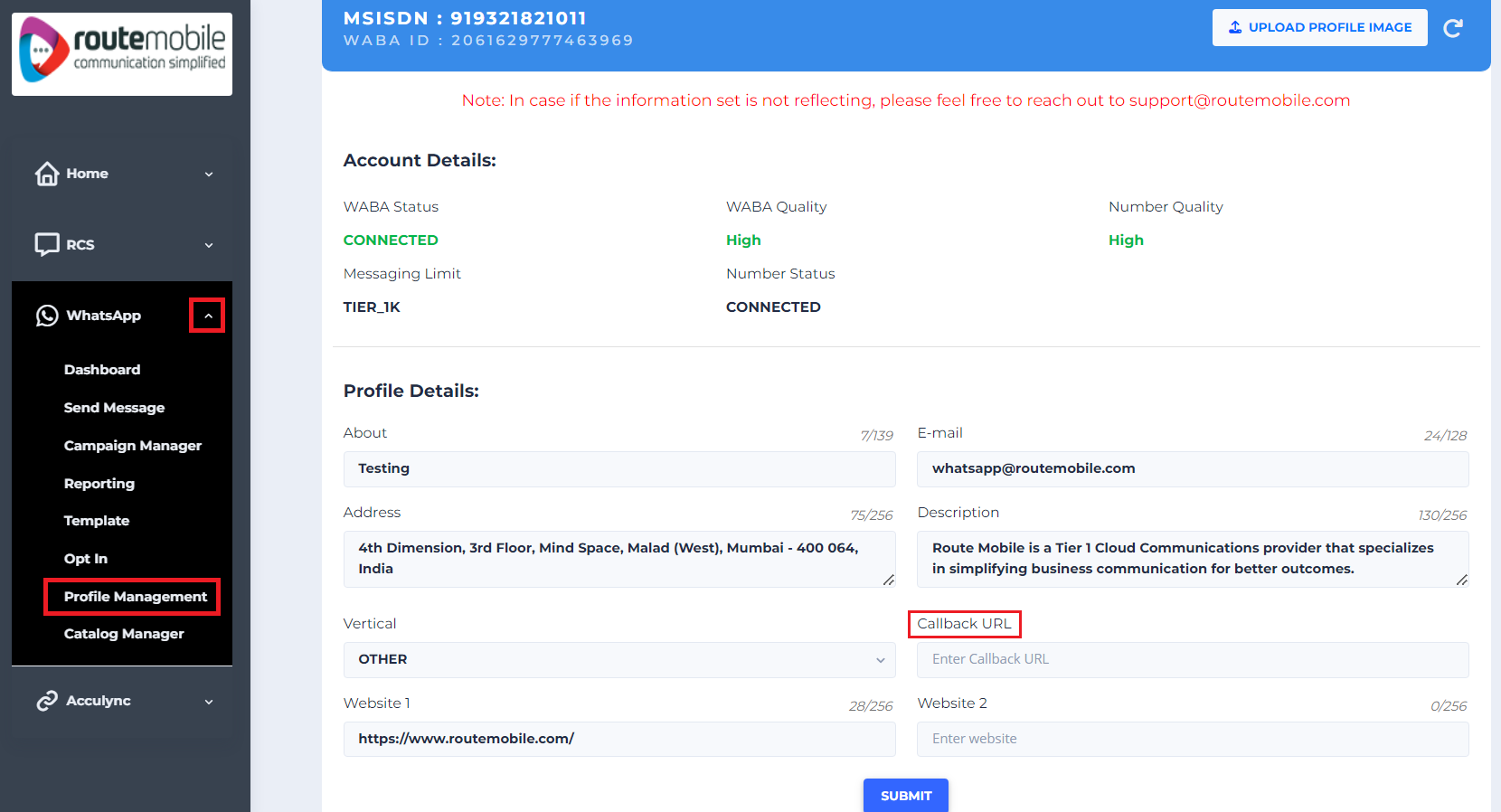
This screenshot shows how the DLR would look if the business added it manually. Route Mobile recommends writing to support instead of configuring it manually. This step is for reference only.
Mobile number format
Follow these mobile number formats when triggering campaigns.
| Format | Example |
|---|---|
| International | 00-971-5641xxxxx |
| Domestic (India) | 00 988488xxxx |
| Domestic (India) | 91 988488xxxx |
Updated 3 months ago