
Address Book
Address Book Features
Address Book provides the following facilities:
-
Save mobile numbers with country code
-
Manage contacts in Groups:
- Add names and mobile numbers
- Edit existing entries
- Delete contacts
-
Manage Distribution List:
- Add or delete numbers
- Import mobile numbers
- Use as an inventory
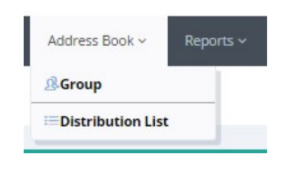
Group Management
Using Groups, users can store mobile numbers, including country codes, along with the name. Duplication of mobile numbers within a group is not permitted.
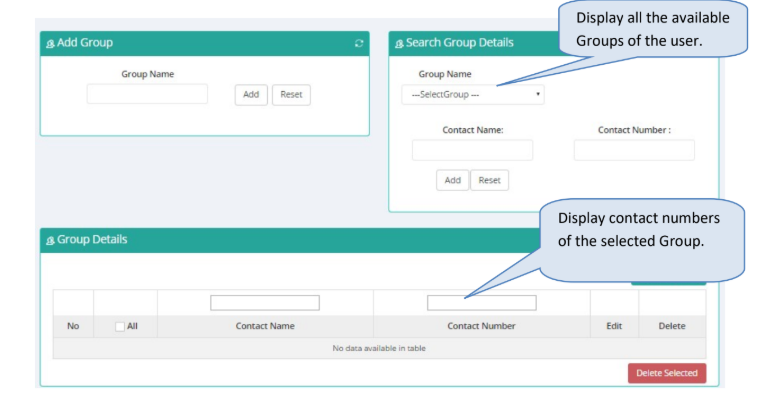
Add Group
This section explains the process for creating a group.
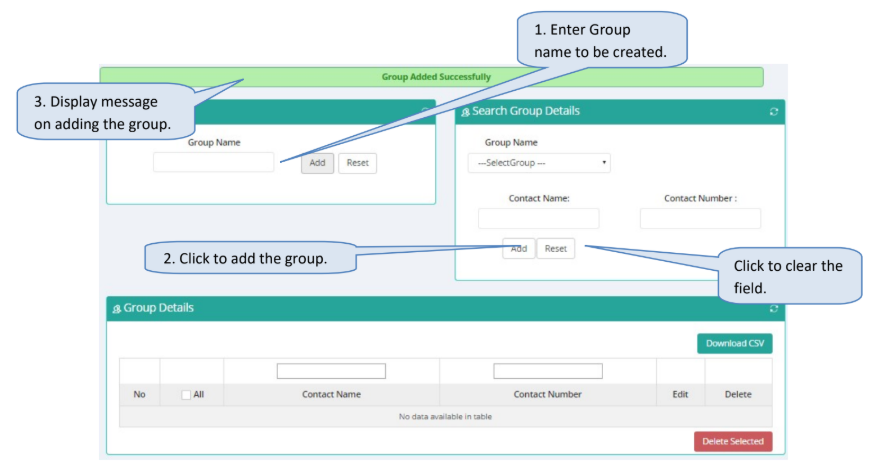
Steps to add group:
- Enter the name of the group which is to be created (e.g. Office, Customers, etc.)
- Click the 'Add' button to save the name of the group.
- The 'Manage Contact' section will display a success or an error message.
Modify and Delete Group
This section explains the process for renaming and deleting a group.
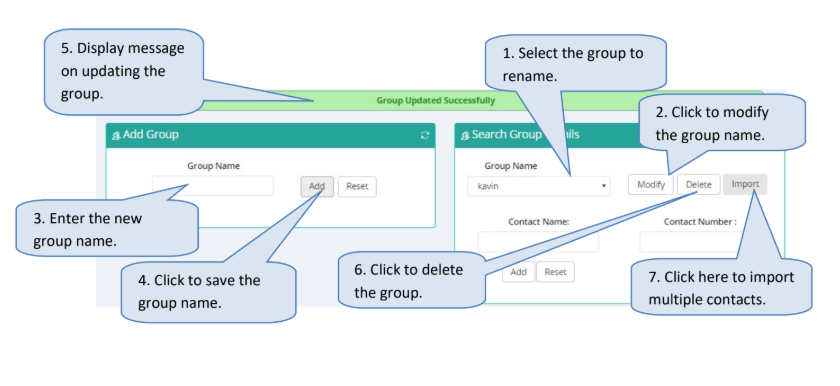
Steps to Modify or Delete a Group
- Select the group name from the drop-down box that needs to be renamed or removed.
- To rename the group:
- Click the 'Modify' button
- Enter the new group name
- Click the 'Modify' button again to save the changes
- The 'Manage Contact' section will display a success or error message
- To delete the group:
- Click the 'Delete' button
- Click 'Yes' to confirm the deletion
- To import contacts to the selected group:
- Click 'Import Contacts' (see the next section for details)
Import Contacts
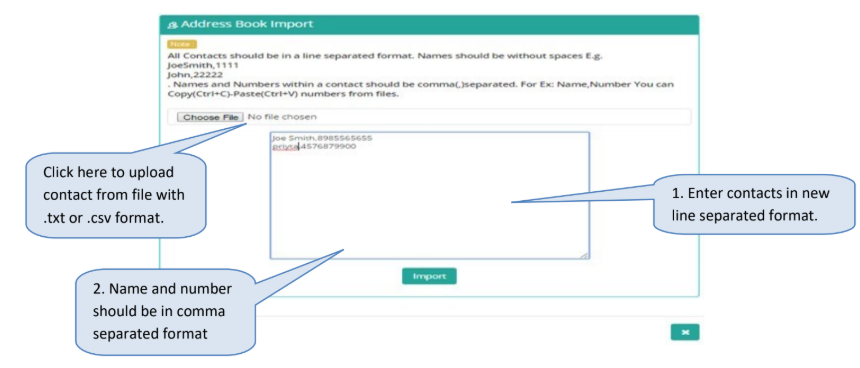
This section will explain the process for importing multiple contacts. If a mobile number already exists in a group while importing contacts, the duplicate entry will be removed — duplicate contacts will be added only once in that group.
Steps to import contacts:
- Enter the name and mobile number in a new line separated format.
- Name and mobile number pair should be in comma-separated format.
- Click the 'Import' button to save the contacts to the selected group.
- The 'Contact List' section will display a success or error message.
Add Single Contact
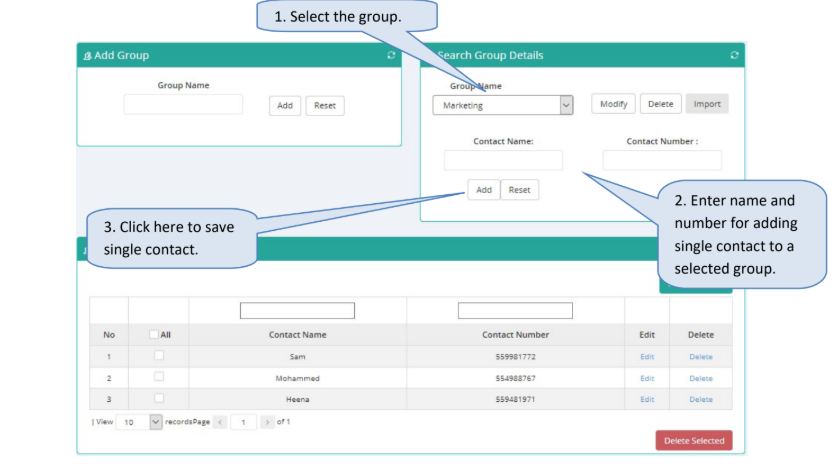
This section will explain the process for adding a single contact. Existing mobile number cannot be saved in the same group.
Steps to import contacts:
- Select the group name in which contact has to be added.
- Enter the name and mobile number for adding single contact.
- Click 'Add' button to save the contacts to the selected group.
- 'Contact List' section will display success or error message.
Edit Contact
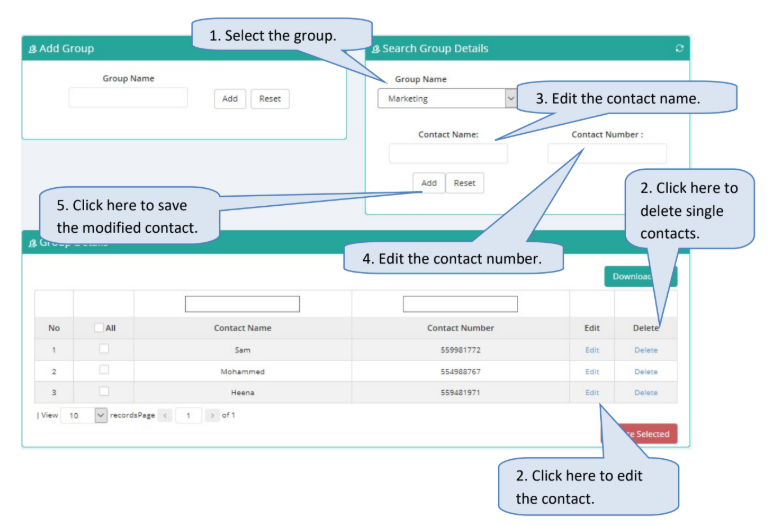
This section will explain the process for editing contact of the selected group.
Steps to editing contacts:
- Select the group name in which contact has to be changed.
- Select the contact by clicking the 'Edit' link beside the contact.
- Edit the contact name.
- Edit the contact mobile number.
- Click 'Save' Button to save the modified contact.
- 'Contact List' section will display the success or error message.
Delete Multiple Contacts
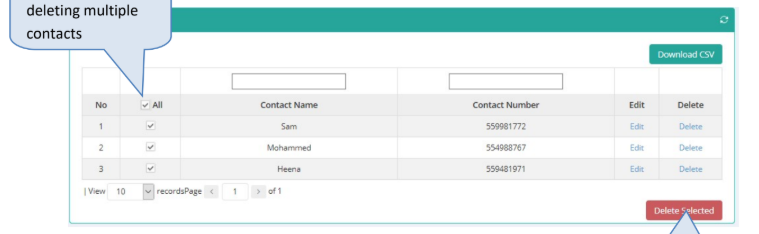
This section will explain the process for deleting multiple contacts.
Steps to deleting contacts:
- Select the group name in which contact has to be deleted.
- Select the contacts by clicking the checkbox beside the contacts. If all the contacts have to be deleted then click on the 'All' checkbox.
- Click 'Delete Selected' button to delete the selected contacts of the group.
- Click 'OK' on the Delete Contact confirmation box.
Delete Single Contacts
This section will explain the process for deleting a single contact.
Steps to Deleting a Contact
- Select the group name in which the contact has to be deleted.
- Click the 'Delete' link beside the contact to be deleted.
- Click 'OK' on the Delete Contact confirmation box.
- The 'Contact List' section will display a success or error message.
Distribution List
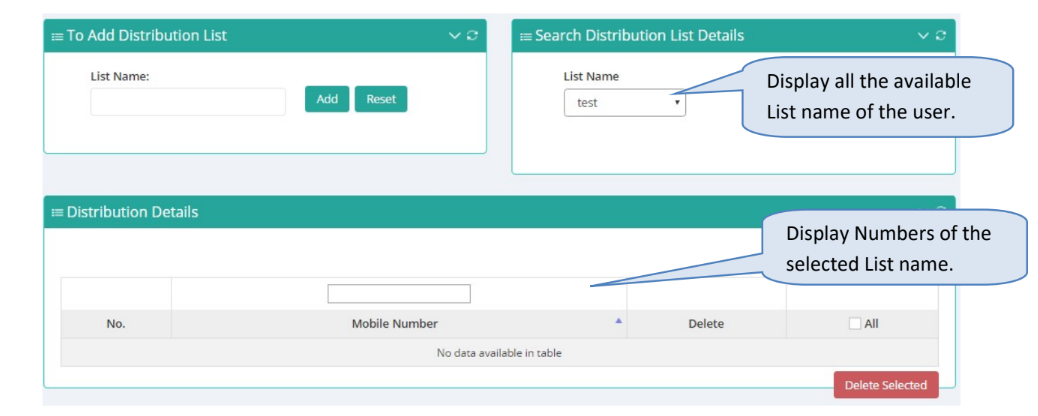
Using Distribution List, mobile numbers including country code are only stored.
Add Distribution List
This section explains the process for creating a distribution list.
Steps to add group:
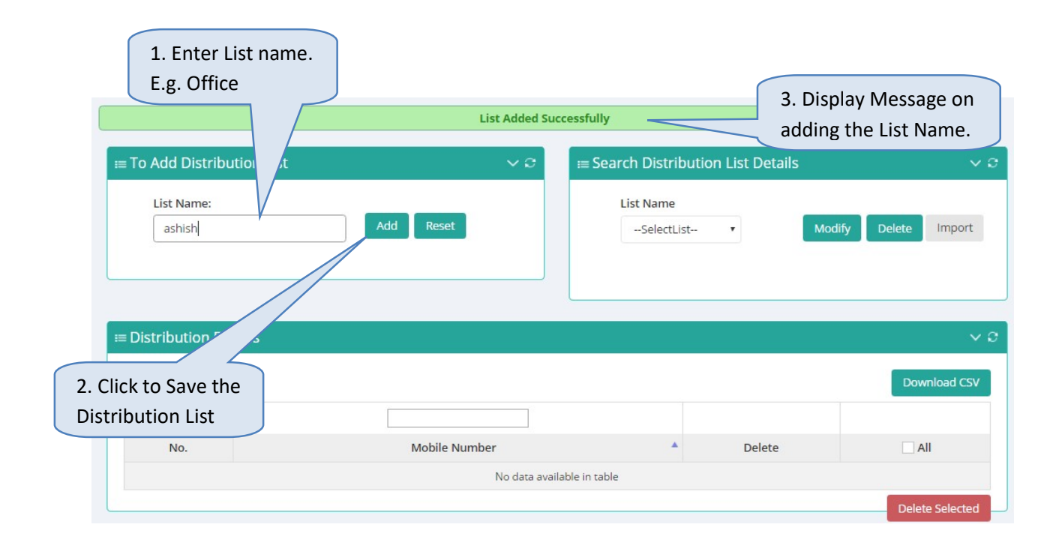
- Enter the name of the distribution list which is to be created (e.g. Clients, Friends, etc.)
- Click the 'Add' button to save the name for the distribution list
- The 'Manage List Contact' section will display a success or error message.
Modify and Delete Distribution List
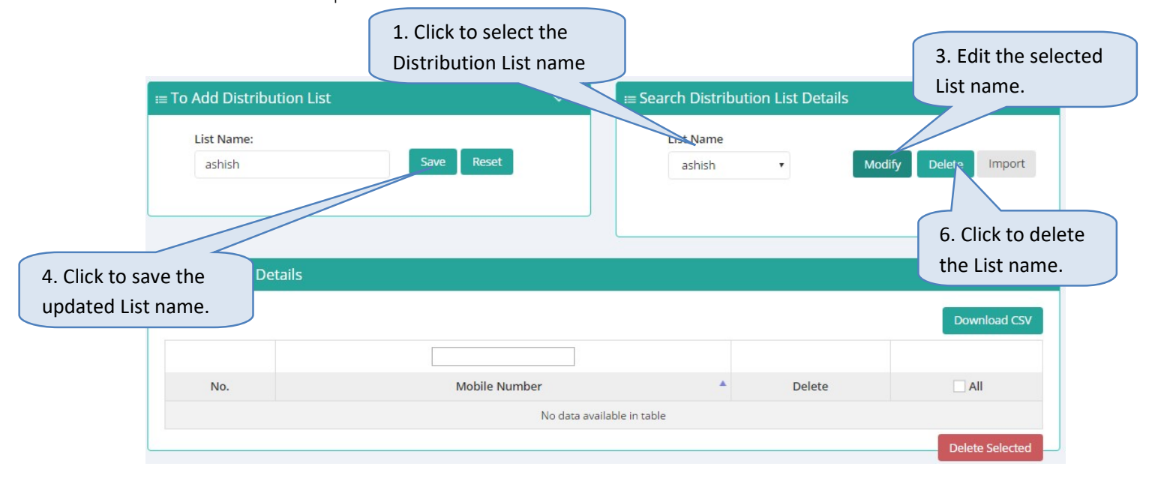
This section explains the process for renaming and deleting a distribution list.
Steps to Manage Distribution List
-
Select the distribution list name from the drop-down box which has to be renamed or removed.
-
To Rename a Distribution List:
- Click the 'Modify' button to rename the selected distribution list.
- Enter the new distribution list name.
- Click the 'Modify' button to save the modified name for the distribution list.
- The 'Manage List Contact' section will display a success or error message.
-
To Delete a Distribution List:
- Click the 'Delete' button for the selected distribution list.
- Click 'Yes' to confirm deleting the group.
-
To Import Mobile Numbers:
-
Click 'Import Number' to import mobile numbers including country code to the selected distribution list.
-
This is explained in the next section.
-
Importing Mobile Numbers
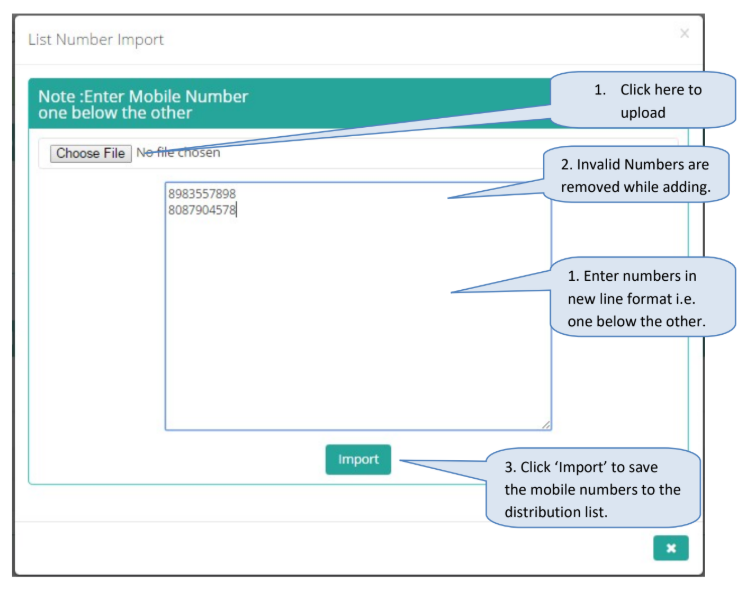
This section will explain the process for importing multiple mobile numbers, including country code, to a selected distribution list. If a mobile number already exists in the selected distribution list while importing, the duplicate entry will be removed. Invalid mobile numbers will not be saved in the distribution list.
Steps to import contacts:
- Enter the mobile number in a new line separated format.
- Invalid mobile numbers will be removed while importing to the distribution list.
- Click the 'Import' button to save the mobile numbers to the selected distribution list.
- The 'Distribution List Contact' section will display a success or error message.
Delete Multiple Mobile Numbers
This section will explain the process for deleting multiple mobile numbers including country code in the selected distribution list.
Steps to deleting contacts:
- Select the distribution list name in which contact has to be deleted.
- Select the contacts by clicking the checkbox beside the mobile numbers. If all the contacts have to be deleted then click on the 'All' checkbox.
- Click 'Delete Selected' button to delete the selected contacts of the group.
- Click 'OK' on the 'Delete Contact' confirmation box.
Delete Single Mobile Number
This section will explain the process for deleting single mobile number.
Steps to deleting mobile number:
- Select the distribution list name in which mobile number has to be deleted.
- Click the 'Delete' link beside the mobile number to be deleted.
- Click 'OK' on the 'Delete Contact' confirmation box.
- 'Distribution List Contact' section will display success or error message.
Updated 2 months ago