
Common Function
Use these common functions to choose message types, convert Unicode messages, schedule SMS delivery, add Acculync links, and remove duplicate numbers.
Quick overview
Choose the SMS message format that matches your language, content, and delivery requirements.
Convert multilingual messages into hexadecimal Unicode values before sending.
Schedule SMS delivery by selecting the time zone, date, hour, and minute.
Shorten URLs inside Bulk and Group messages and track link analytics.
Remove repeated mobile numbers before sending messages.
Select a message type
Select a message type from the Message Type list based on your message content and character limit requirements.
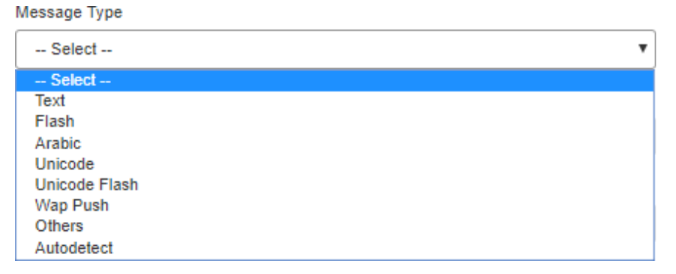
Message Type List
Types of messages
| Message type | Character limit | Explanation |
|---|---|---|
| Text | 160 | A text message in English. |
| Flash | 160 | A text message that flashes on the mobile screen without being saved in the message inbox. |
| Arabic | 70 | A text message in Arabic. |
| Unicode / Unicode Flash | 70 | Uses the Unicode Convertor to convert messages in any language into hexadecimal values. Click Import to copy the converted message. Personalized messages have the Unicode message appended to the original message. |
| WAP Push | 160 | A text message that contains a clickable URL. Enter the URL in a separate box. |
| Others | 70 | Used for messages in languages other than English. Unicode conversion is hidden. |
| Autodetect | Depends on detected language | Automatically detects the language of the typed message. |
Convert Unicode messages
When you select Unicode or Unicode Flash, the Unicode Convertor window appears.
- Select Unicode or Unicode Flash from the message type list.
- Type your message in the preferred language in the Message box.
- Review the converted hexadecimal values in the UnicodeMessage box.
- Click Import to copy the converted message into the Message box.
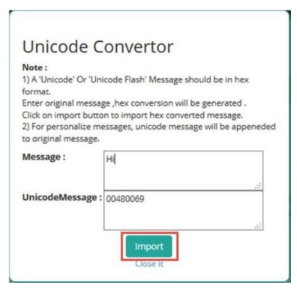
Unicode Convertor Window
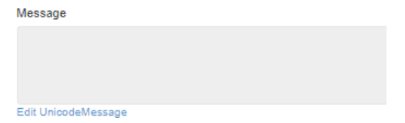
To change the converted message, click Edit Unicode Message under the Message box.
Schedule an SMS
Schedule SMS delivery when you want to send a message at a later date and time. If you do not schedule a message, the system sends it immediately.
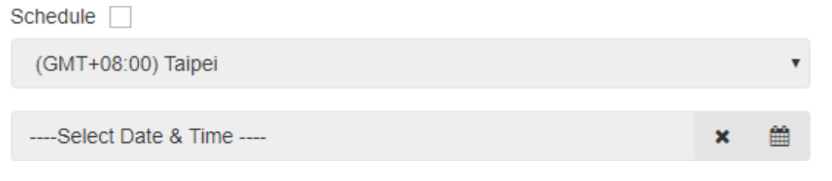
Schedule an SMS
To schedule an SMS:
- Select the Schedule checkbox.
- From the Time Zone list, select the required time zone if you are scheduling the SMS for a different time zone.
- Click the Selection Date & Time box to display the calendar.
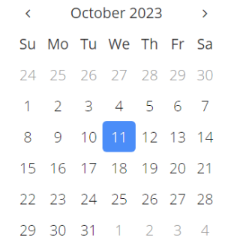
Select Month and Date
- Click the greater-than icon to move through the months.
- Click the required date. The calendar then shows the hours of the day.
Click the month name to select months and years faster.
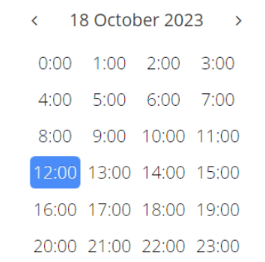
Select the Hour
- Click the required hour. The calendar shows the minutes of the hour in five-minute increments.
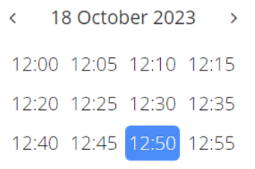
Select the Minute
- Click the required minute. The selected date and time appears in the Select Date & Time box.

Selected Date and Time
Add an Acculync
Acculync is the URL shortening service integrated into the portal. It shortens links in your messages and provides user analytics for those links.
You can add an Acculync only when sending Bulk and Group messages.
To add an Acculync:
- Select the Acculync checkbox.
- Type your message and the link to be shortened in the Message box.
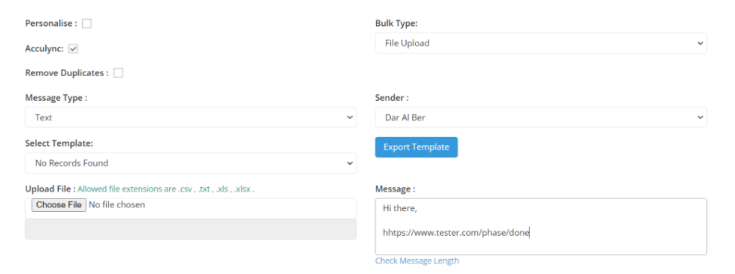
Add an Acculync
The system converts the link into an Acculync and sends it with the message.
Click Check Message Length to see the total character count with the Acculync before sending the message.
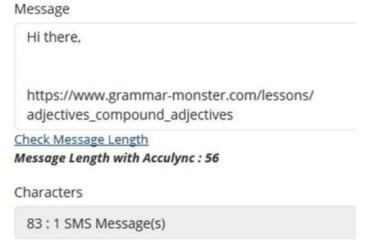
Verify Message Character Count
Remove duplicates
Select the Remove Duplicates checkbox to automatically remove repeated mobile numbers before sending a message.
Duplicate numbers may appear in uploaded files or in numbers that you manually enter.
Updated 2 months ago