
Journeys
Use Journeys to create automated, personalized customer experiences across multiple communication channels in a single campaign.
Create a journey
Journeys help marketers define communication flows using touchpoints, actions, triggers, and conditions.
To create a journey:
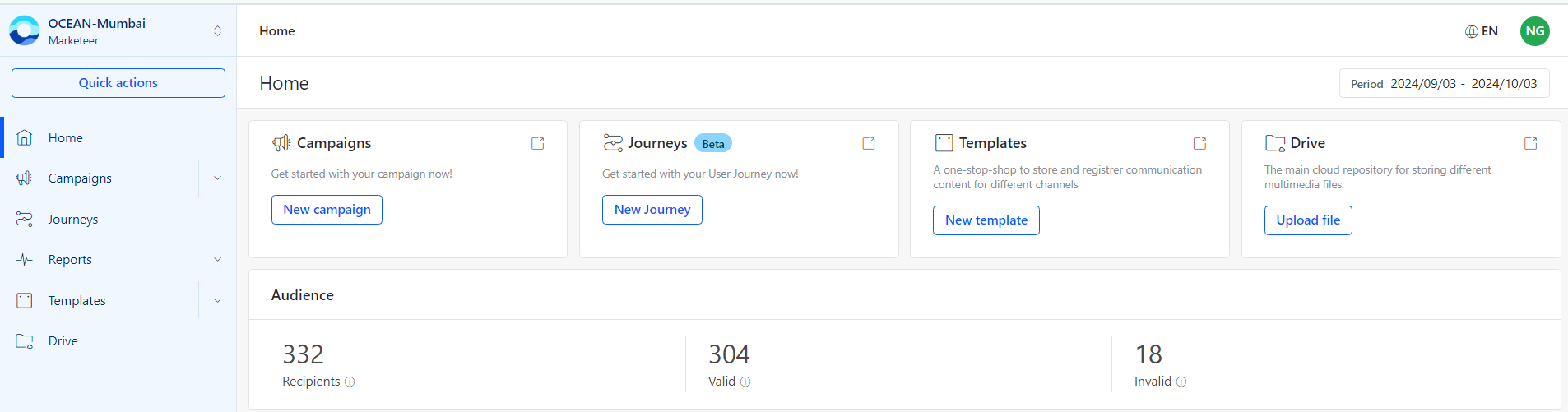
- Click Journeys from the left-side menu.
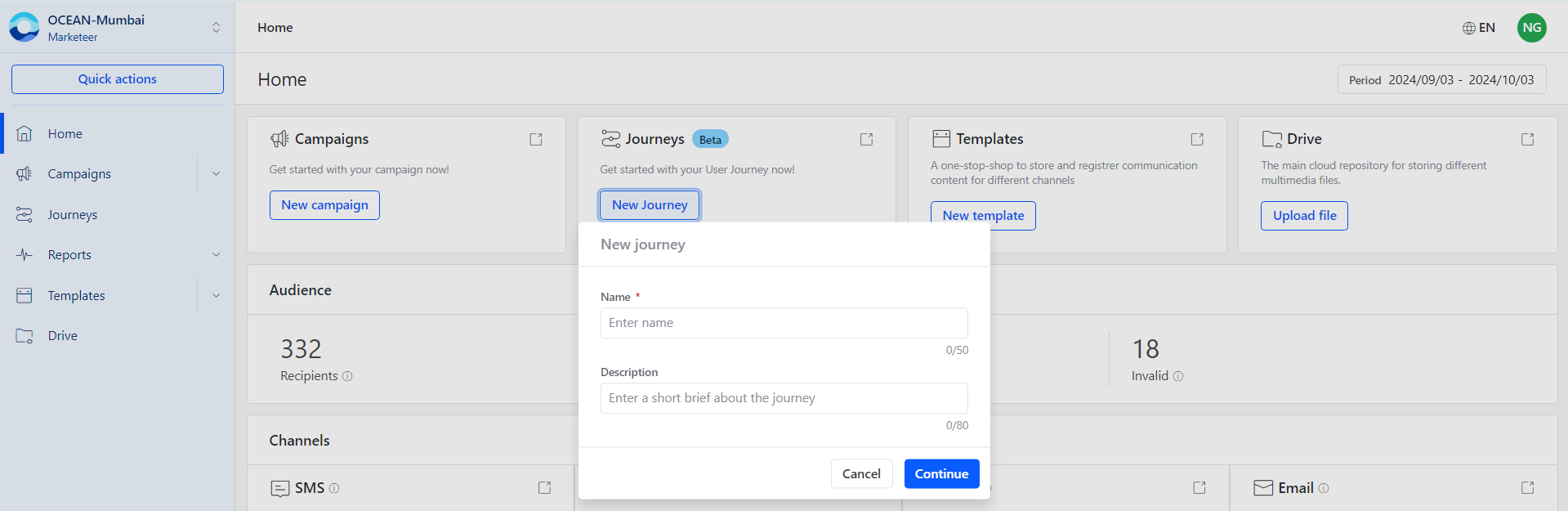
- Click New Journey from the center panel.
- Enter the journey name and description.
- Configure the required journey details.
- Click Create to open the journey editor.
Journey setup fields
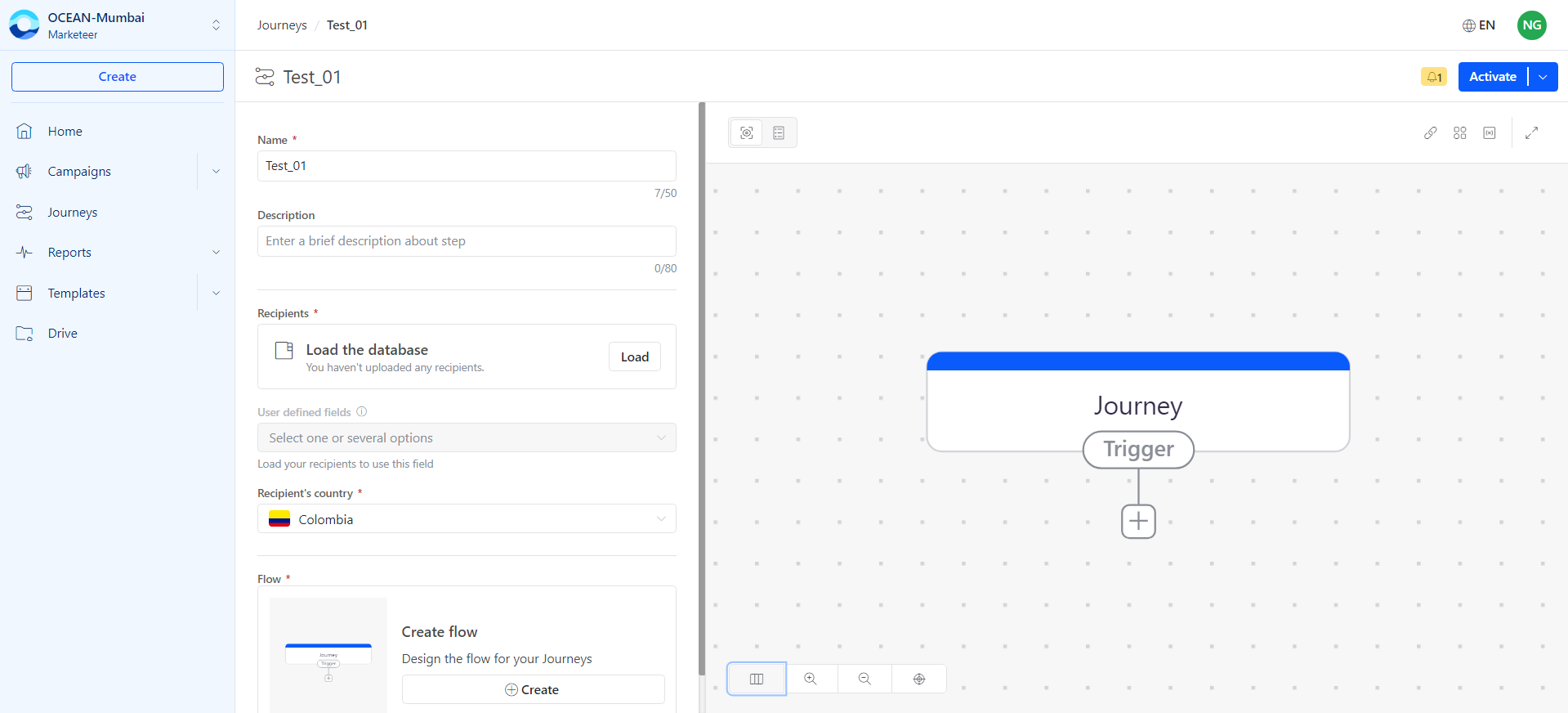
Use the journey setup fields to define the journey name, recipient list, recipient country, and flow.
| Field | Description |
|---|---|
| Name | Enter a name that helps you identify the journey in the platform. |
| Description | Add a brief description that explains the purpose of the journey. |
| Recipients | Upload the recipient list for the journey. Click Load to upload the recipient database. |
| Recipient’s Country | Select the country for your recipients. This supports localization and targeting. |
| Flow | Design the journey flow by defining the touchpoints and actions that recipients experience. |
If you have not uploaded recipients, the Recipients section reminds you to load a recipient list.
Design the journey flow
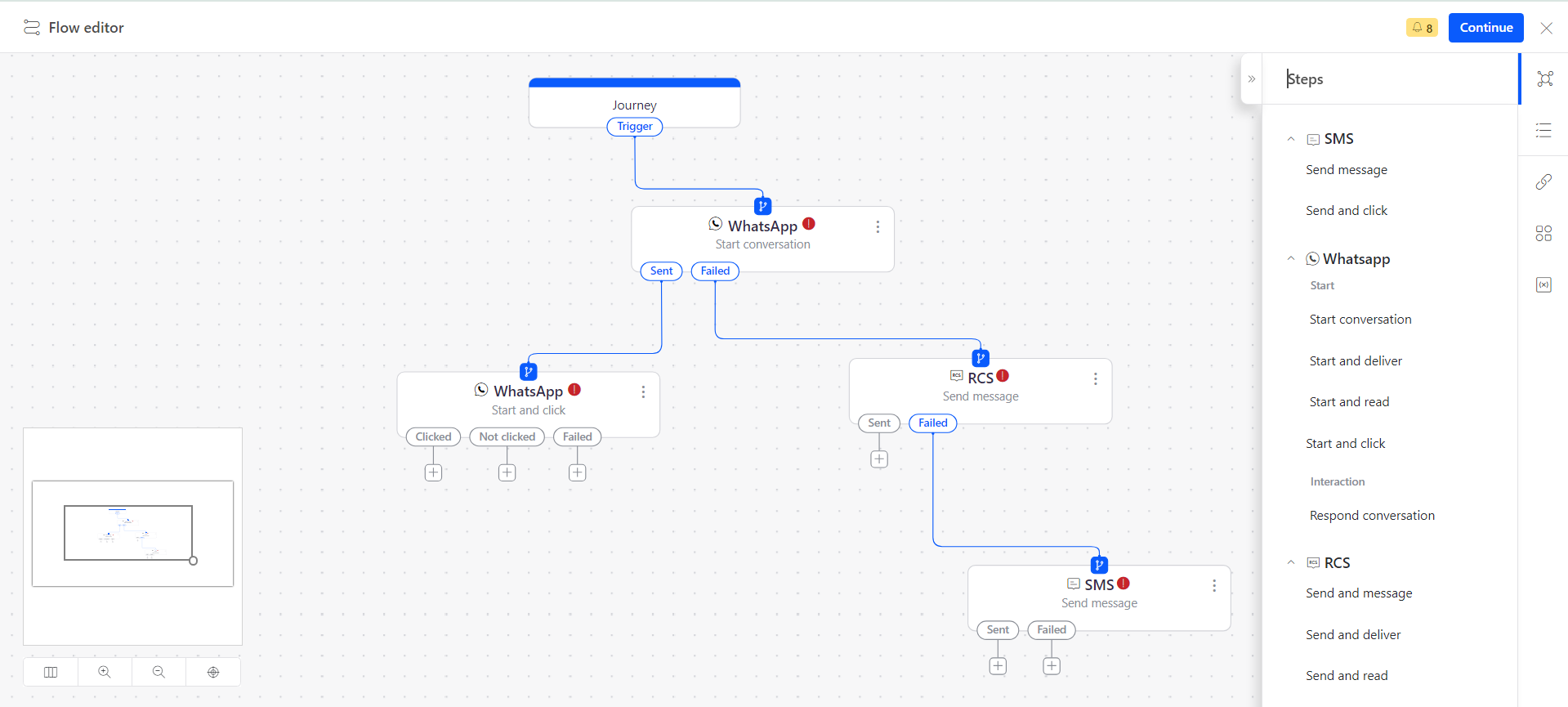
After completing the journey setup, click Create to open the journey editor.
In the journey editor, define touchpoints such as:
- Triggers
- Actions
- Conditions based on user behavior
Journey reporting
Use journey reporting to review existing journeys, track channel performance, and inspect flow behavior.
Existing journeys
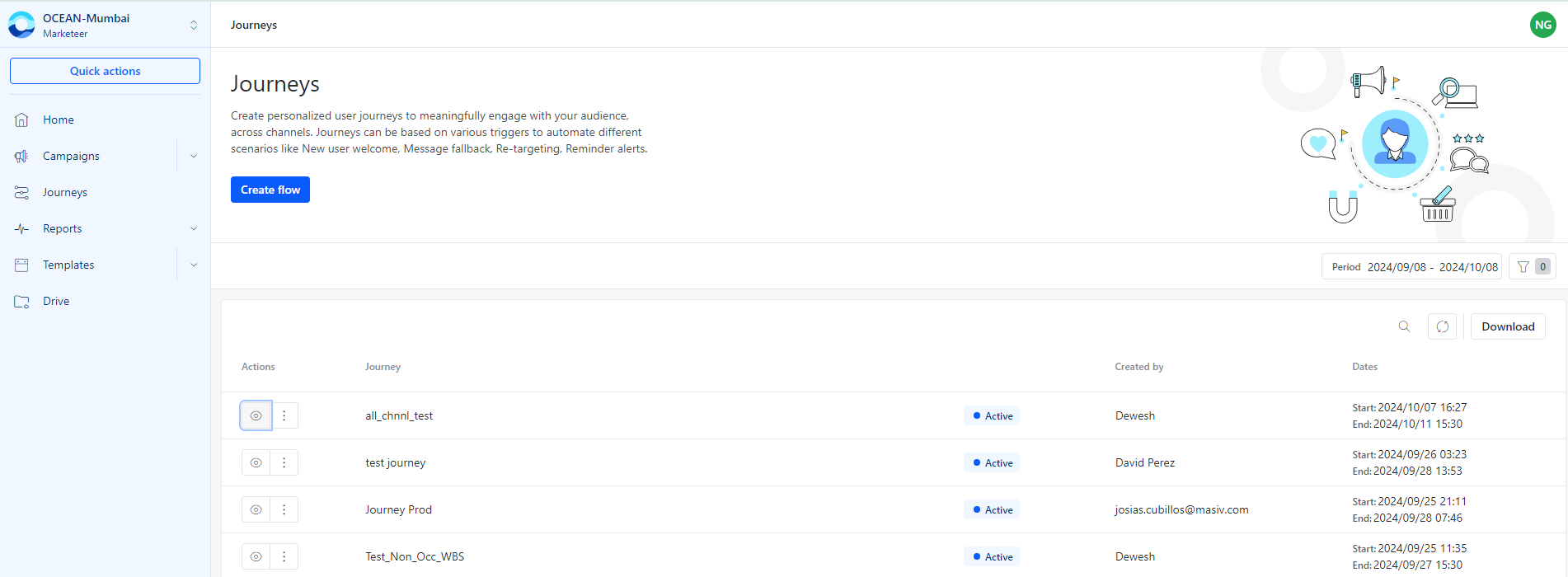
The existing journeys table lists journeys created in the account.
The table includes details such as:
- Journey name
- Status, such as Active
- Creator
- Start date
- End date
Use filters and search to find journeys by time period or keyword. Click the eye icon to open the detailed report for a journey.
Journey summary
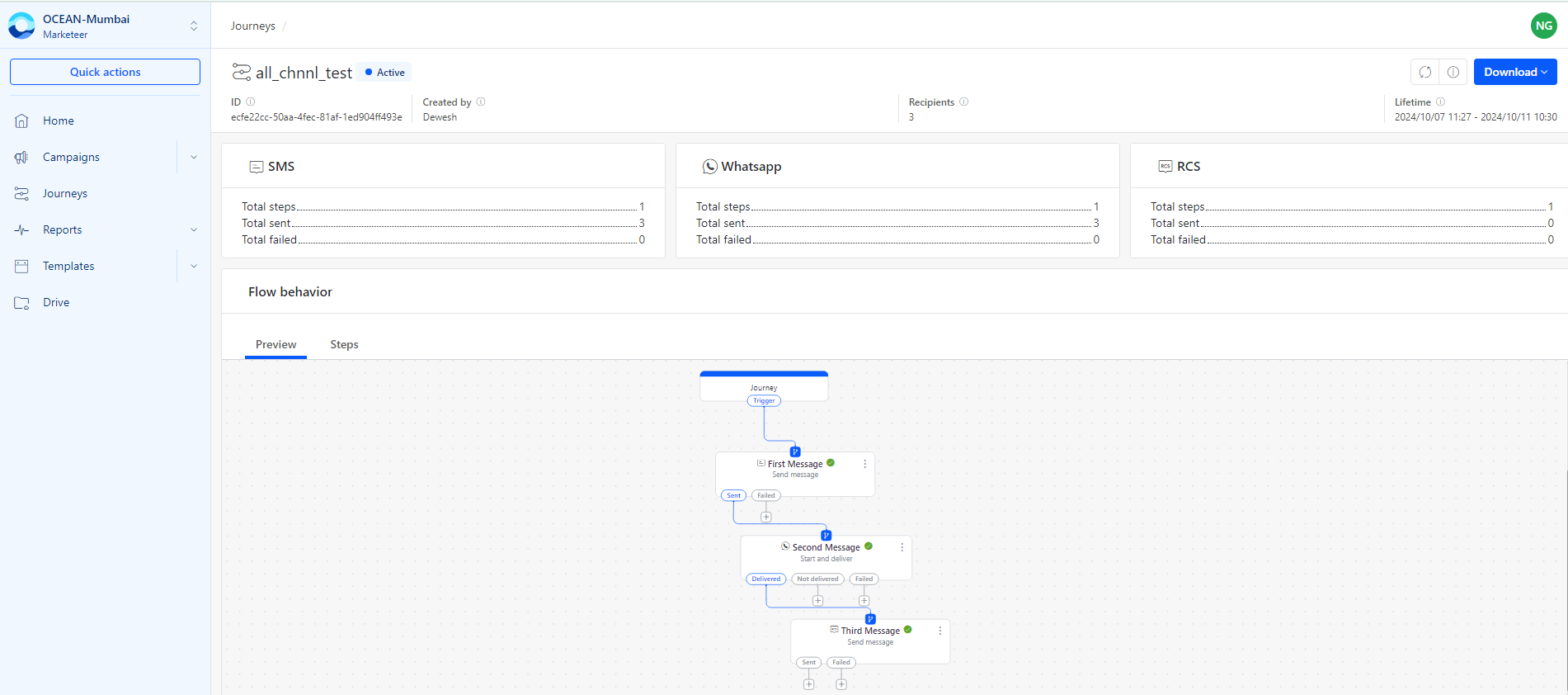
The journey dashboard breaks down journey activity across channels, including SMS, WhatsApp, and RCS.
Use the journey summary to review:
| Metric | Description |
|---|---|
| Total steps | Total number of steps configured in the journey. |
| Successes | Number of successful actions or messages for each channel. |
| Failures | Number of failed actions or messages for each channel. |
| Progress | Current progress of each journey stage. |
| Completion rate | Completion rate for each stage in the journey. |
Flow behavior
Use flow behavior reports to understand how recipients move through the journey.
Preview
The Preview tab shows a visual representation of the communication flow. It displays the sequence of actions, such as Send Message, Start and delivery, or other triggers based on user engagement.
Steps
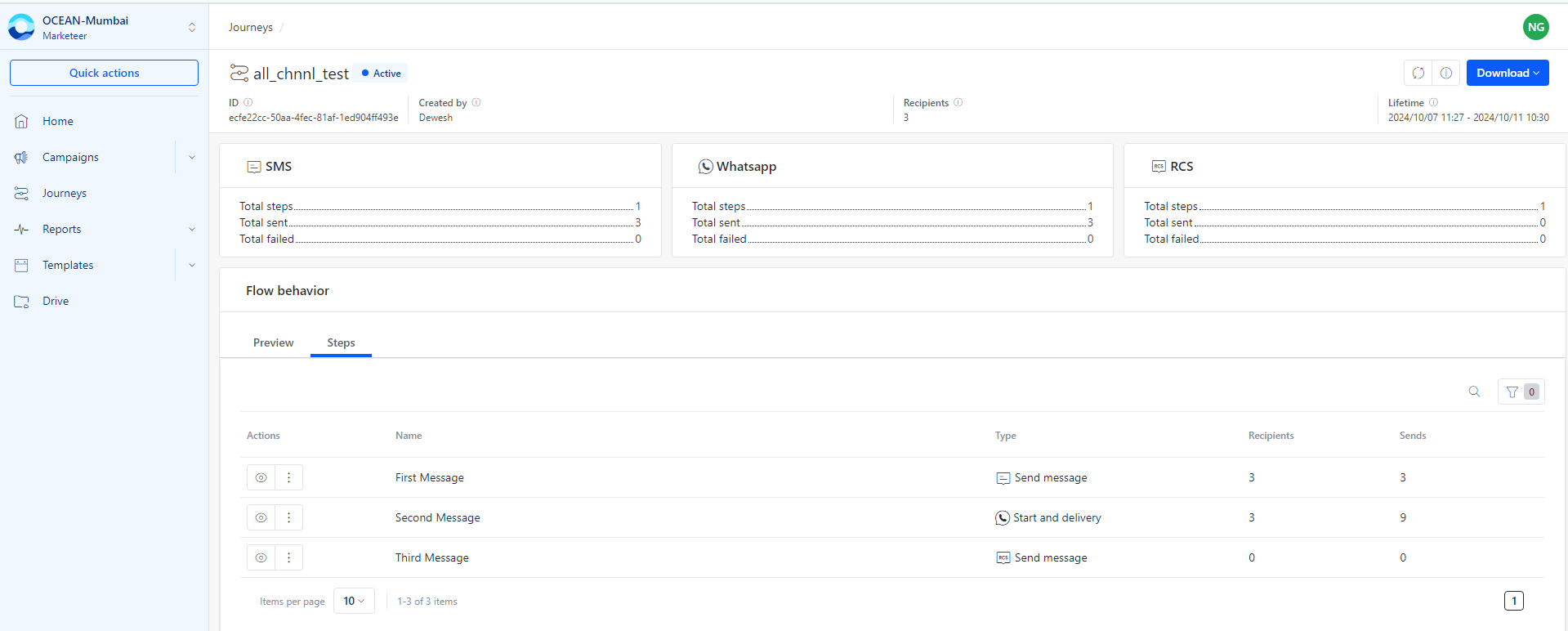
The Steps section lists the individual actions or messages configured in the journey.
Each step includes details such as:
- Action, such as Send message
- Message name, such as First Message
- Number of recipients or messages sent at each step
Click the eye icon next to a message, such as Second Message, to open detailed metrics.
Event metrics
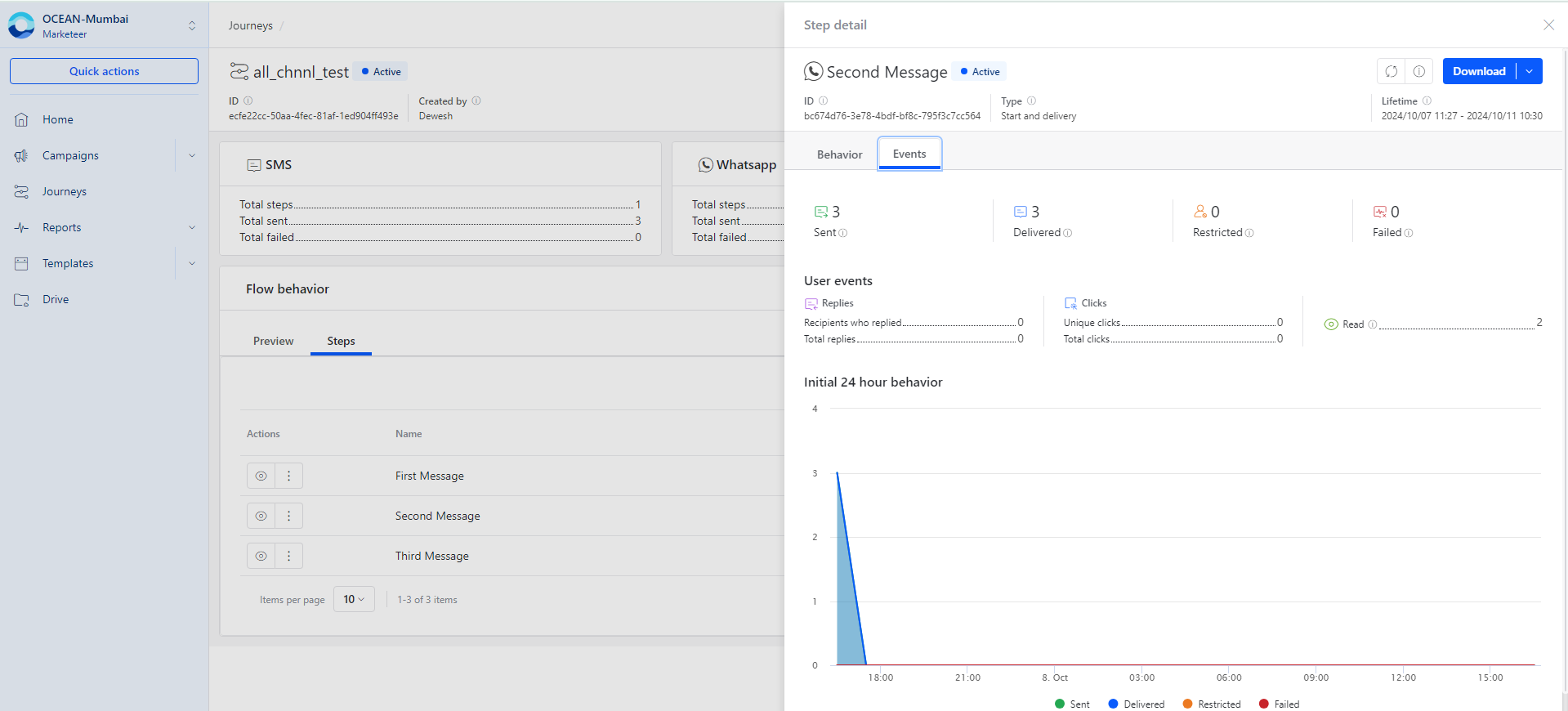
Use the Event section to review user interaction data for a message.
| Event | Description |
|---|---|
| Replies | Number of responses received from users for the message. |
| Clicks | Number of users who clicked links in the message. |
| Read | Number of users who opened and read the message. |
Initial 24-hour behavior
Use the initial 24-hour behavior graph to analyze message performance during the first 24 hours after a message is sent.
The graph provides a timeline view of key message delivery events and helps you understand early user engagement.
Updated 3 months ago