
Chat Statuses
What Each One Means
Every conversation in ROUBOT Live Agent panel carries a status. This status tells you — and your supervisor — exactly where that conversation stands in its lifecycle. Understanding these statuses is one of the most important parts of working effectively on the platform.
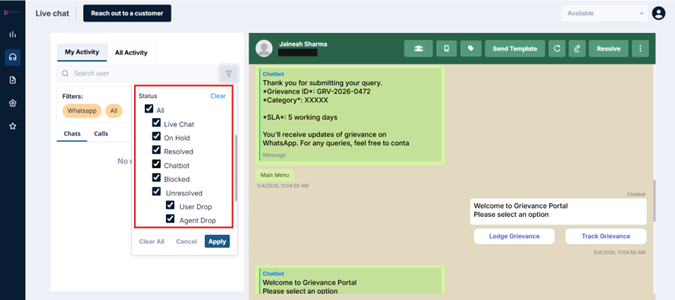
Live Chat
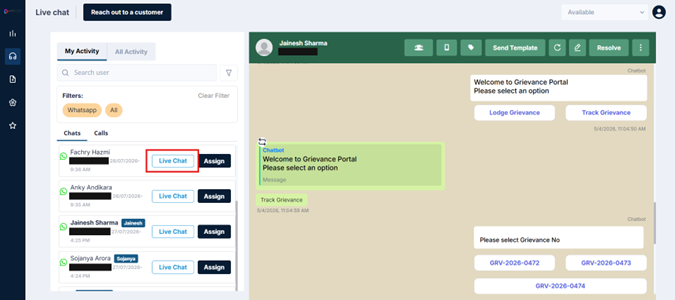
A Live Chat status means the conversation is active and ongoing — you and the customer are engaged and messages are flowing in real time.
How it gets here: A customer's request was accepted by you and the chat is live and in progress.
What you can do: Reply, Resolve, Place On Hold, or Assign to another agent.
Resolved
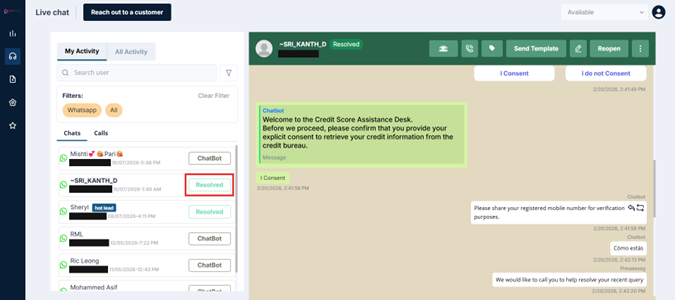
A Resolved status means the conversation has been successfully closed. The customer's issue was addressed and the chat was formally ended.
How it gets here: You clicked the Resolve button at the end of an active Live Chat conversation.
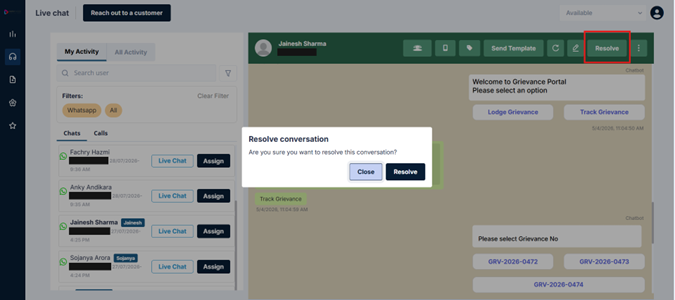
What you can do: Reopen the conversation if a follow-up is needed within the session window.
Reopen
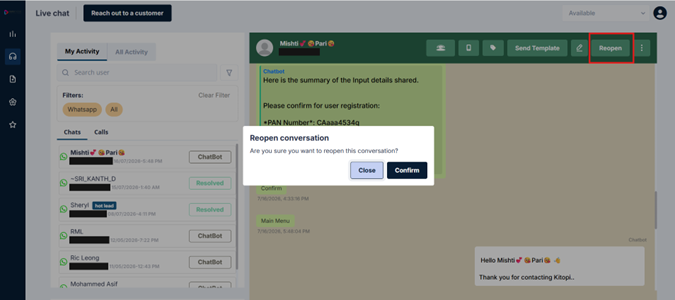
A Reopen status means a previously resolved conversation has been restarted — typically because a follow-up question came in, a detail was missed, or a correction is needed.
How it gets here: A conversation was Resolved, and you or a colleague clicked the Reopen button within the 24-hour session window.
What you can do: Continue the conversation as normal in the chat window. Once done, resolve it again.
On Hold
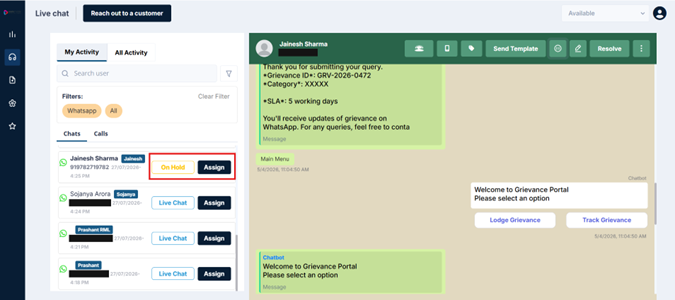
An On Hold status means you've deliberately paused a chat — typically because you're waiting on something such as a document, an approval, or a customer's response. The chat is not closed; it's parked until action is taken.
How it gets here: You clicked the On Hold option within an active Live Chat.
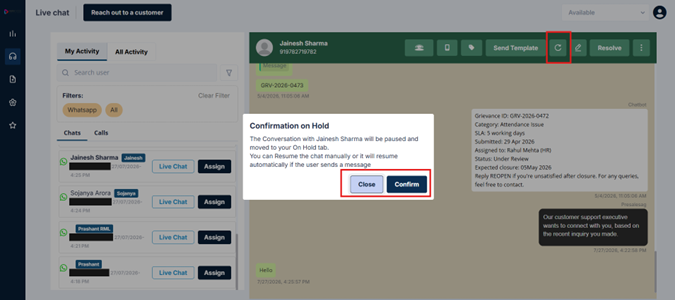
What you can do: Resume manually by clicking Retrieve, or it auto-resumes when the customer replies.
ChatBot
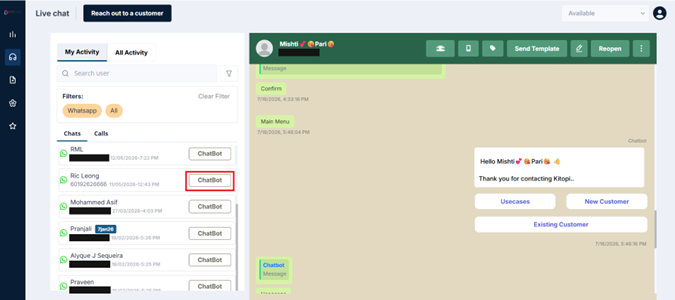
A ChatBot status means the conversation is currently being handled by the automated bot — either before being escalated to an agent, or after being returned to the bot post-resolution.
How it gets here: The customer interacted with the bot flow and it hasn't been escalated yet, or the conversation was resolved and handed back to the bot.
What you can do: No action required unless escalation is needed.
Blocked
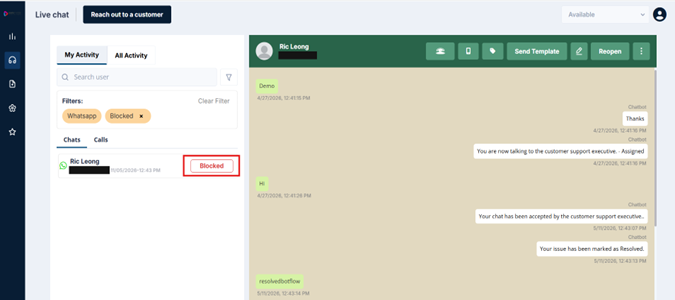
A Blocked status means the contact has been blocked. This is a rare action taken only in exceptional circumstances.
How it gets here: An agent manually blocked the contact.
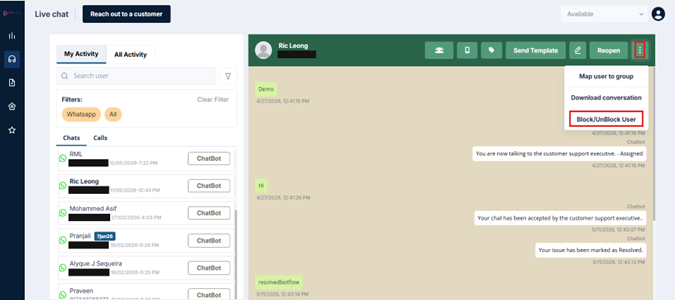
What you can do: Unblock if needed by clicking on the unblock user.
Unresolved — Agent Drop
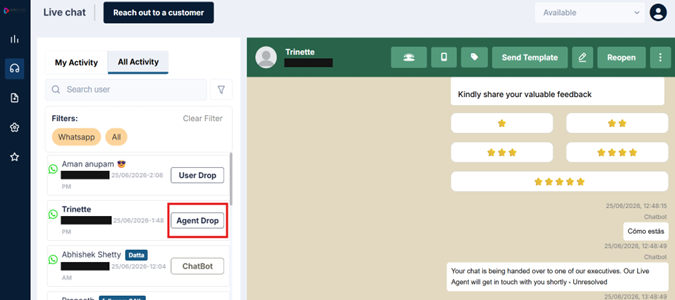
This status means the chat was accepted but never successfully closed, and the 24-hour session window expired — with the agent marked as responsible. This is the default classification for all expired, unresolved chats.
How it gets here: The 24-hour session window expired with no resolution, and no User Dependency was marked by the agent before expiry.
What you can do: This will be visible in your reports and is flagged for supervisor review.
Unresolved — User Drop
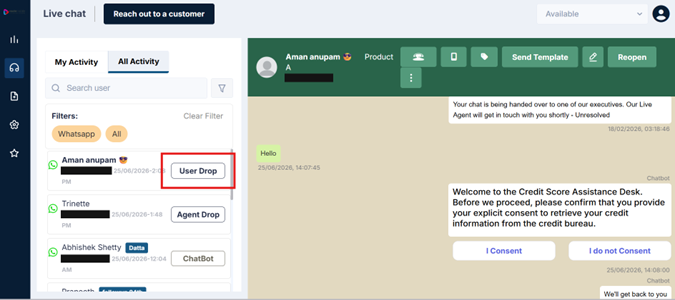
This status means the chat expired unresolved, but the agent had explicitly marked a User Dependency — meaning the customer had not responded, and the delay was not the agent's fault.
How it gets here: The agent marked User Dependency before the 24-hour window expired and the customer did not reply.
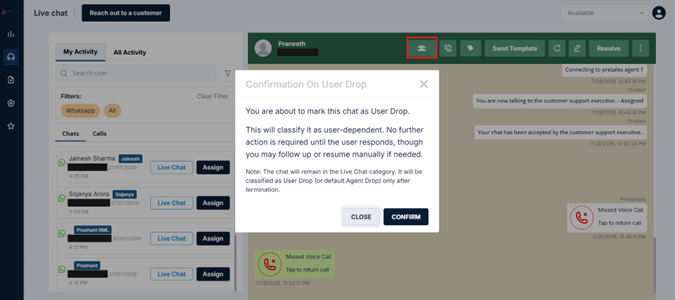
What you can do: This classification is used for fair performance tracking — it distinguishes your situation from an Agent Drop.
Unattended — Missed BH (Business Hours)
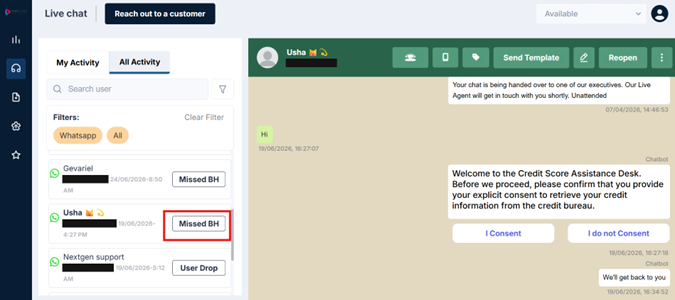
This status means a chat request came in during business hours but was never picked up by any agent before the window closed.
How it gets here: No agent accepted the request despite it arriving within active business hours.
What you can do: Escalate to your supervisor — this is useful data for workforce planning[3.1][4.1].
Unattended — Missed OBH (Outside Business Hours)
[Screenshot placeholder — Missed OBH status]
This status means a customer messaged outside of business hours when no agents were available to receive the chat.
How it gets here: The customer messaged outside active hours and no agents were online.
What you can do: When you're back online, proactively reach out to the customer using the Reach Out to a Customer feature.
The default rule to remember: If a chat expires unresolved and you have not explicitly marked a User Drop(dependency), it will always be classified as an Agent Drop. This is the system default. An Agent Drop is not a judgment — it's a flag that tells supervisors the ticket needs review. If the customer was the reason the chat couldn't close, protect yourself by marking User Dependency proactively before the session window expires.
Updated 3 months ago