
Reopen
Reopening Resolved Conversations
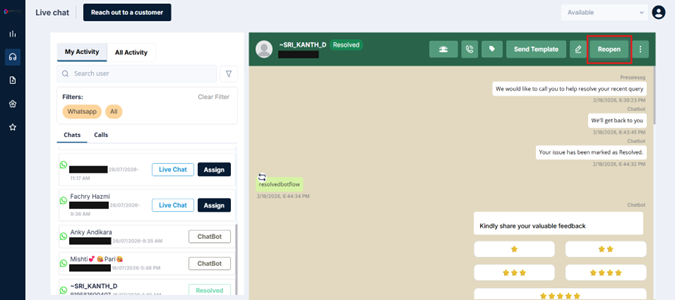
After resolving a conversation, the Resolve button is replaced by Reopen. This lets you restart a closed conversation if something comes up — a follow-up question, an error, or anything that means the ticket wasn't fully done.
Time Limit
Reopen is available for up to 24 hours from the time the chat was first accepted. Within that window, you can reopen and continue the conversation freely.
After the 24-hour window expires, clicking Reopen will show an error: "Cannot reopen the conversation as the session is expired." At that point, if you need to reach out to the customer again, you'll need to send an approved WhatsApp template to reinitiate contact.
How to Reopen
-
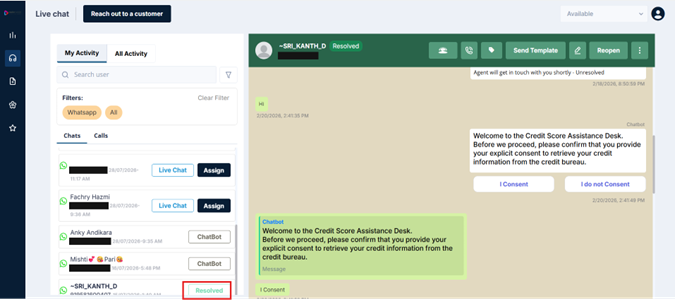
Open the resolved conversation from your My Activity list (filter by Resolved)
-
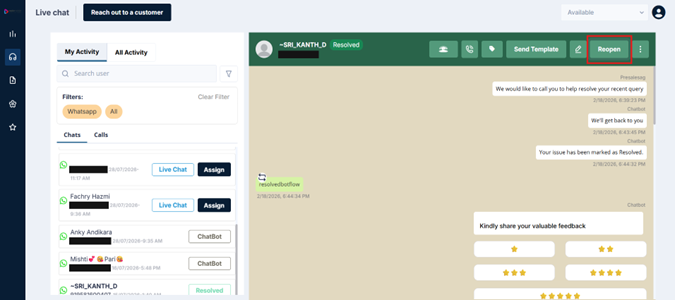
Click the Reopen button in the header
-
A confirmation prompt appears — confirm the action
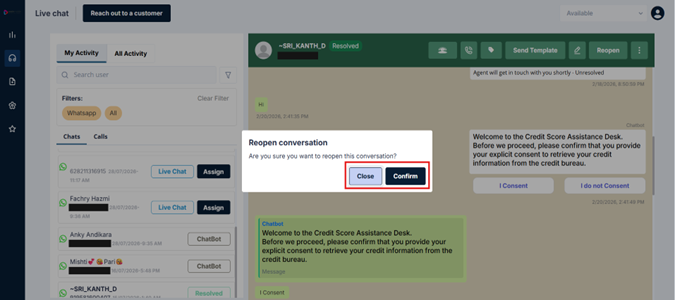
The conversation immediately returns to Live Chat status and the customer can receive messages again.
💡 Why is Reopen time-limited?
The 24-hour window is tied to WhatsApp's session framework — once a session expires, free-form messages can no longer be sent. Reopen is only meaningful while the session is active. After expiry, a template message is the only way to restart contact.
Updated 3 months ago