For AI agents: the docs index is at https://developer.rmlconnect.net/route-mobile-project/llms.txt. The index for every project on this site is at https://developer.rmlconnect.net/llms.txt. Append .md to any documentation page URL to get its markdown version.
Use this page to assign, update, and report on message routes for Distadmin users and resellers.
Route Mobile’s messaging platform collects messages from users or resellers and forwards them to mobile operators. Operators then deliver the messages to end-users.
A route is made up of the destination country and the mobile operator that carries messages into that country. Distadmin helps you assign these routes to users and resellers with operator-specific pricing.
When you select a country, Distadmin automatically displays the operators available in that country. Each operator shows the minimum price at which you can sell that route. This minimum value is called the least selling price (LSP). The system does not allow you to enter a price below the LSP.
The procedure to add and edit a route is the same for users and resellers.
Add a route
Add routes for users from the User Details section of User Management. Add routes for resellers from the Reseller Details section of Reseller Management.
To open routing management:
Go to Manage System.
Open User Management or Reseller Management.
Find the required username.
Click Manage under the Routing header.
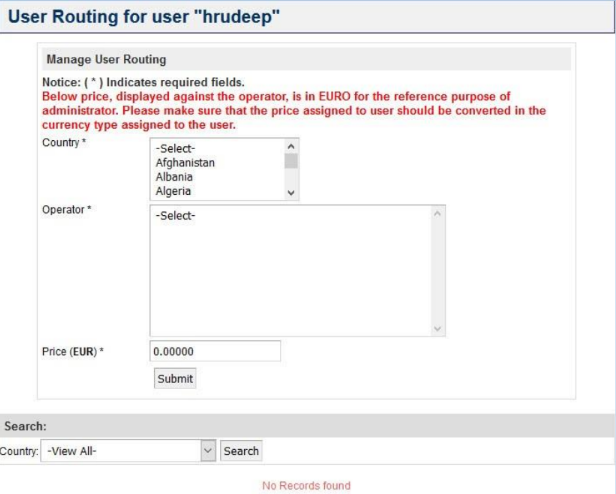
The User Routing Management page appears.
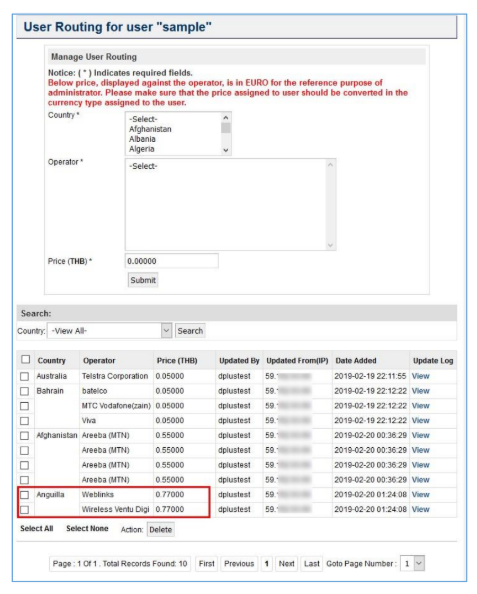
The page displays the Manage User Routing subsection for adding a new route.
User Routing Management Page
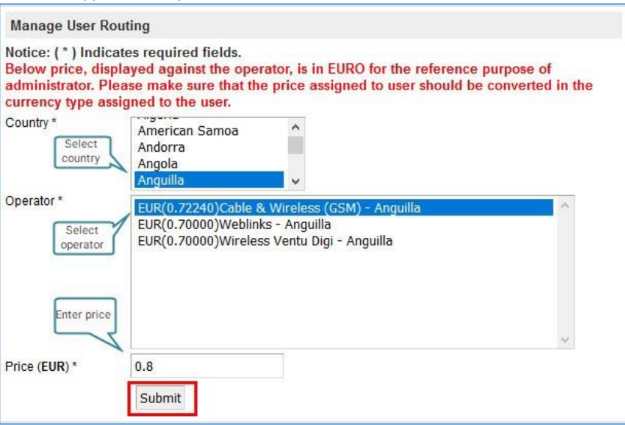
Adding a Route
Manage User Routing subsection
To add a route:
From the Country list, select the required country. Applicable operators appear in the Operator list.
From the Operator list, select the required operator.
In the Price box, enter the required value.
Click Submit.
Enter a price greater than or equal to the LSP. The LSP is shown in parentheses beside each operator’s name.
To select multiple countries, hold Ctrl while selecting country names. Operators for all selected countries appear in the Operator list. You can use the same method to select multiple operators.
Users sending messages to destinations not included in their route are charged the Default Price Per SMS.
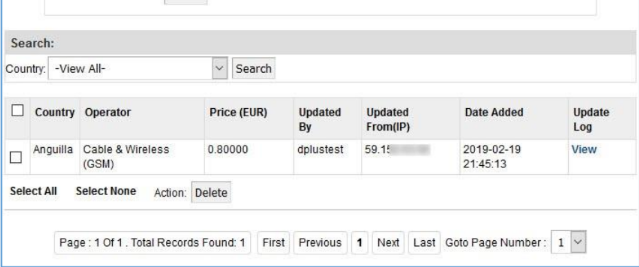
After submission, the route is assigned to the user or reseller and appears as a row in the table below the form. The table shows route details, including country, operator, and price.
Added a Route
If you select multiple operators, enter a price greater than or equal to the operator with the highest LSP.
Add percentage route
Use percentage routes to add routes with prices increased by a fixed percentage of their LSP. After you add them, the new routes appear on the User Routing Management page with the calculated price shown in the Price column.
The procedure to allocate percentage routes is the same for users and resellers.
To access percentage routing:
Go to Manage System → Add Bulk Routing Reseller to add routes for resellers.
Go to Manage System → Add Bulk Routing User to add routes for users.
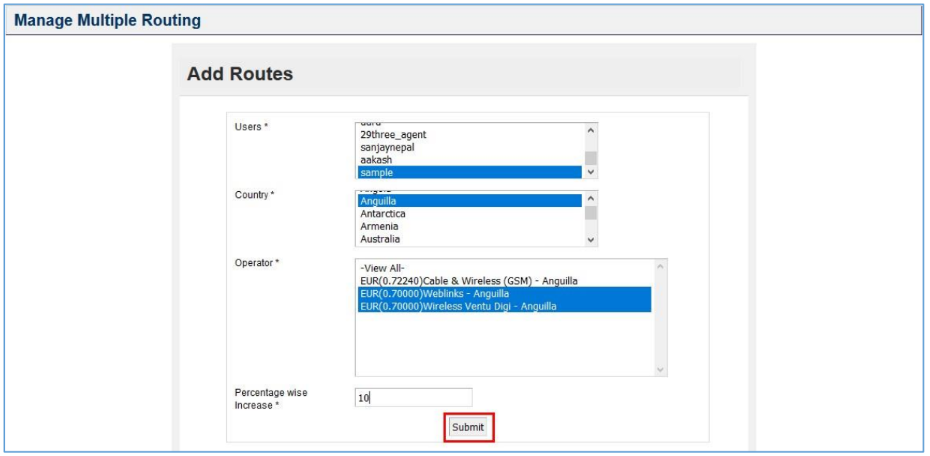
To add a percentage route:
From the Users list, select the required username.
From the Country list, select the required country. Applicable operators appear in the Operator list.
From the Operator list, select the required operator.
In the Percentage wise Increase box, enter the required value.
Click Submit.
If a confirmation message appears, click OK.
For example, if the price of Weblinks – Anguilla and Wireless Ventu Digi – Anguilla is 0.7, and you add 10%, the system adds 10% of 0.7 to their prices. The new price appears on the User Routing Management page.
Add percentage route
Percentage Added Price
Edit a route
You can change the price assigned to a user or reseller from the table that shows routes.
To edit a route price:
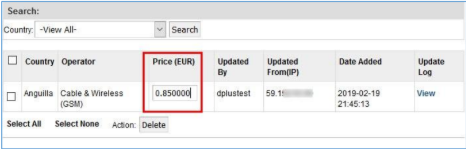
Under the Price header, double-click the value corresponding to the route. A text box appears with the existing value.
Edit the Route Price
Enter the new value.
Click anywhere outside the text box.
If a confirmation message appears, click OK.
To edit a route destination, delete the existing route and add a new one.
To delete a route:
Select the checkbox corresponding to the route in the table.
Click Delete.
If a confirmation message appears, click OK.
For more information about editing routes, see User(s) Routing Reports later in this chapter.
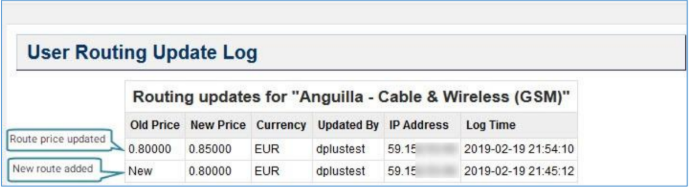
To view route update history, click View under the Update Log header. The Routing update log page shows the record of changes made to each country and operator combination.
Routing update log page
Routing reports
Routing reports capture data related to user routing management activities.
These reports include:
User(s) Routing Reports
User(s) Routing Update Log
You can find these reports under Reports → Verification Report.
User(s) Routing Reports
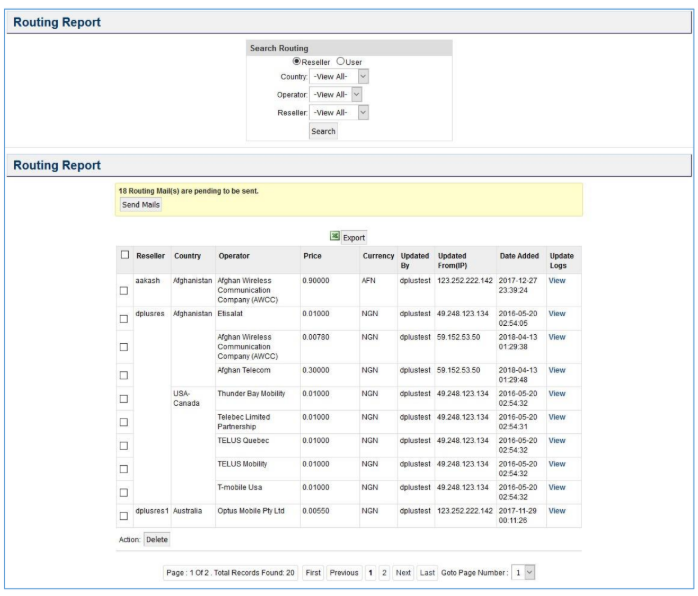
The User(s) Routing Reports report shows existing routes. The upper half of the page contains filters that you can use to display routes for users or resellers.
The report looks similar to the route table on the User Routing Management page.
User(s) Routing Reports
You can edit prices or delete routes using the same procedure described in Edit a route. You can also click View under the Update Logs header to see price change logs.
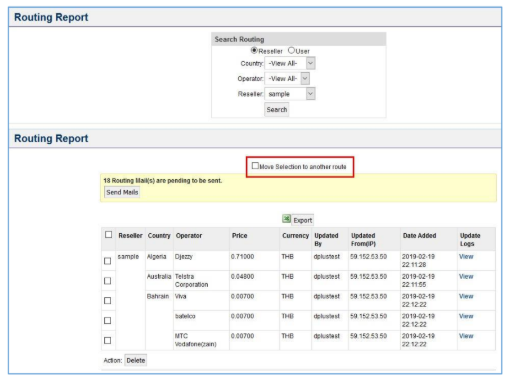
The report also lets you collectively change a user’s or reseller’s price for multiple operators. To perform a collective price change, use the lists in the Search Routing subsection to search for a route.
The Move Selection to another route checkbox appears above the table.
Move Selection to another Route checkbox
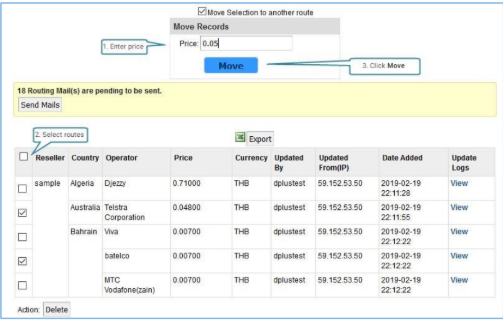
To collectively change a user’s or reseller’s price for multiple operators:
Select the Move Selection to another route checkbox. The Move Records section appears.
In the Price box, enter the required value.
Select the checkboxes corresponding to the required routes.
Click Move.
Collectively Changing Price
User(s) Routing Update Log
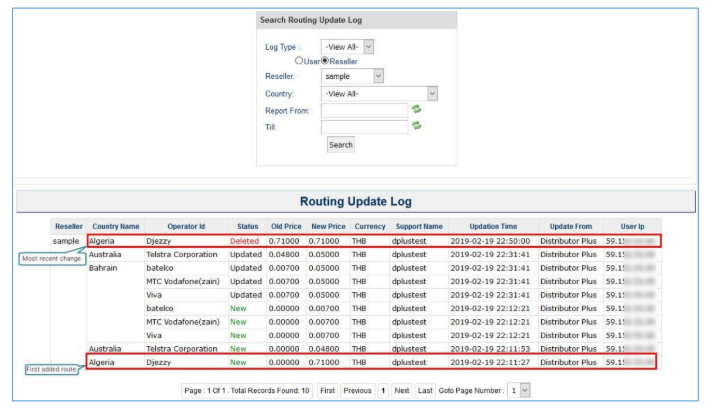
The User(s) Routing Update Log report shows price changes and deleted routes for users or resellers. The report uses color codes to show route status.
Use this report to view logs for all users or apply filter criteria to search for specific users.
Use the Log Type list to view route statuses. Archive Log shows deleted routes. Update Log shows new and updated routes.
Use the following rules to interpret the logs for a user:
The table’s last row shows details of the first route added for that user. This row’s status is always New.
The top row of the table for a user shows the most recent change for a country and operator.
Log statuses
Status
Explanation
New
New route added. Old Price always shows 0.00000.
Updated
Price changed for an existing route. New Price shows the updated price.