
CleverTap × Route Mobile WhatsApp
Configure Route Mobile as a WhatsApp provider in CleverTap so you can send WhatsApp campaigns and journeys through Route Mobile.
CleverTap supports WhatsApp providers through generic integration. CleverTap makes its WhatsApp API and standard callback formats available to WhatsApp service providers globally, so Route Mobile and customers can configure the integration independently.
Prerequisites
Before you configure the integration:
- Enable the WhatsApp add-on on your CleverTap account in addition to the Essentials price plan.
- Complete WhatsApp onboarding for the phone number you want to use with CleverTap.
- Get the infra URL and account credentials from Route Mobile.
- Contact your Route Mobile account manager if you want to activate a new phone number on CleverTap with Route Mobile WhatsApp Business API.
Integration flow
- Set up Route Mobile as a WhatsApp provider in CleverTap.
- Configure CleverTap callbacks with Route Mobile.
- Add message templates in CleverTap.
- Create a WhatsApp campaign.
- Create a WhatsApp journey.
Step 1: Set up Route Mobile as a WhatsApp provider in CleverTap
To configure Route Mobile in the CleverTap dashboard:
- Go to Settings → Channels → WhatsApp → WhatsApp Connect.
- Click +Provider Configuration.
- Select Generic (Other) from the dropdown.
- Enter the provider details.
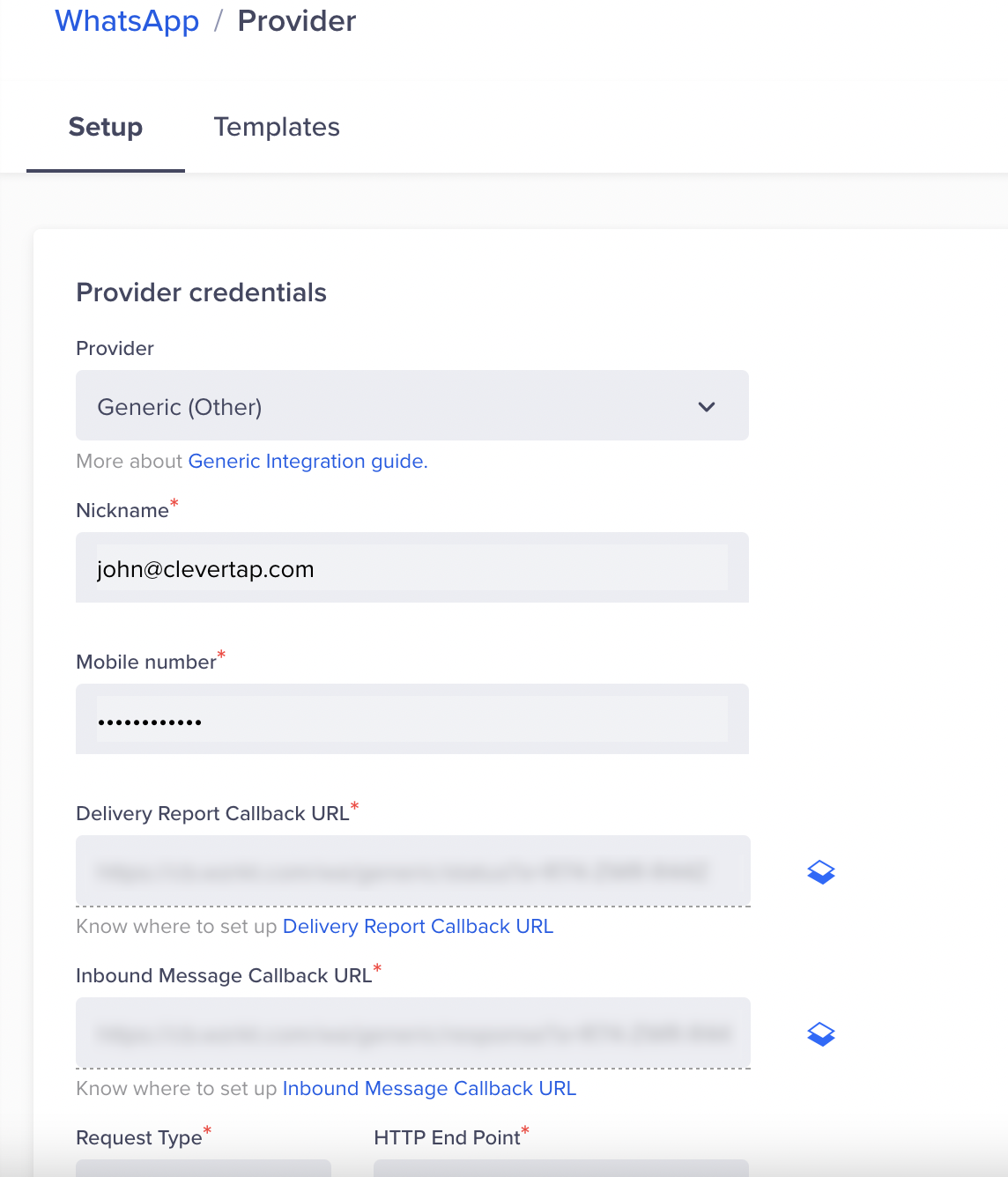
| Field | Description |
|---|---|
| Provider | Select Other (Generic) from the dropdown list. |
| Nickname | Enter the nickname <10-digit phone number> for easy reference. |
| Mobile Number | Enter your phone number onboarded to WhatsApp API through Route Mobile. Use the country code without +. |
| Request Type | Ensure the request type is Post. |
| HTTP Endpoint | Enter the HTTP endpoint provided by Route Mobile. |
| Authentication | Select Headers and enter the key-value pair: Key: API-KEY, Value: <Authentication Token>. Contact [email protected]. |
| Delivery Report Callback URL | This URL is generated automatically in the CleverTap dashboard. Share the URL with Route Mobile’s account manager to configure it with the WhatsApp account. |
| Inbound Message Callback URL | This URL is generated automatically in the CleverTap dashboard. Share the URL with Route Mobile’s account manager to configure it with the WhatsApp account. |
For the authentication token, contact [email protected].
- Select Mark this as default to make Route Mobile the default provider for sending WhatsApp messages.
- Select Set auto-reply for users not tracked on CleverTap to automatically reply to users who message on WhatsApp but are not tracked on the CleverTap dashboard.
- Optional: Set Maximum Concurrent API requests between
30and1000requests based on your requirements and Route Mobile’s limitations.
Set Maximum Concurrent API requests between
30and1000. Choose a value based on your campaign requirements and Route Mobile’s provider limits.
- Send a test WhatsApp notification.
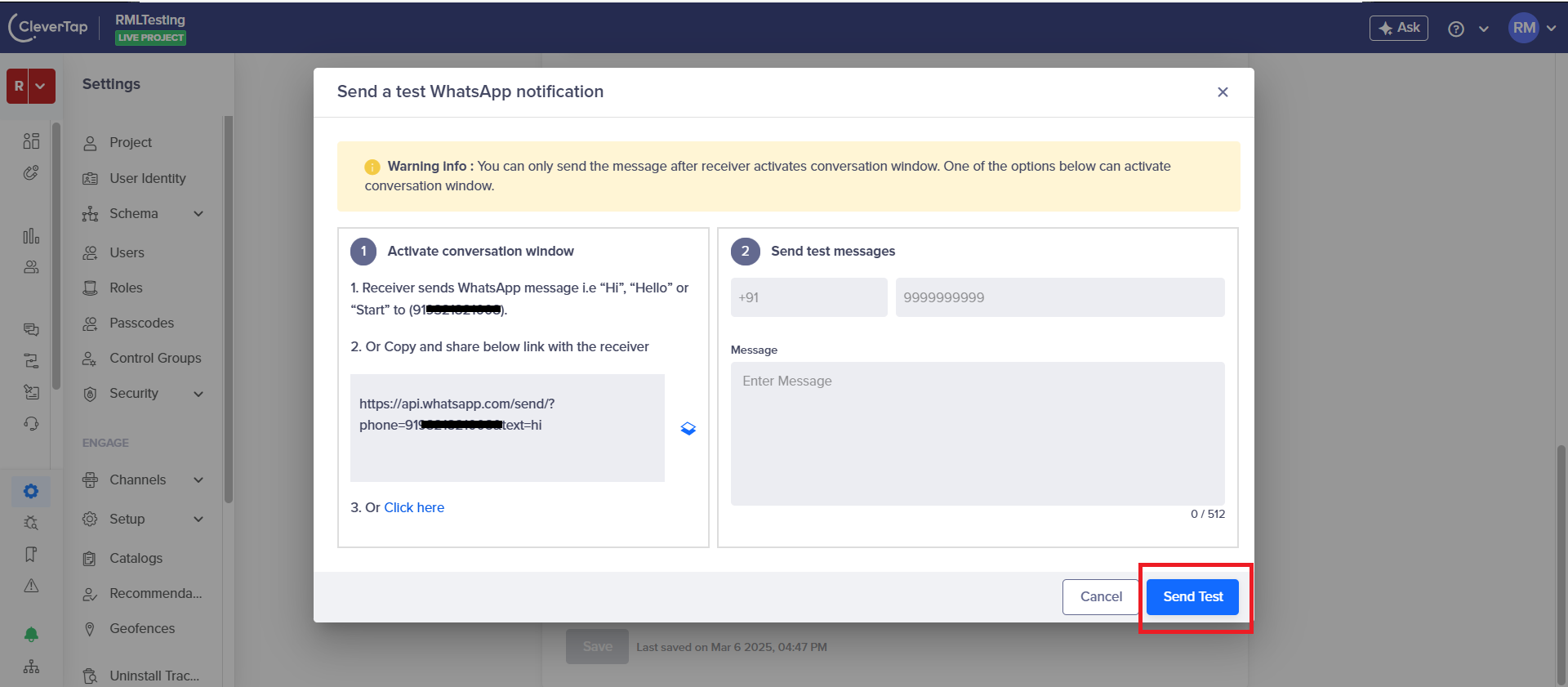
- Click Save.
Step 2: Configure CleverTap callbacks with Route Mobile
You can find the callback URLs on the CleverTap dashboard under the Provider Setup page.
- Go to Settings → Channels → WhatsApp.
- Open the provider setup page for the Route Mobile provider.
- Copy the Delivery Report Callback URL.
- Copy the Inbound Message Callback URL.
- Share the following details with your Route Mobile account manager:
- Delivery Report Callback URL
- Inbound Message Callback URL
- The WhatsApp phone number that will be used in CleverTap
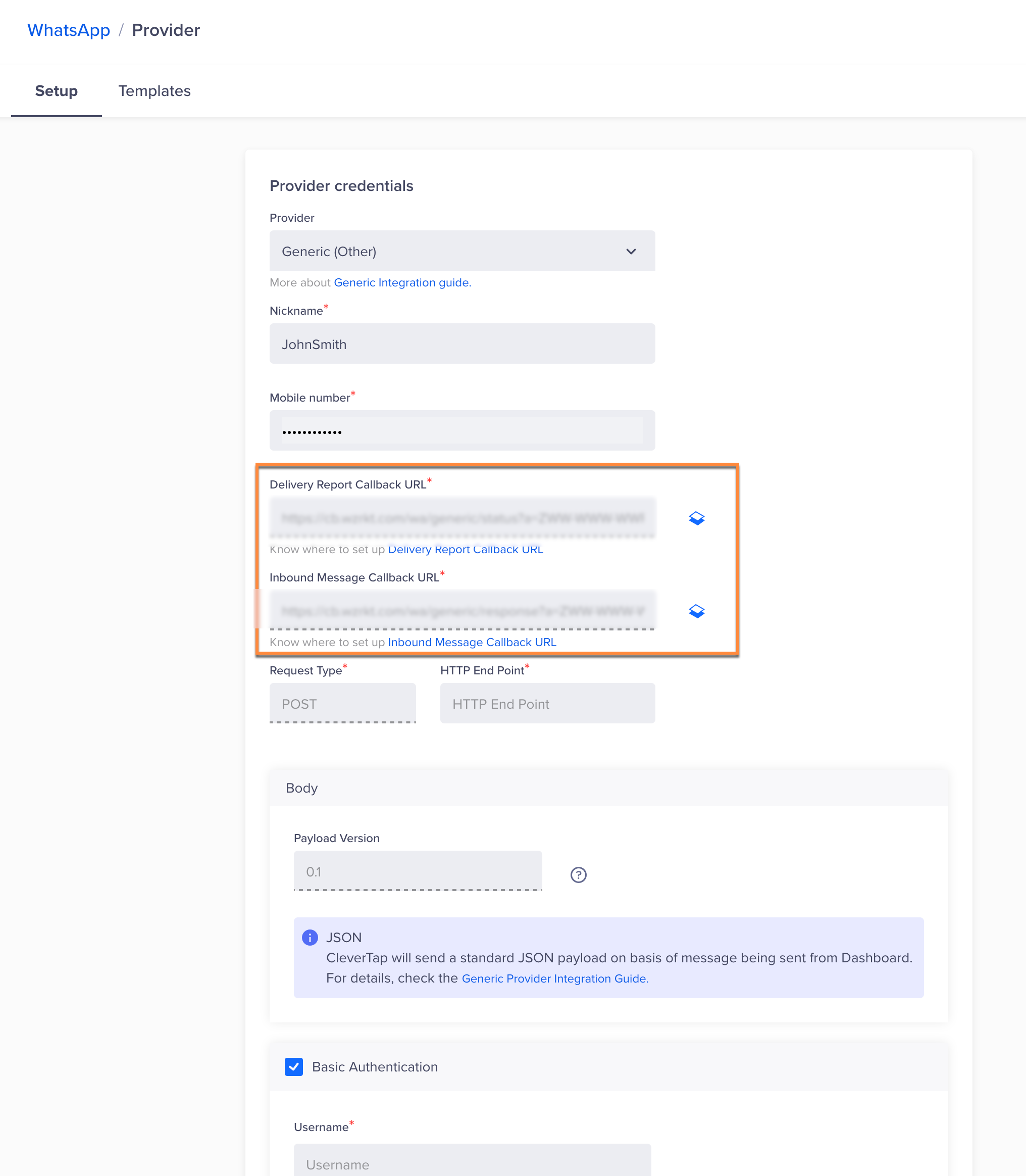
Share the exact callback URLs generated in CleverTap with your Route Mobile account manager so Route Mobile can configure them with the WhatsApp account.
Step 3: Add message templates
To create WhatsApp campaigns, save pre-approved WhatsApp message templates in the CleverTap dashboard.
- Go to Settings → Channels → WhatsApp → WhatsApp Connect → Provider Nickname in the CleverTap dashboard.
- Select Templates.
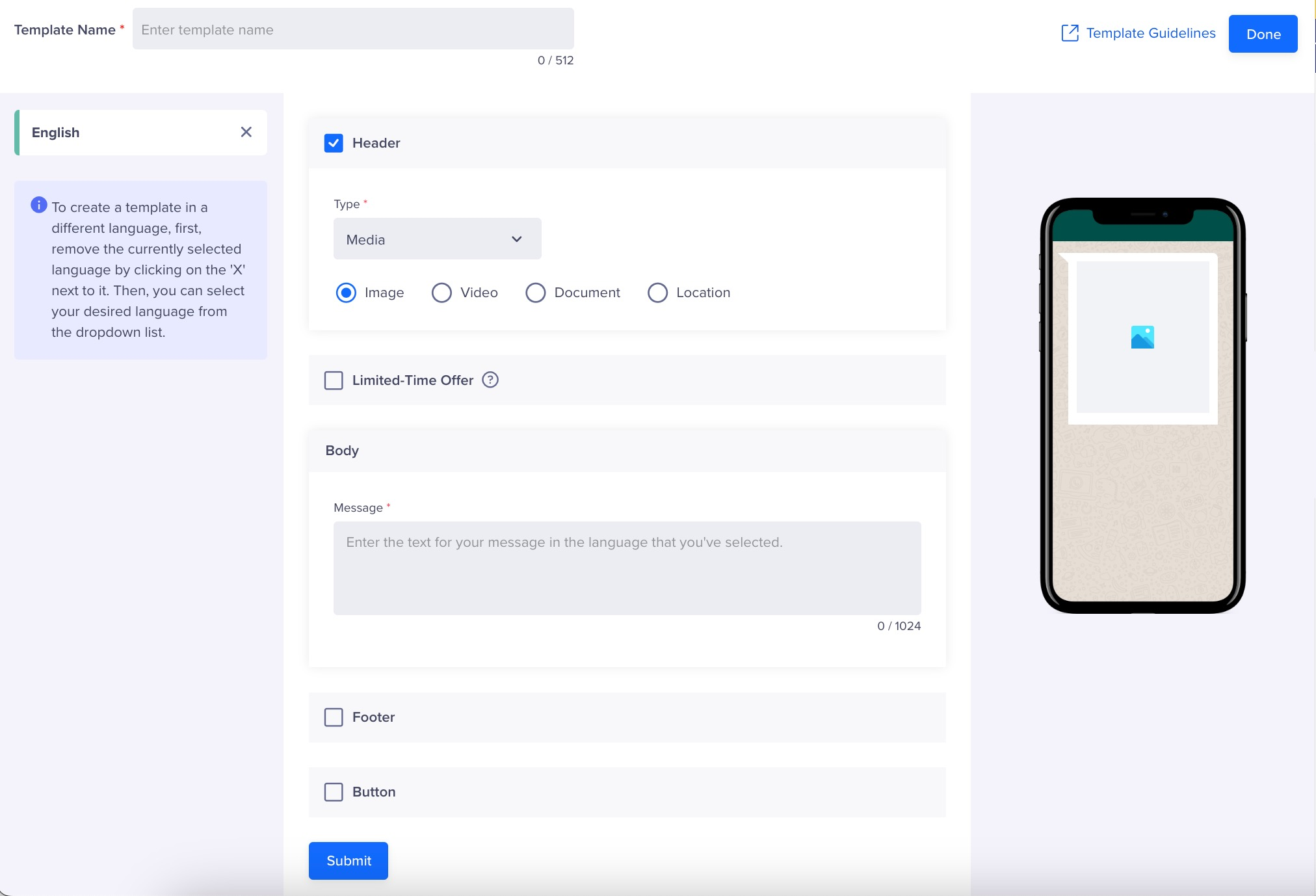
- Click +Template.
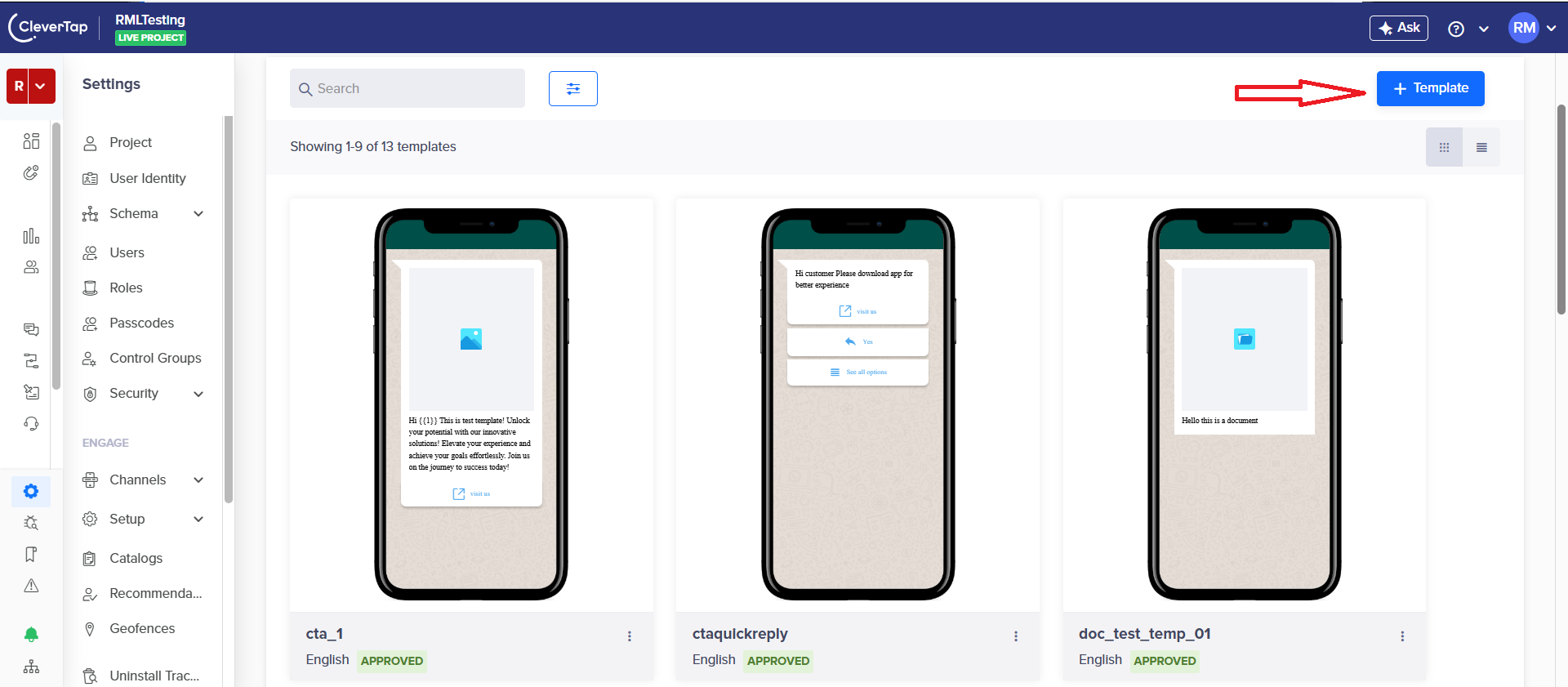
- Enter the template name in the Namespace field.
- Choose the template header type: Text or Media.
- For media headers, choose Image, Video, or Document.
- Select the Basic template.
- Enter the message content.
- Select Footer to add footer text and a button.
- Choose the button type: Quick Reply or Call To Action.
- Select the Language in which you want to display the message.
- Click Submit.
Step 4: Create a WhatsApp campaign
To create a WhatsApp campaign using Route Mobile as the provider, refer to Create a WhatsApp Campaign for detailed instructions.
Step 5: Create a WhatsApp journey
To create a WhatsApp journey using Route Mobile as the provider, refer to Create a WhatsApp Journey for detailed instructions.
Updated 3 months ago