
The Message Thread
Message Thread Overview
Below the header is the message thread — a chronological record of everything that has happened in this conversation. You can scroll up through the entire history, including what the bot handled before you joined.
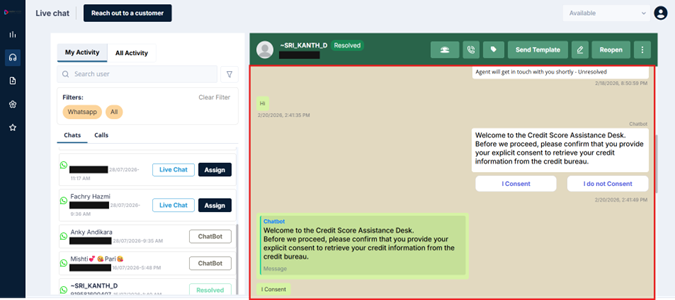
Reading the Thread
Messages in the thread are visually grouped by sender:
-
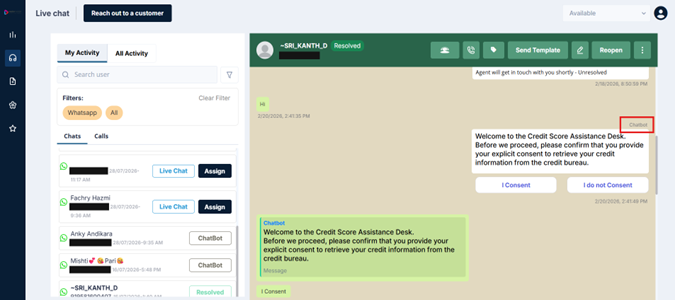
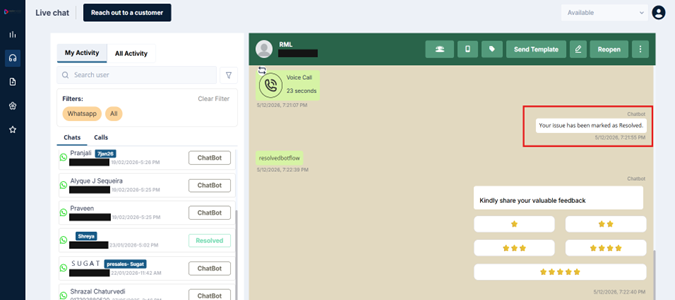
Chatbot messages — Labelled 'Chatbot', shown with a bot indicator. These are the automated messages from the bot phase of the conversation.
-
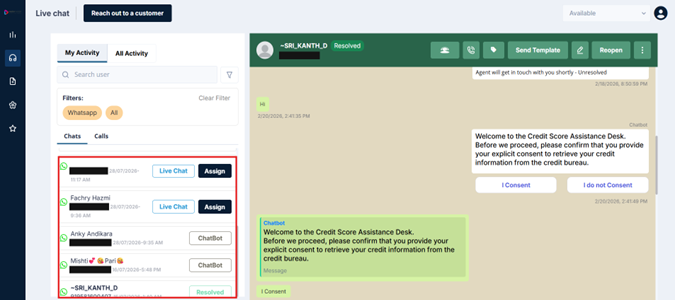
Customer messages — The customer's incoming messages, shown on the left side of the thread with their name or number and a timestamp.
-
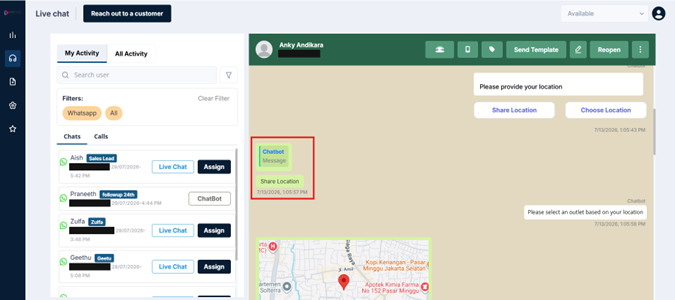
Your messages — Your outgoing replies, shown on the right side
-
System events — Centre-aligned status notes such as 'Chat accepted by agent', 'Chat placed on hold', or 'Chat resolved'. These are not messages — they are activity markers in the thread.
-
Internal notes — Notes added by you or other agents, visually distinct from customer-facing messages so there's no chance of confusing them.
Full history from the start: When you open a conversation, you'll see the complete thread — including bot messages that happened before you were assigned. This context is valuable. Before jumping in with a response, take a moment to scroll up and understand what the customer has already been through.
Replying to a Message
You can reply directly to a specific message in the thread — not just the most recent one. This is useful when you want to reference a specific point the customer made earlier, or respond to a particular question they asked.
To reply to a message:
-
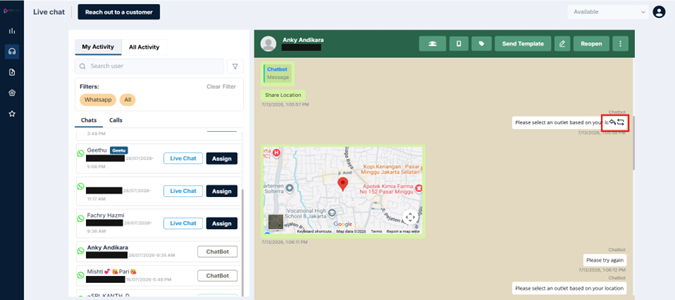
Hover over or long-press the message you want to reply to
-
Click the Reply icon (it appears as an arrow or swipe option)
-
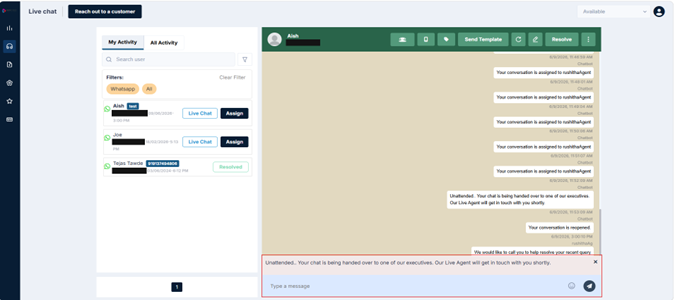
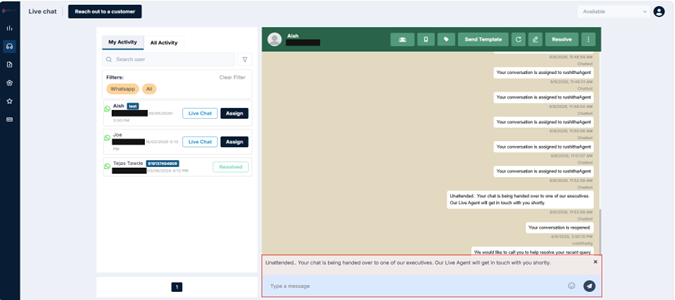
A preview of the original message appears above your input field
-
Type your response and send
The reply appears in the thread with the original message quoted above it — just like a WhatsApp reply. Reply supports all content types: text, images, videos, documents, and templates
Forwarding a Message
If you need to share a specific message with another agent, you can forward it directly from the thread.
To forward a message:
-
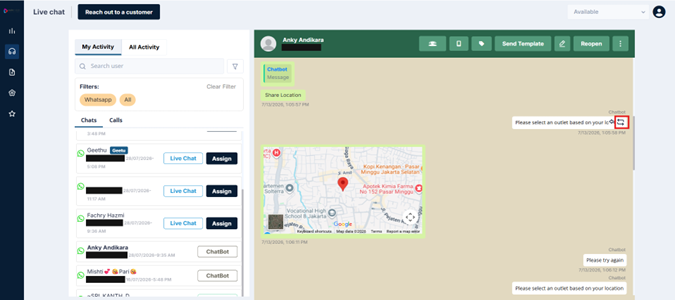
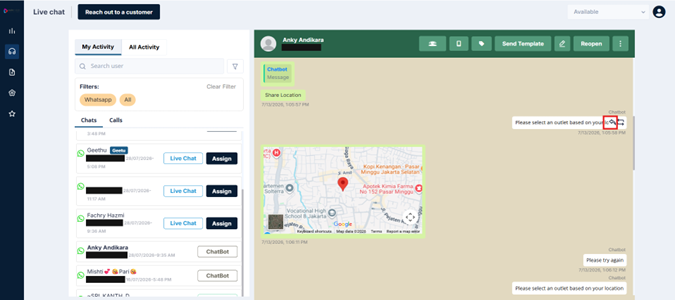
Hover over or long-press the message
-
Click the Forward icon
-
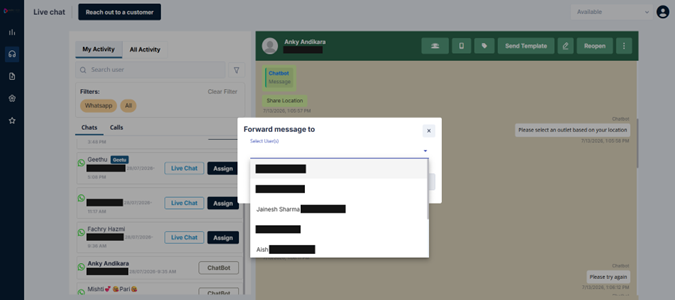
A contact selector appears — search for and select the agent or user you want to forward to
-
Click Send to forward
The message is delivered to the selected recipient's conversation.
Updated 3 months ago