
Introduction
This guide contains chapters organized according to feature usage. The first chapter deals with features and user interface. The second chapter explains commonly used functions. The next two chapters explain sending messages and managing jobs. The fifth chapter details additional functions, and the last chapter explains reports. Data is fictitious or redacted in Google Chrome.
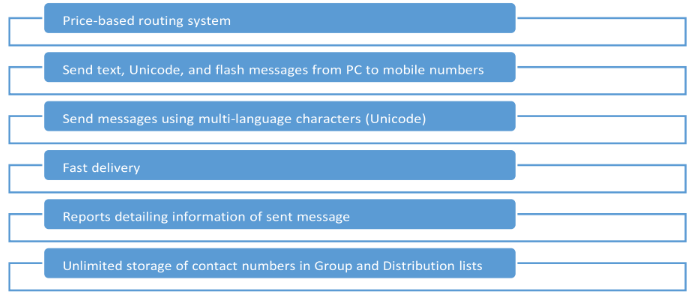
RSms provides an easy way to send SMS messages to multiple mobile numbers. With a few clicks you send text, flash, or Unicode messages to end-users, friends, or employees.
Features
Sign in to RSms
You’ll receive an email containing a link and credentials for the RSms portal. Click the link to view the home page.
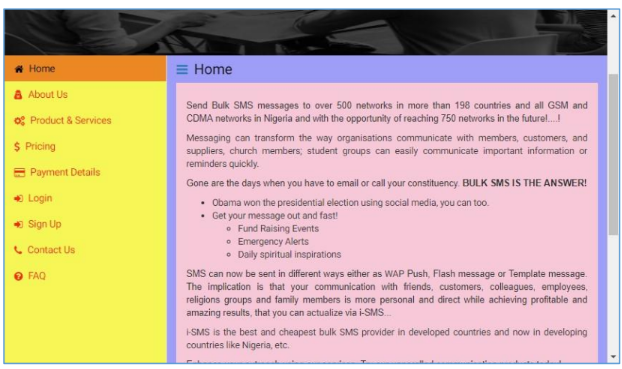
Home Page
A navigation panel on the left of the page helps you browse the website. Click the tabs on the panel to top up your account balance, view product prices, and register an account.
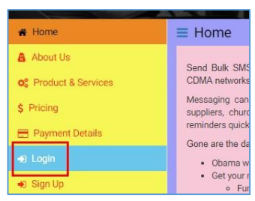
Login Option
You need to sign in to the messaging interface to send messages. On the home page, click the Login tab to display the sign-in page.
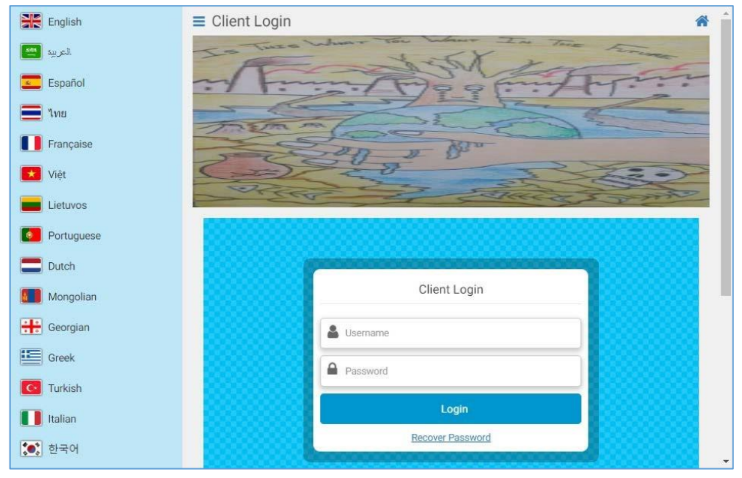
Sign-In Page
Click a language on the language panel to change the website's language. To collapse the language panel, click . To go back to the home page, click the Home icon .
Type your credentials in the Username and Password boxes. Then, click Login to display the messaging interface.
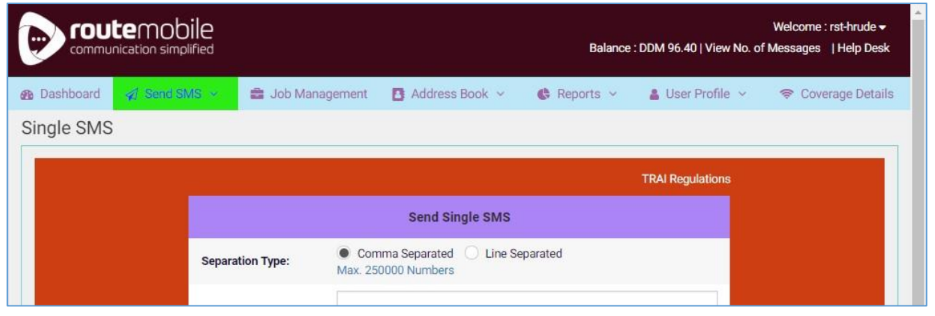
Messaging Interface
User Interface
The messaging interface provides you with controls to manage your messages.
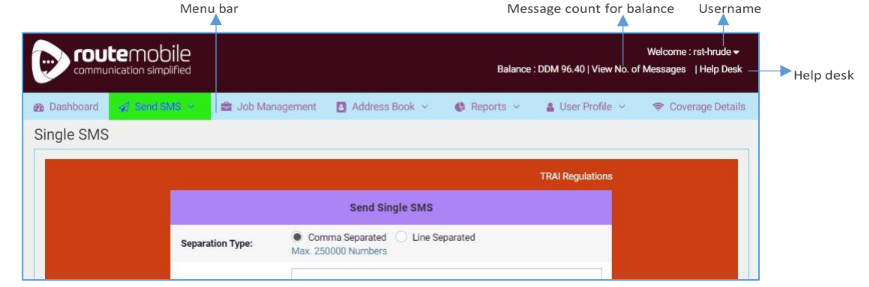
User Interface
The menu bar appears at the top of the page and contains options for managing messages. The interface’s banner contains links that help you view message count and send your queries to the help desk. Click the arrow beside your username and click Logout to sign out and go to the home page.
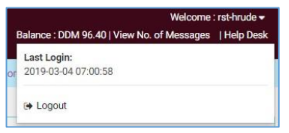
Sign-Out of Interface
Change your Profile
Change your company name, registered mobile number, and your contact person’s name in your profile. From the User Profile menu, click Profile.
In the User Profile subsection, type the new data in the Company, Contact Person, and Mobile Number boxes. Then type your password in the Password box, and click Save.
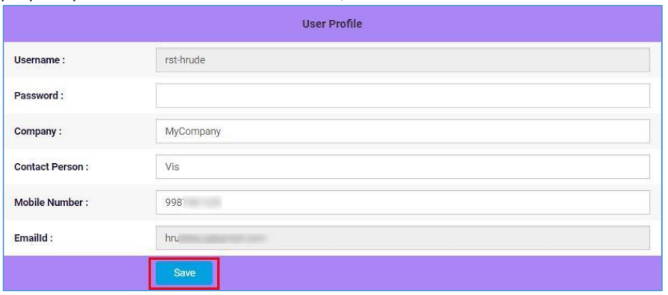
Change User Profile
You cannot change your username and email ID.
If your changes are successfully saved, you’ll see a message as seen in Figure 1.8. Unsuccessfully saved changes show a message as seen in Figure 1.9. Message-related transactions you perform in the interface show similar success and failure messages.

Success Message

Failure Message
Change your Password
Change your account password associated with your profile. From the User Profile menu, click Change Password.
Type your old and new passwords in the Old Password and New Password boxes. Confirm your new password by retyping it in the Confirm New Password box, then click Save.
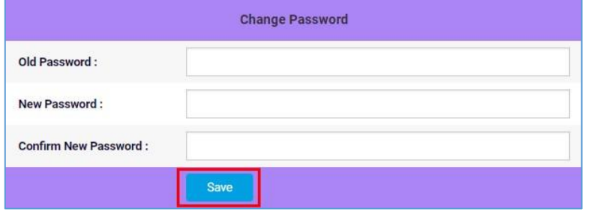
Change Password
Your password needs to be at least five characters in length.
Recover Your Password
If you forget your password, click Recover Password on the sign-in page.
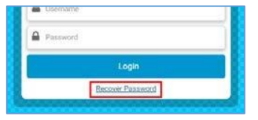
Recover Password
In the Recover Password window, type your username, and the displayed code. Then click Recover. The system emails your password to your registered email address.
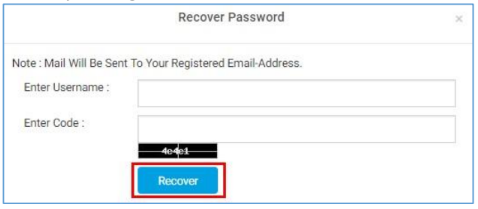
Recover Password Window
Email Help Desk
Reach out to us anytime you need answers to your questions. Email us your questions from the main website or after you sign in to the messaging interface.
Submit questions from website
Click Contact Us to display the Contact Us page. Type your information in the text boxes under the Enquiry Details subsection, and click Send.
The system sends an email about your query to us directly.
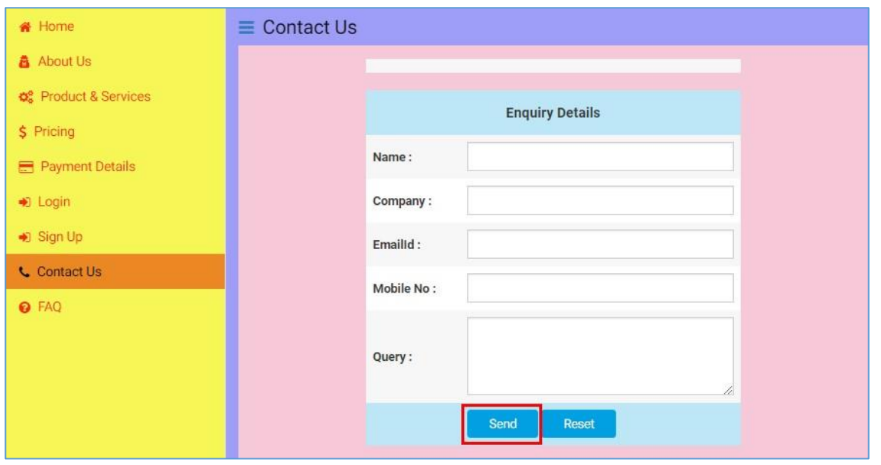
Send Enquiries from Main Website
Submit questions from messaging interface
You can send your questions to us even when you are signed in to the messaging interface.
Click Help Desk on the interface’s banner to start your email client. The system automatically populates the To field in the client with our email address. Type your questions in the email’s body, and click Send.
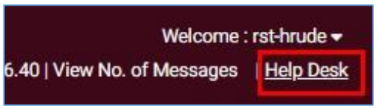
Send Enquiries from Interface
Updated 2 months ago