
Filtering Dashboard Data by Date Range
Follow the steps below to filter dashboard data by date range:
-
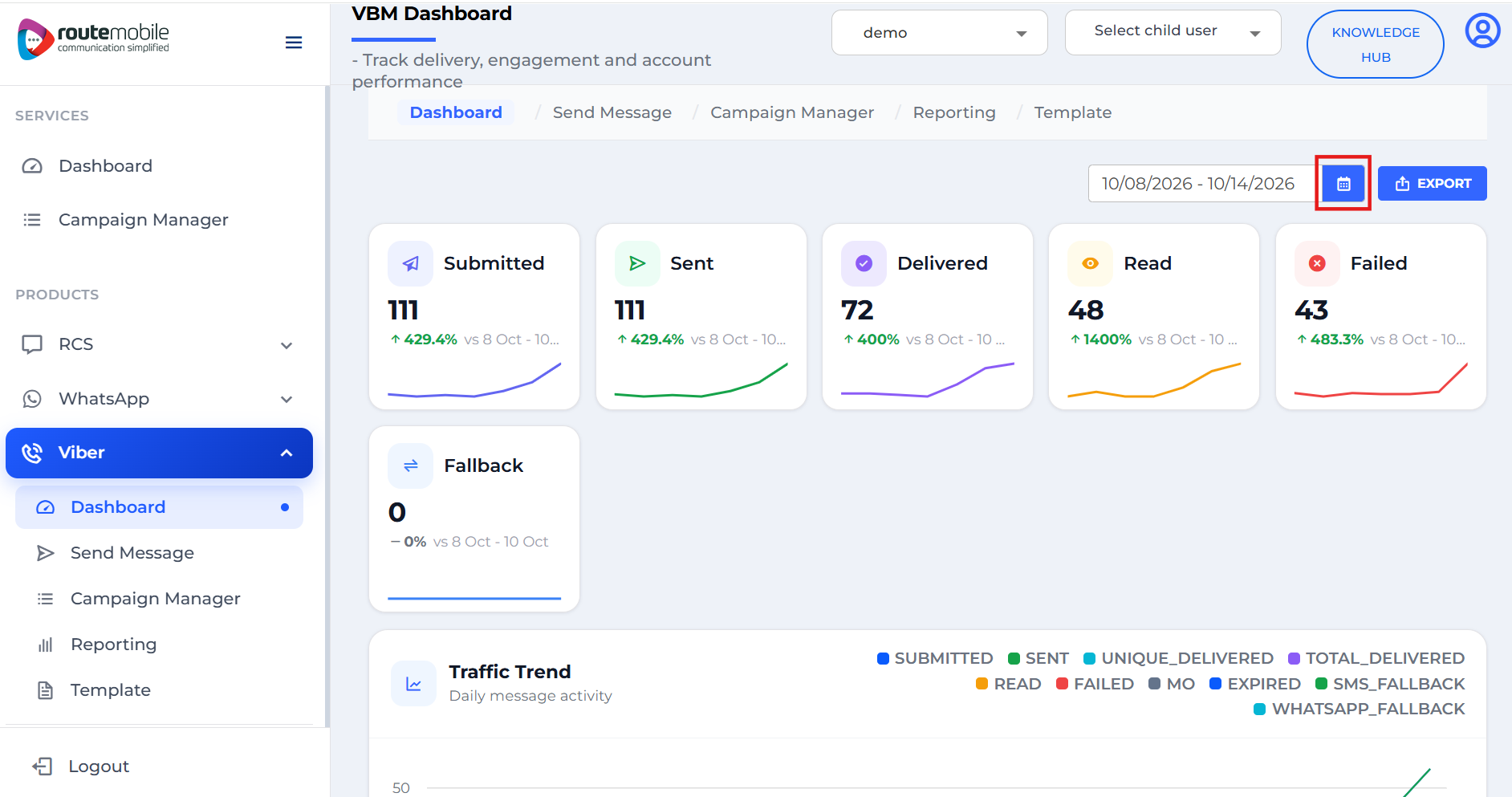
Click the Calendar icon next to the date range displayed at the top-right of the dashboard.
-
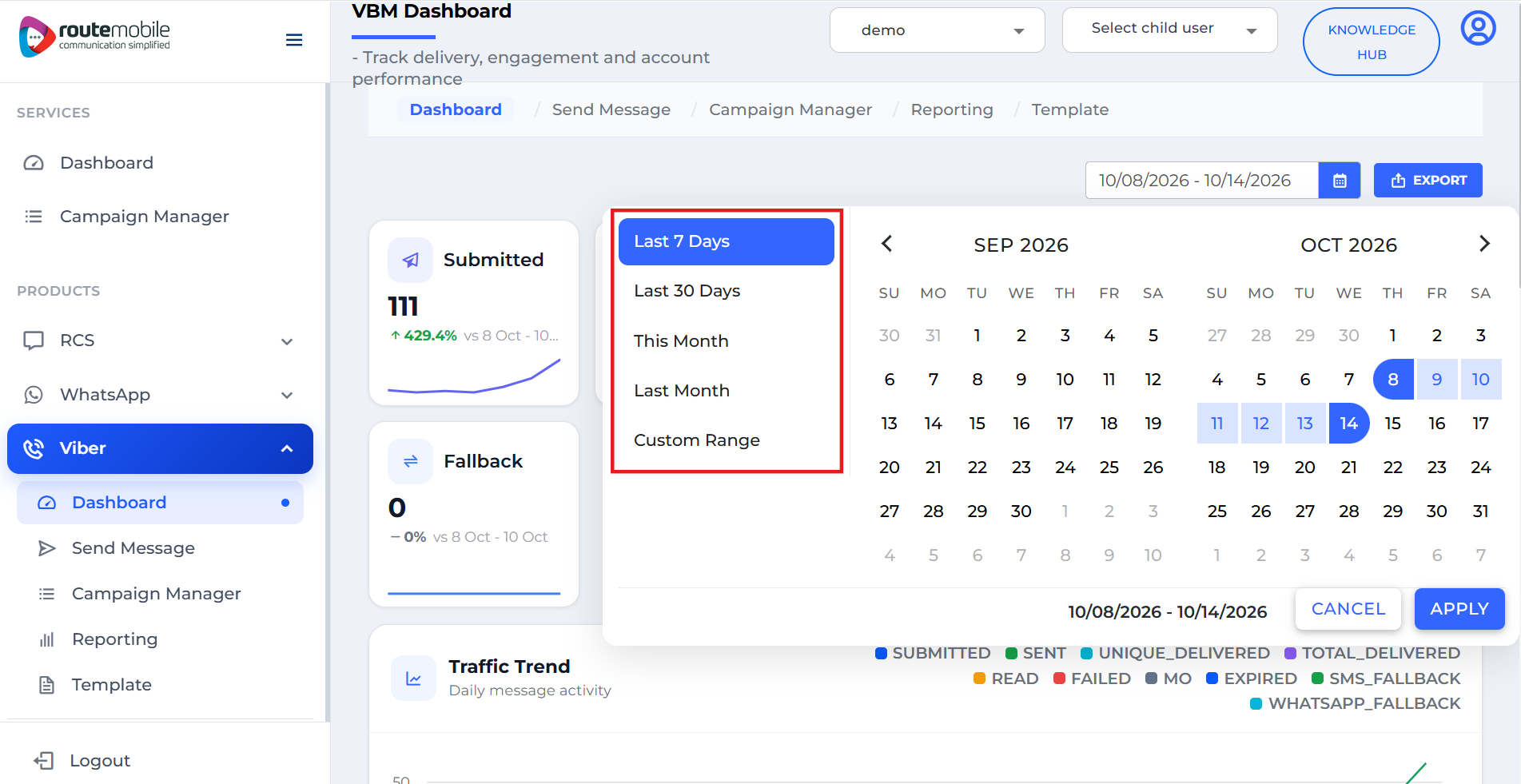
Select one of the available date range options, such as Last 7 Days, Last 30 Days, This Month, or Last Month. You can also select Custom Range to choose a specific start and end date from the calendar.
-
The dashboard automatically updates to display the messaging metrics and performance data for the selected date range.
-
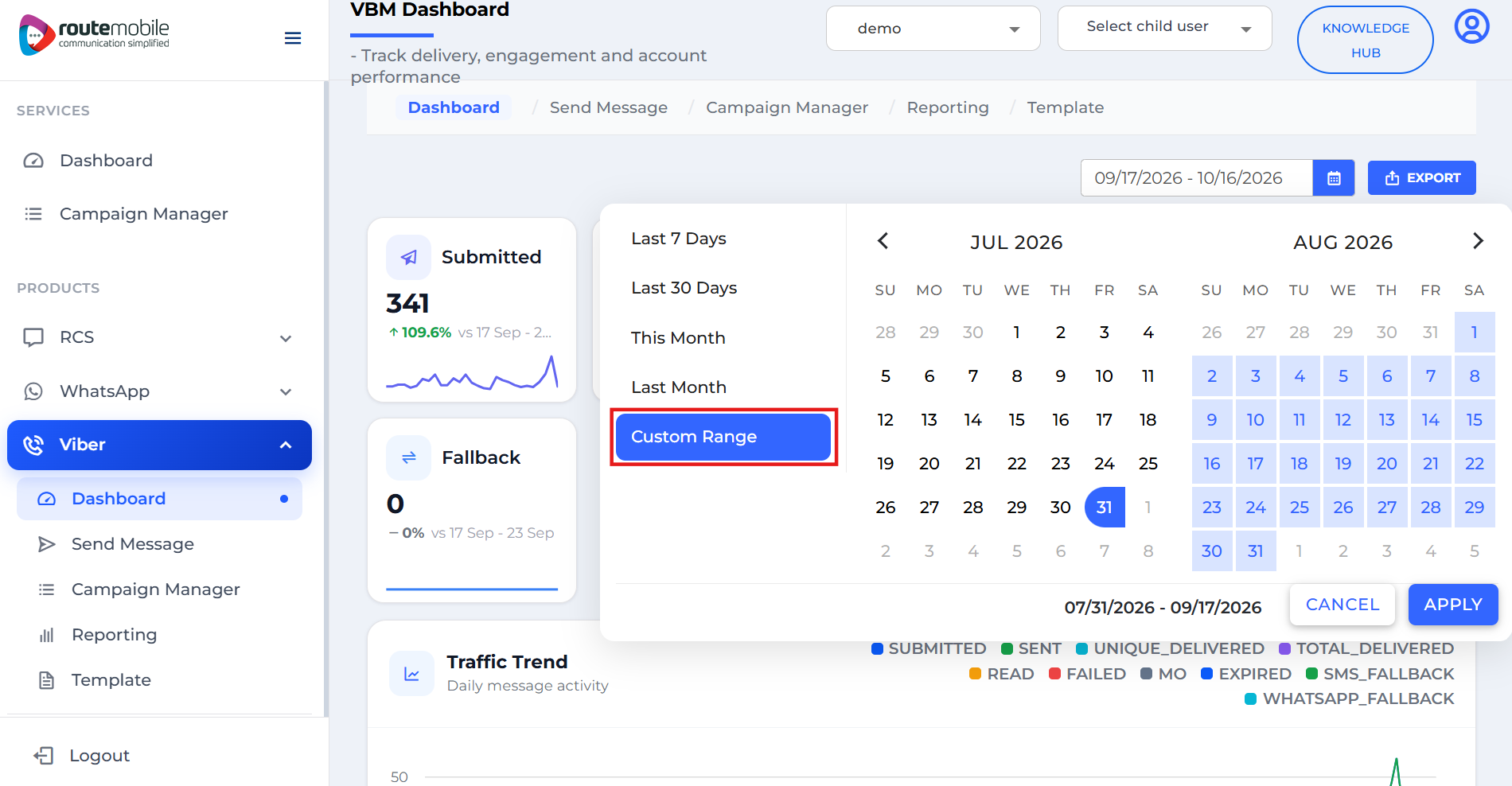
For a custom date range, select the required start and end dates from the calendar.
-
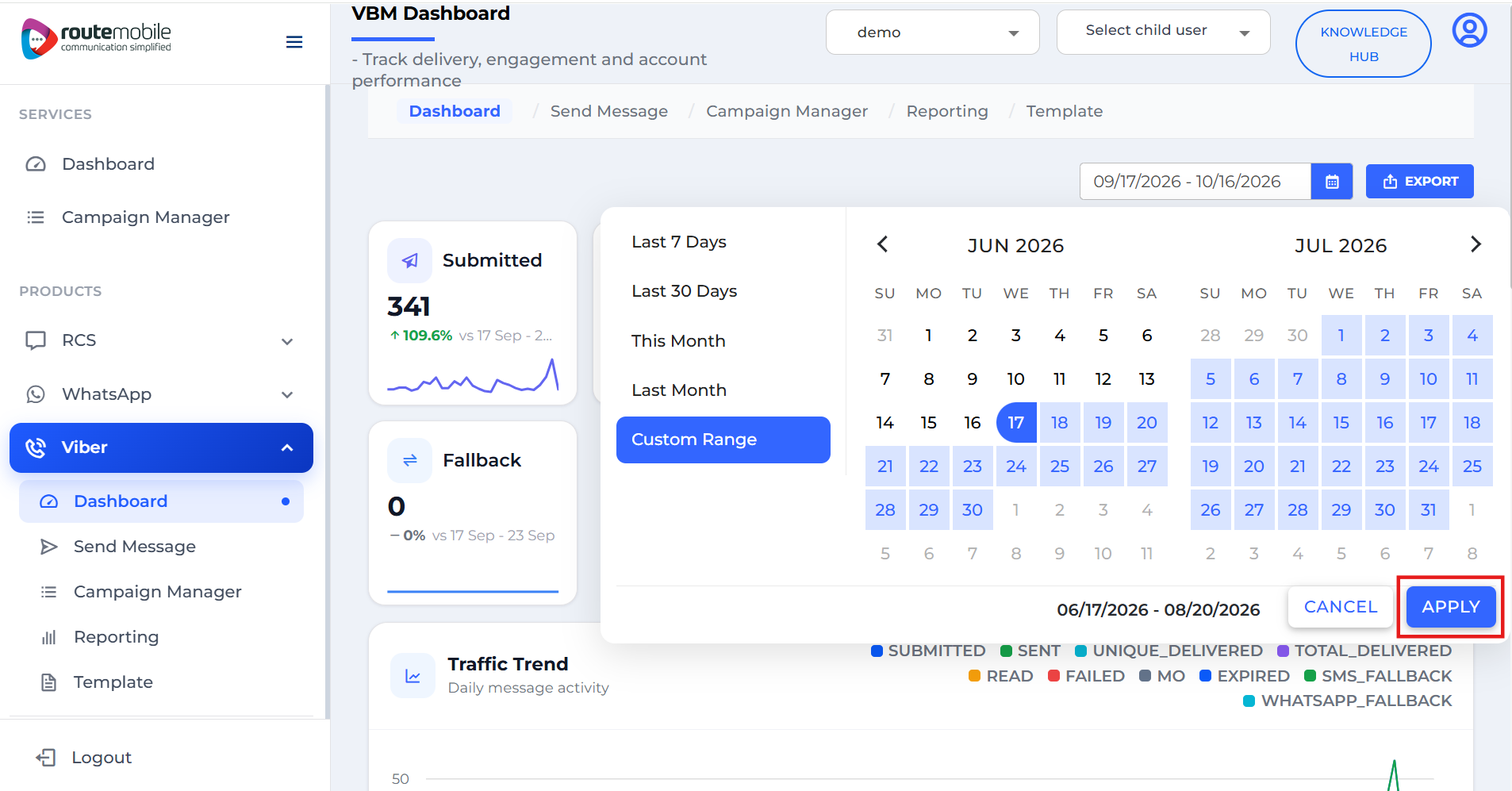
Click Apply to apply the selected date range.
-
The dashboard updates to display the messaging metrics and performance data for the selected period, including Submitted, Sent, Delivered, Read, Failed, and Fallback messages, along with the Traffic Trend chart, Message Category Breakdown, Media Analysis, & Top Campaigns.
Updated 7 days ago