
Home & Dashboard
Use the Home & Dashboard page to view platform-level activity, channel performance, campaign status, and recent campaign reports.
Dashboard overview
After you log in, Ocean displays the default home page with dashboard information for the platform.
From the dashboard, you can:
- Click New Campaign from Campaigns to create a campaign.
- View Journeys, the Marketing Automation tool currently in beta.
- Click New Template from Templates to create a template.

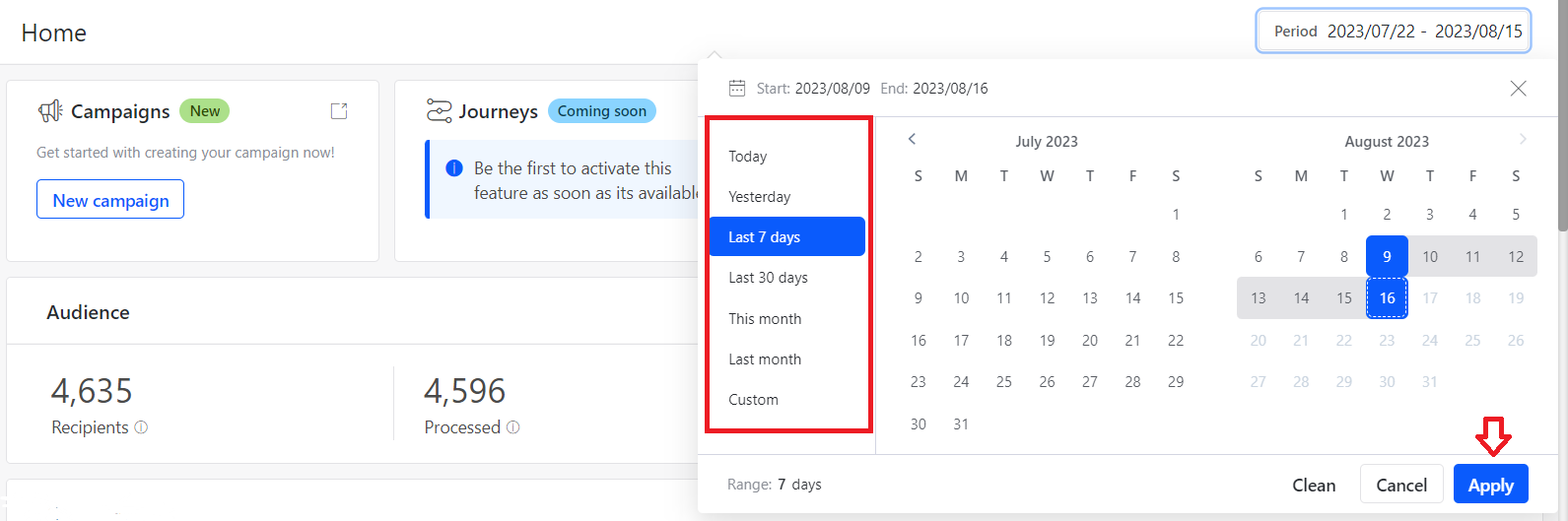

Dashboard summary cards
Use the dashboard summary cards to review campaign processing and recipient counts for a selected period.
| Field | Description |
|---|---|
| Period | Select a predefined date range or custom date range to view data for a specific period. |
| Audience / Recipients | Shows the total number of people who received messages. |
| Processed | Shows the number of people for whom messages were processed. |
| To be processed | Shows the number of people for whom messages are still pending processing. |
| Not Processed | Shows the number of people for whom messages were not processed. |
Channel analytics
Use the channel analytics section to review performance across communication channels.
| Section | Description |
|---|---|
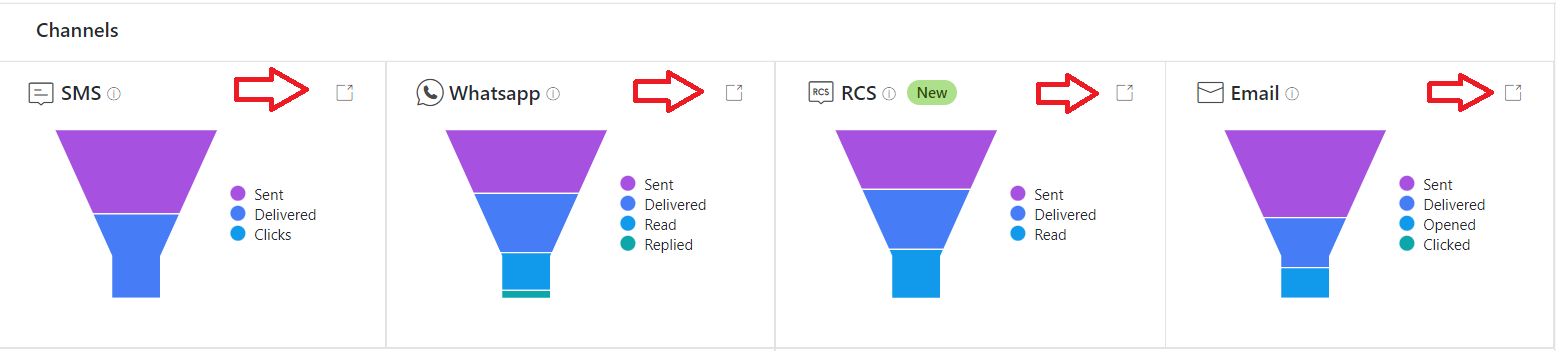
| Channels | Shows channel-wise counts for Sent, Delivered, Opened, Clicked, Read, and Replied communications. |
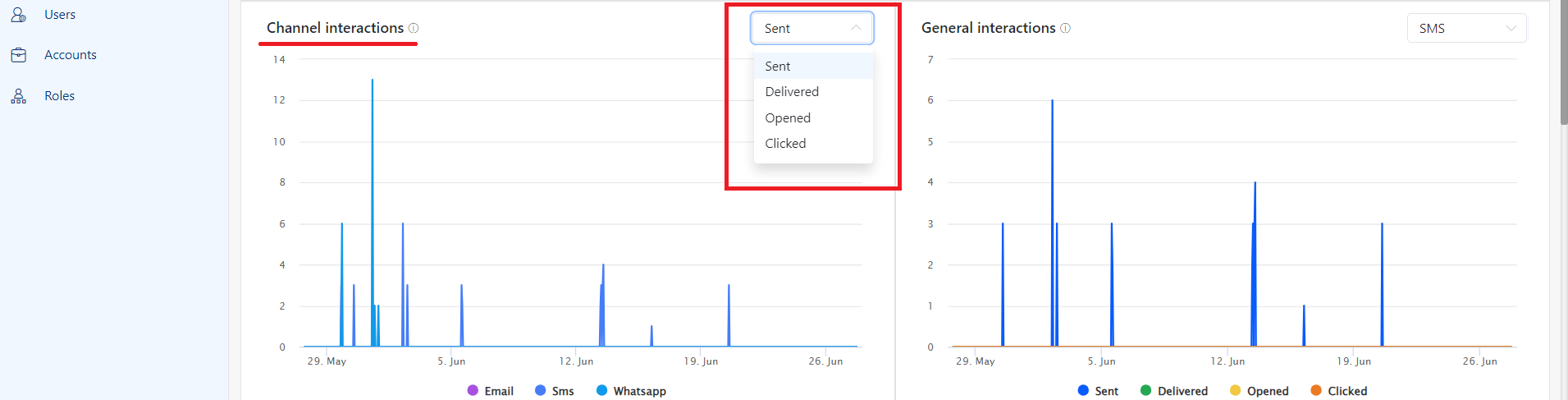
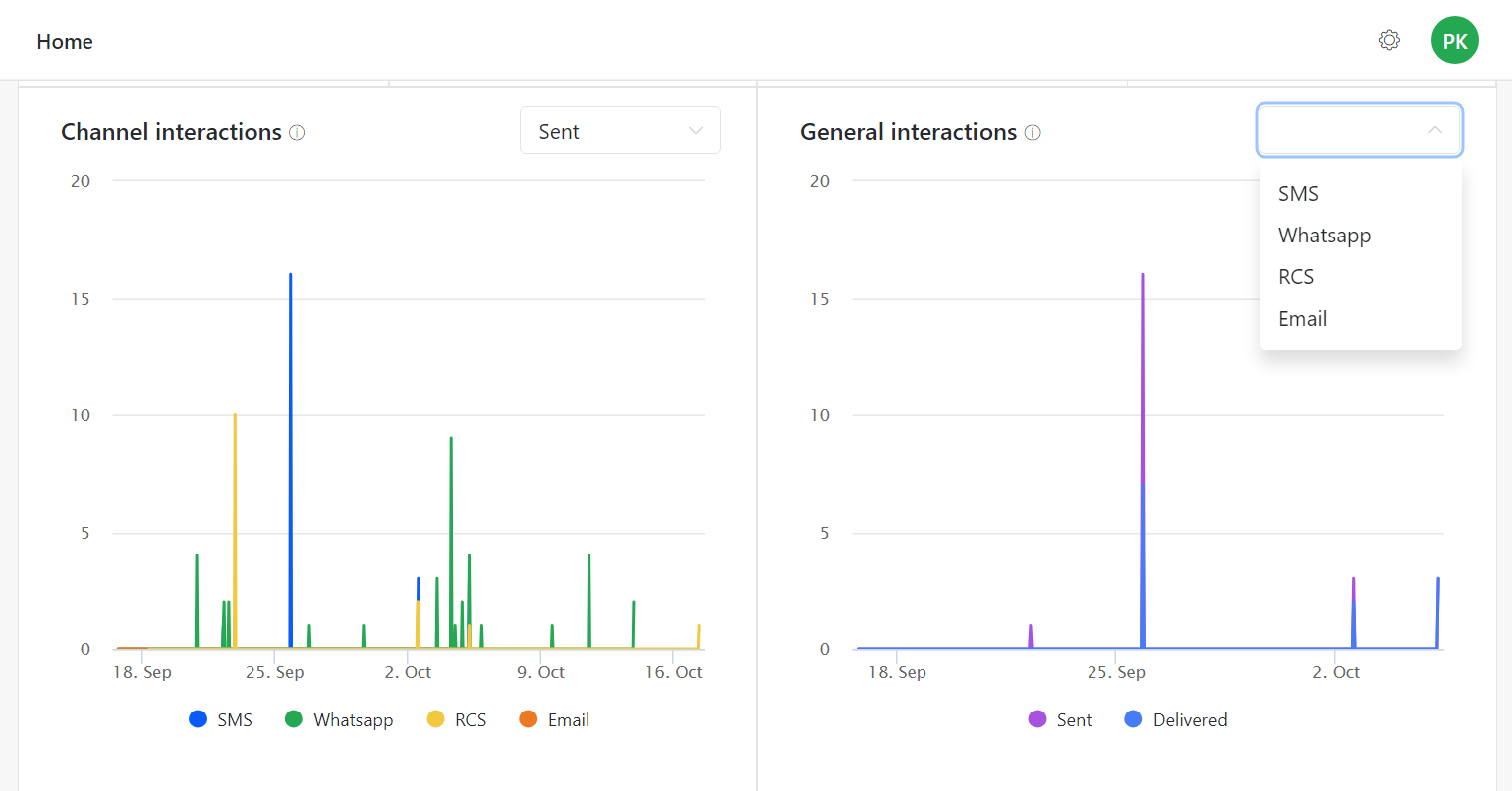
| Channel Interactions Graph | Shows the total number of responses across channels by date. You can filter by Sent, Delivered, Opened, and Clicked. |
| General Interactions Graph | Shows the cumulative number of messages by date. You can filter by SMS, Email, RCS, and WhatsApp. |
Last 10 campaigns
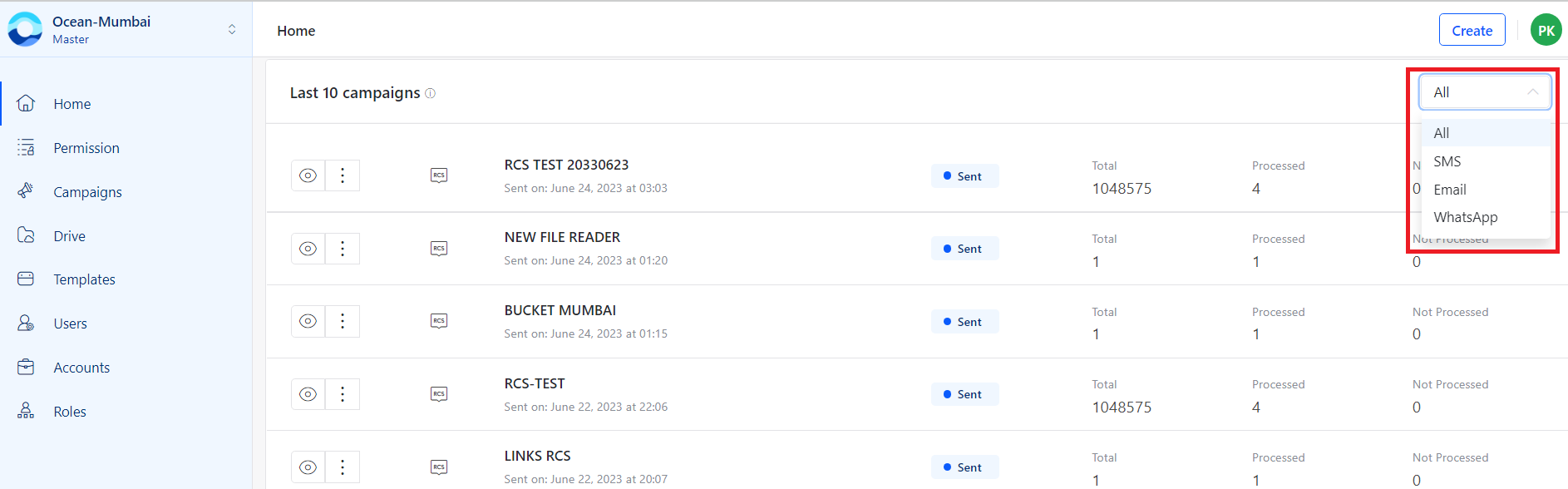
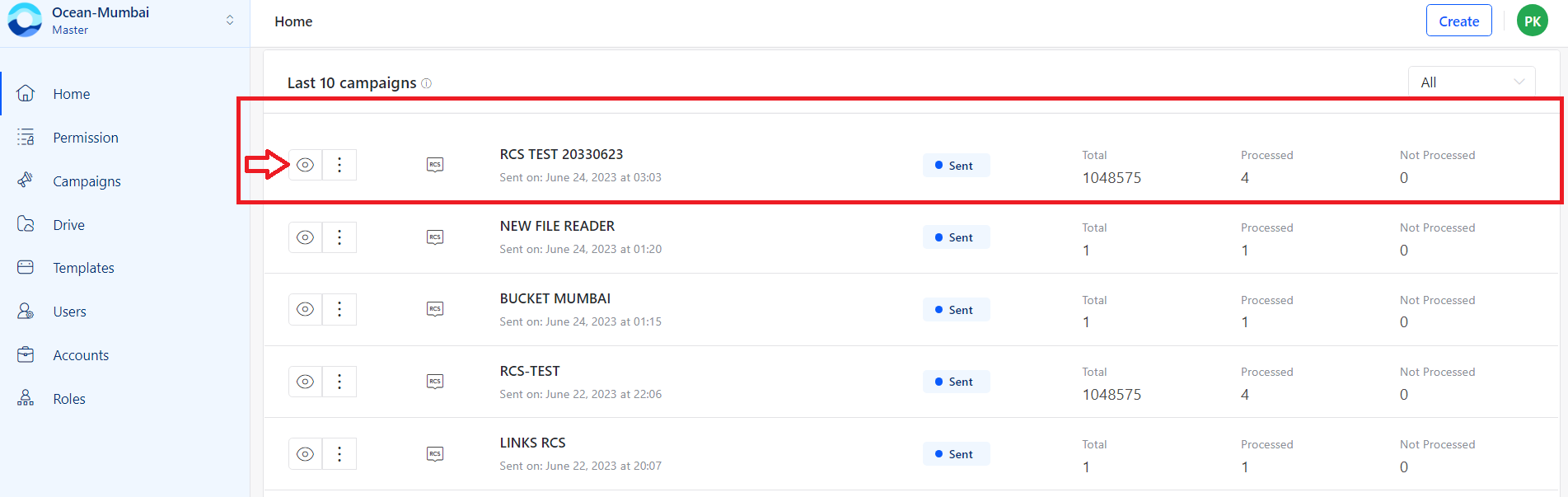
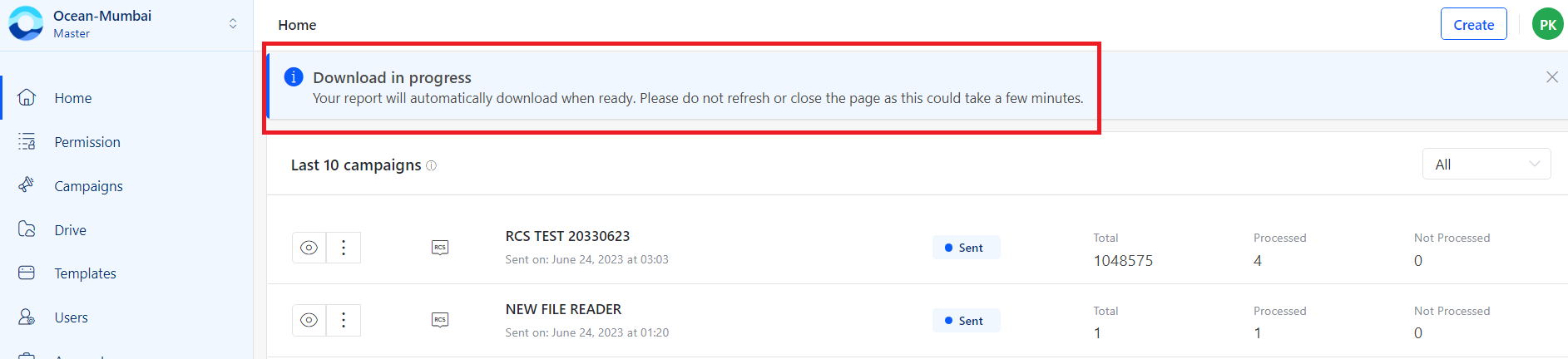
Use the Last 10 campaigns section to view the most recent campaigns performed from the account.
This section displays:
- Total messages
- Processed messages
- Not processed messages
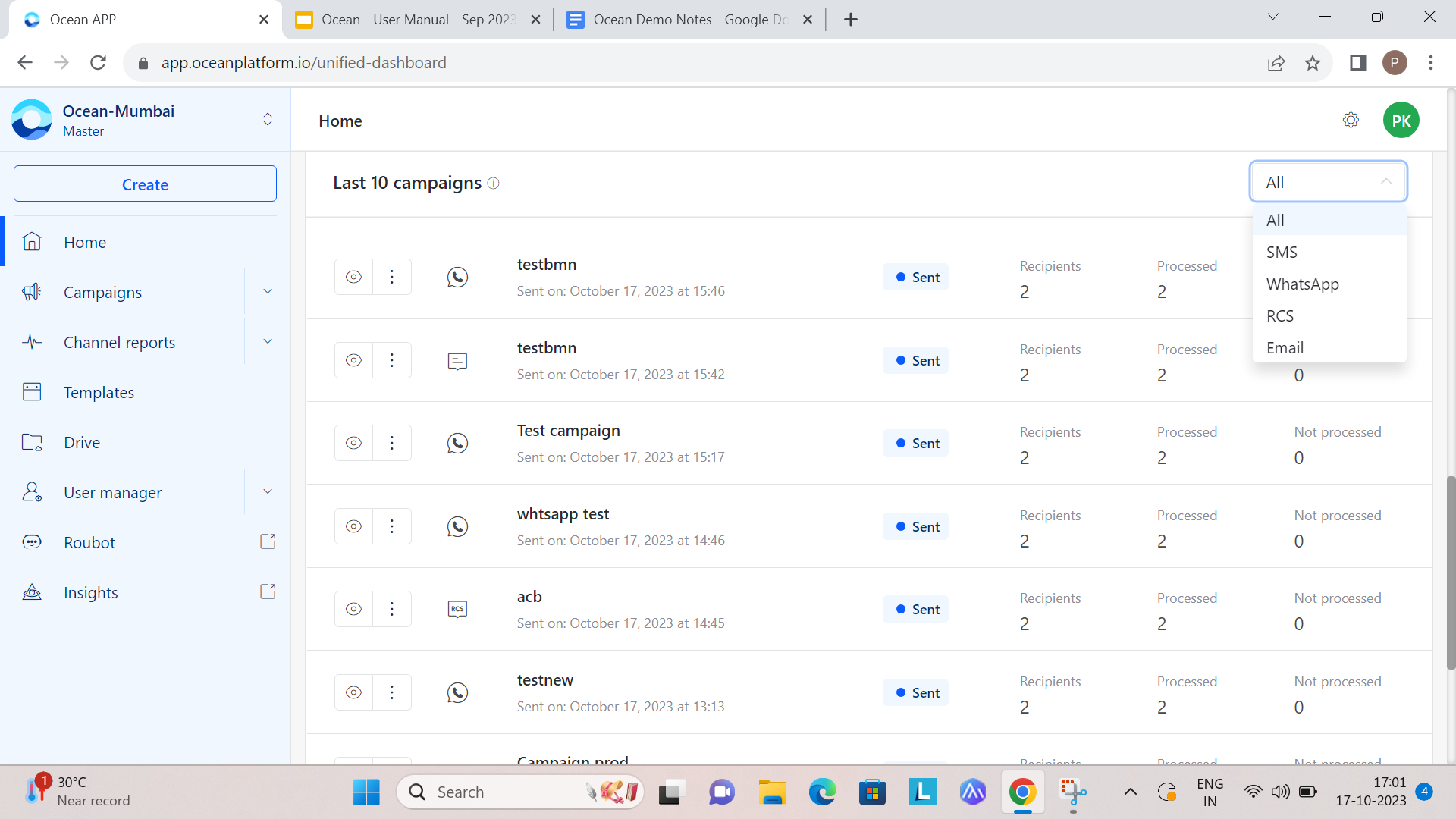
You can use the channel filter to view campaign data for a specific channel.
Export campaign report
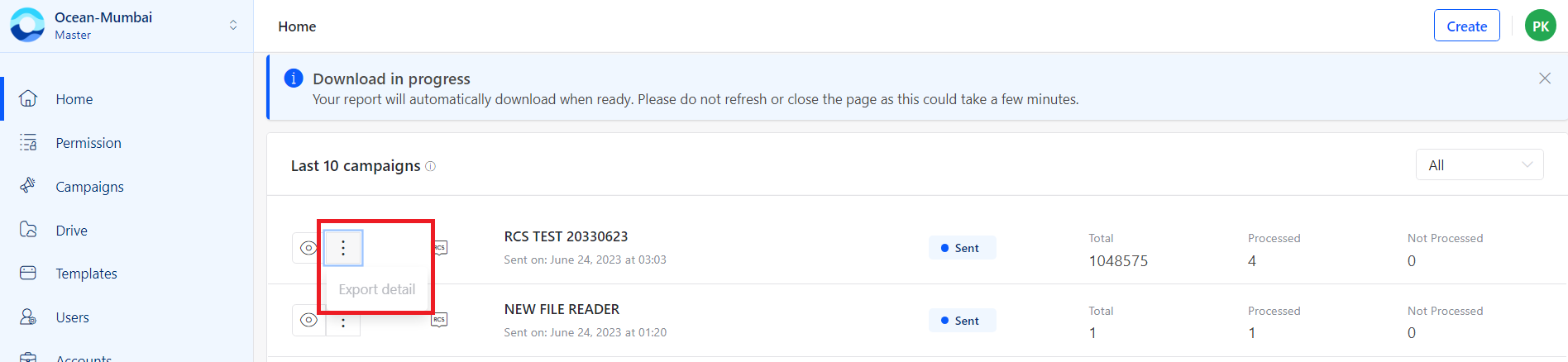
Use the campaign action menu to download a campaign report.
To export a campaign report:
- Click the menu icon for the campaign.
- Click Export detail.
- Wait while the system generates the report. A Download in progress message appears.
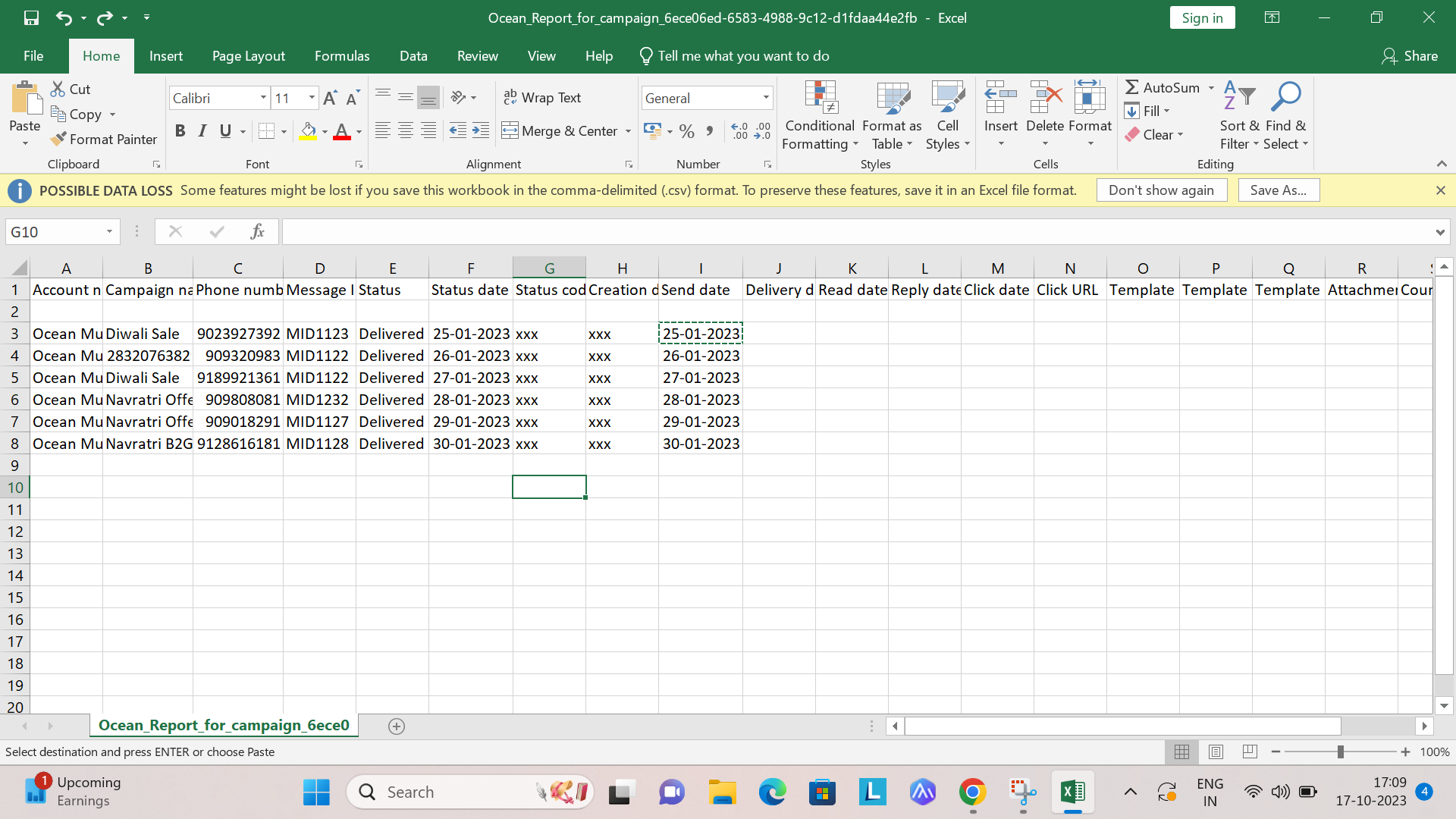
- Download the campaign report as an Excel file and save it to your system.
Updated 3 months ago
Did this page help you?