
How a Chat Request Reaches You
The Full Journey
It's helpful to understand the complete path a chat takes before it lands in your panel. This isn't just background information — knowing the flow helps you make better decisions about how to respond and what to do next.
| Stage | What Happens | What You See |
|---|---|---|
| 1 | Customer sends a message | A customer reaches out via WhatsApp (or another enabled channel). Their message enters the ROUBOT system. |
| 2 | Bot takes over | The automated chatbot greets the customer and begins the conversation flow — gathering information, answering standard queries, and routing intent. |
| 3 | Escalation to a Live Agent | When the bot determines the customer needs human support (either based on the conversation flow or the customer's explicit request), it triggers a handoff to the live agent pool. |
| 4 | Request appears in your panel | A new chat card appears in your left panel under My Activity. You'll see the customer's name, phone number, and two action buttons: Accept and Assign. |
| 5 | You take action | You either accept the chat (taking ownership) or assign it to another agent. Once accepted, the conversation opens in the right panel and you're live with the customer. |
| 6 | Conversation plays out | You and the customer exchange messages. You can place the chat on hold if needed, send templates, attach files, and more. |
| 7 | Resolution or expiry | When the issue is resolved, you click Resolve. If no action is taken within 24 hours of the chat first being accepted, it moves to Unresolved and is classified as Agent Drop or User Drop. |
The 24-hour clock: The session window is 24 hours from the moment the chat was first accepted — not from your last message. This window does not reset when you place a chat on hold or reassign it. It is a fixed countdown from first acceptance. Keep this in mind when managing chats that have dependencies or require[6.1] customer follow-up.
Incoming Requests — Accept and Assign
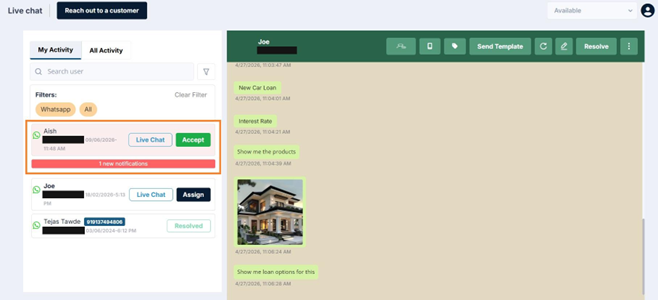
When a new chat request arrives for you, it shows up as a card in your left panel. You'll notice the status area of that card has two buttons on it. These are the two actions you can take on any incoming request:
The Accept Button
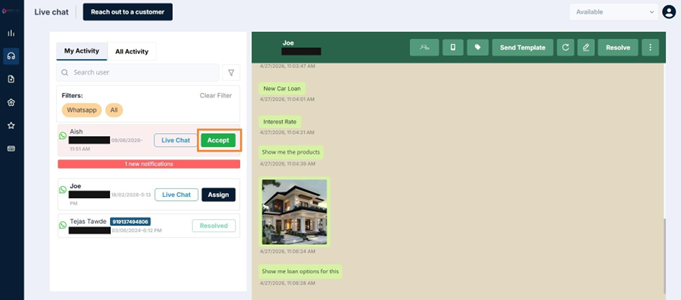
Clicking Accept means you're taking ownership of this conversation. The chat is now yours. The moment you click Accept:
- The status changes from a new request to Live Chat
- The conversation opens in the right panel, ready for you to respond
- The customer is notified (via an automated system message) that they've been connected to a support agent
- The chat appears under your ‘My Activity’ list with a Live Chat badge
From this point, you're in the conversation. The customer is waiting and can see that an agent has joined.
Best practice: Accept a chat only when you're ready to engage. If you're in the middle of something, it's better to assign the chat to another agent than to keep a customer waiting after they've been told an agent has connected.
The Assign Button
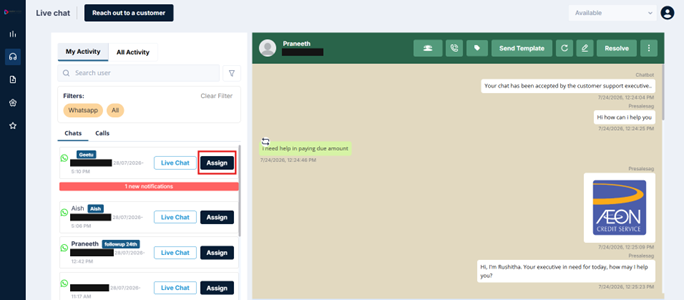
Clicking Assign lets you transfer this incoming request to another agent or team — without accepting it yourself first. This is useful when:
- You're currently occupied with a higher-priority conversation and this request would be better handled by an available agent
- The request is better suited to a different department or specialist
- A supervisor has directed you to route specific requests elsewhere
When you click Assign on an incoming request:
-
A transfer dialog opens, allowing you to select the agent or team you want to route this to.
-
The request moves out of your panel and into the selected agent's incoming queue.
-
You will no longer see it in your My Activity list unless it is specifically re-routed back to you.
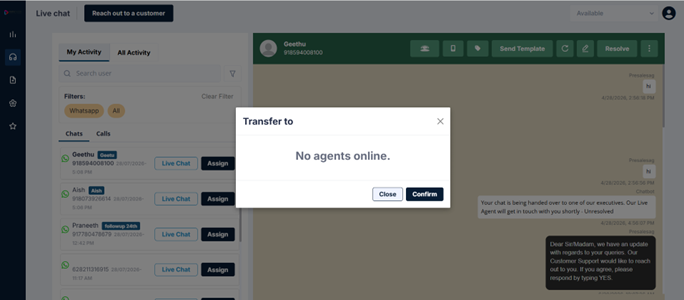
Note: Assigning an incoming request (before you accept it) is different from reassigning a chat that's already in progress. Both are possible in ROUBOT.
Tip: In the event of reassigning a chat mid-conversation, it's good practice to add an internal Note(hyperlink to note section) summarising where the conversation stands and any relevant context. This saves the new agent from having to read through the entire thread to catch up.
Updated 3 months ago