
Dashboard Cards and Analytics
Once you select a date range, the dashboard displays the messaging metrics and performance data for the selected period. The dashboard includes summary cards, charts, and campaign details to help you monitor message activity and delivery performance.
1. Summary Cards
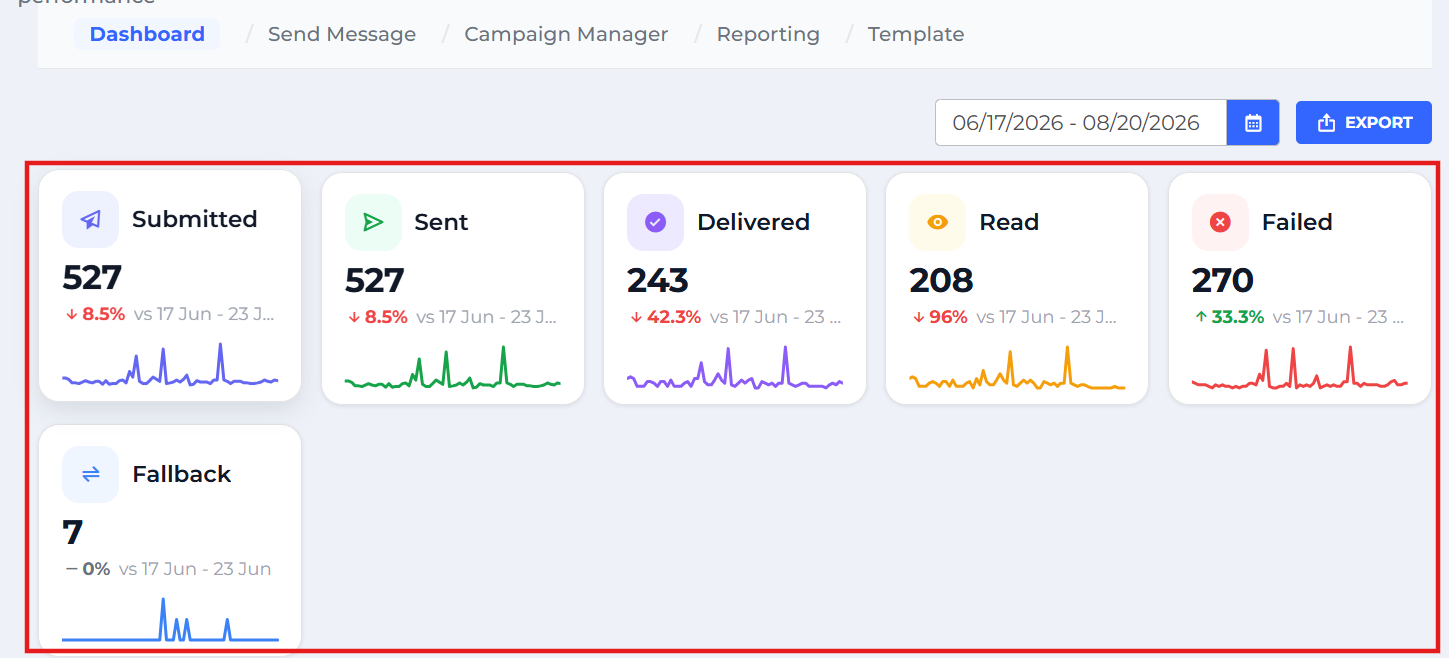
The summary cards display the total number of messages for each status during the selected date range, along with the percentage change compared with the previous period.
Submitted
Displays the total number of messages submitted to the messaging platform for processing. The card also shows the percentage change compared with the previous period and a small trend line indicating changes in submission activity.
Sent
Displays the total number of messages sent from the platform. The percentage change and trend line help you monitor sending activity over the selected period.
Delivered
Displays the total number of messages successfully delivered to recipients. The card also shows the percentage change compared with the previous period and a trend line representing delivery activity.
Read
Displays the total number of messages reported as read by recipients. The percentage change and trend line help you track recipient engagement.
Failed
Displays the total number of messages that failed to be delivered or processed successfully. The percentage change and trend line help you monitor variations in message failures.
Fallback
Displays the total number of messages that used a fallback delivery method. The card also shows the percentage change and a trend line for fallback activity. The available fallback types are shown in the Traffic Trend chart legend.
2. Traffic Trend
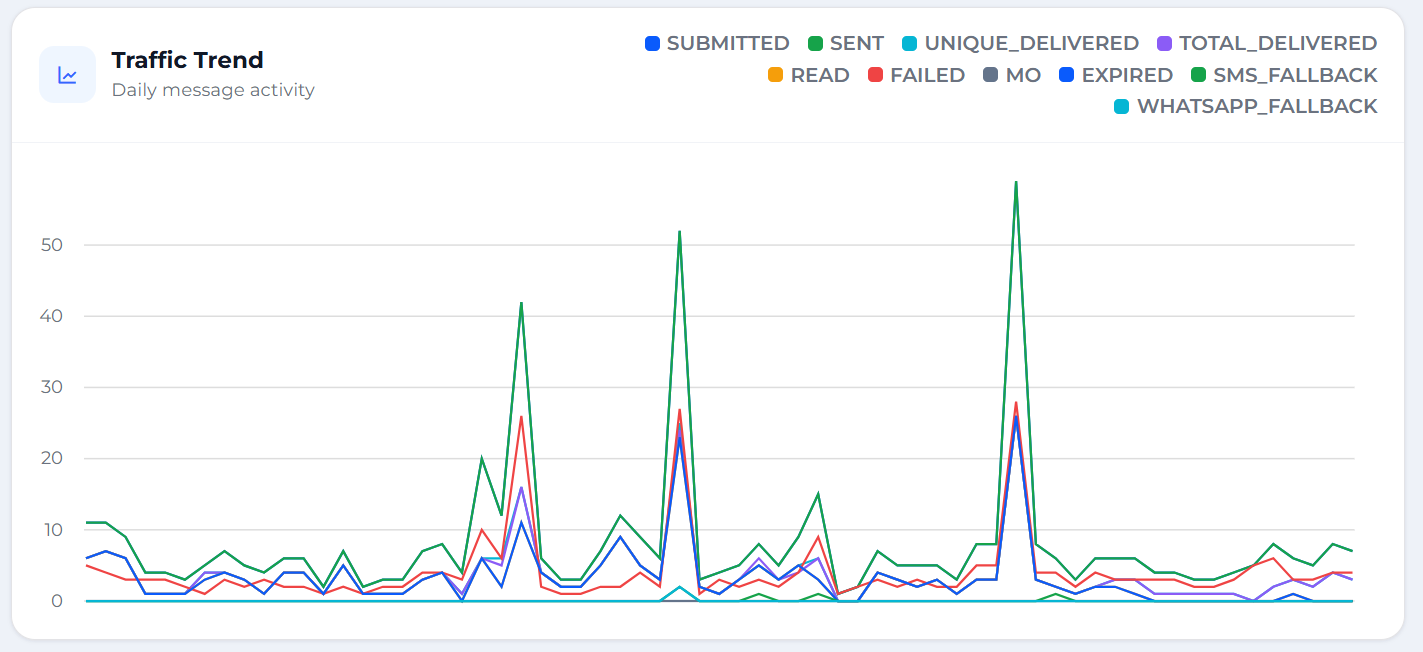
The Traffic Trend chart displays daily messaging activity over the selected date range. It uses separate colored lines to represent metrics such as Submitted, Sent, Unique Delivered, Total Delivered, Read, Failed, MO, Expired, SMS Fallback, and WhatsApp Fallback.
Use the chart to compare message activity across days, identify changes in delivery performance, and monitor trends in successful and failed messages.
3. Message Category Breakdown
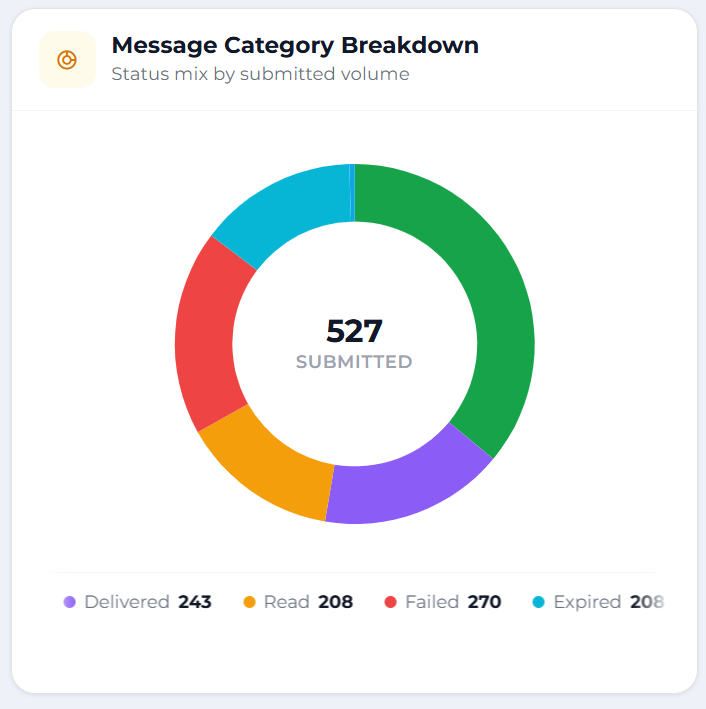
The Message Category Breakdown chart displays the distribution of message statuses by submitted volume. The doughnut chart shows the total submitted messages in the centre, with different colored segments representing categories such as Sent, Delivered, Read, Failed, and Expired.
Use this chart to understand how submitted messages are distributed across the available message statuses.
4. Media Analysis
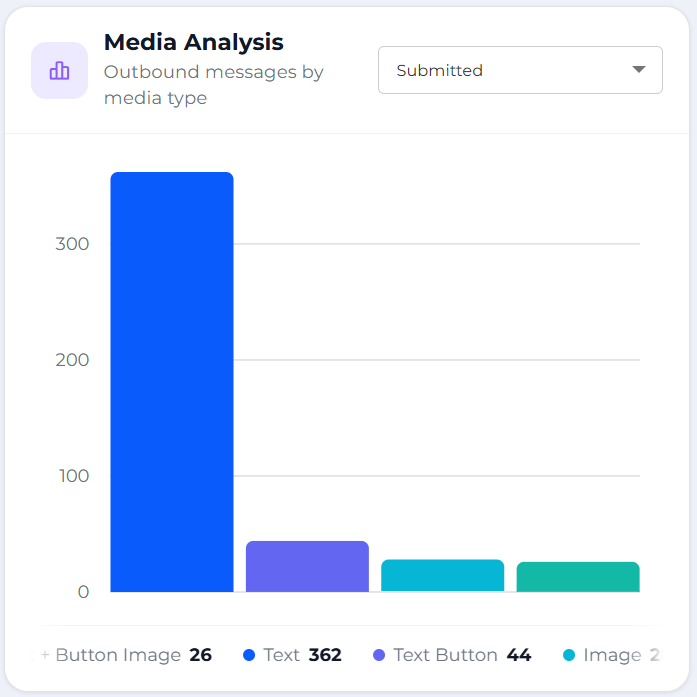
The Media Analysis chart displays outbound messages by media type for the selected metric.
- Click the dropdown at the top-right of the Media Analysis section.
- Select a metric, such as Submitted.
- The chart updates to display the corresponding message counts by media type, such as Text, Image, Text + Button, and other available formats.
Use this chart to understand the types of media used in outbound messaging and compare their message volumes.
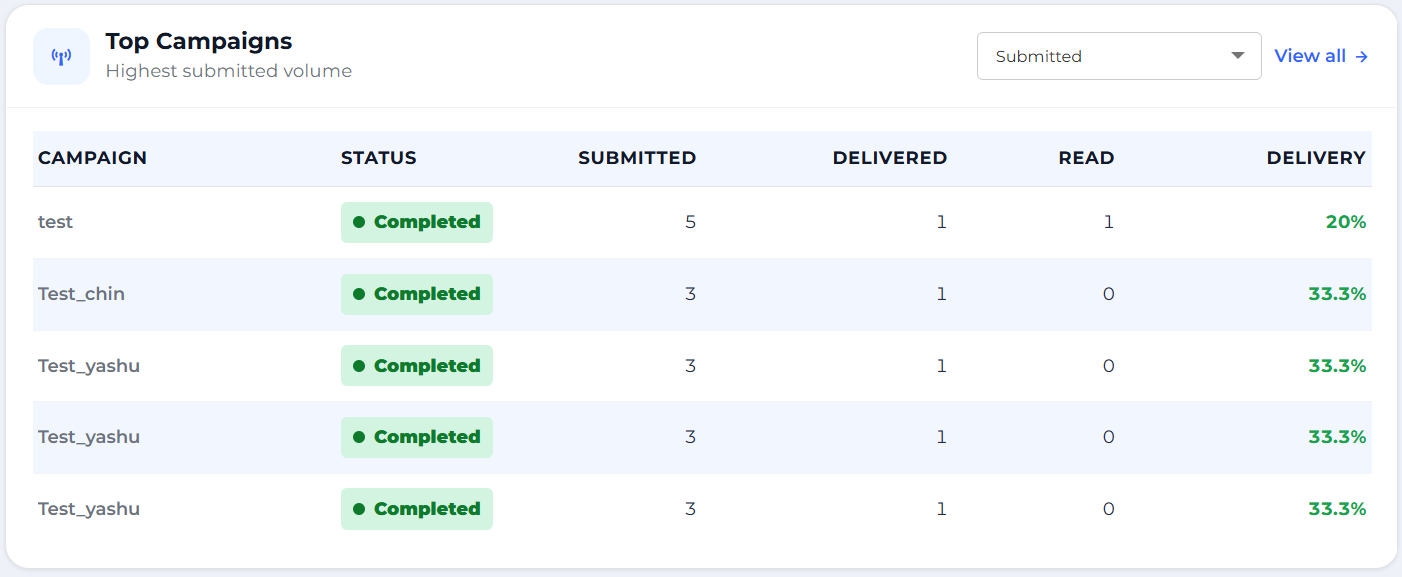
5. Top Campaigns
The Top Campaigns section displays campaigns with the highest message volume for the selected metric. The table includes campaign details and performance indicators.
| Campaign: | Displays the campaign name. |
| Status: | Displays the current campaign status, such as Completed. |
| Submitted: | Displays the number of messages submitted for the campaign. |
| Delivered: | Displays the number of messages delivered successfully. |
| Read: | Displays the number of messages reported as read. |
| Delivery: | Displays the delivery rate as a percentage. |
Use the dropdown to change the metric used to rank campaigns. Click View all to access the complete campaign list, if available.
Updated 7 days ago